Every Feature of the Wheel of Names Spin Wheel, Explained
A complete, plain-language guide to how the wheel spinner actually works, and why each feature exists.
Last updated: November 2, 2026
You should read this because every feature below is live in the app today, not a wish list, and knowing they exist means you get more out of the wheel than a default spin and a plain list of names.
This guide walks through every feature of the wheel spinner: the physics behind each spin, entry customization, sound and confetti, sharing and the public gallery, AI generation, themed templates, offline support, and the built-in fairness audit.
Each feature explains what it does and why it exists, in plain language, organized into twelve groups so you can jump straight to the part you care about.
Wheel Mechanics & Physics
The wheel runs on a canvas-based physics engine built for this app, not a generic animation library. These are the mechanics that decide how a spin actually feels and lands.
Physics-based spin
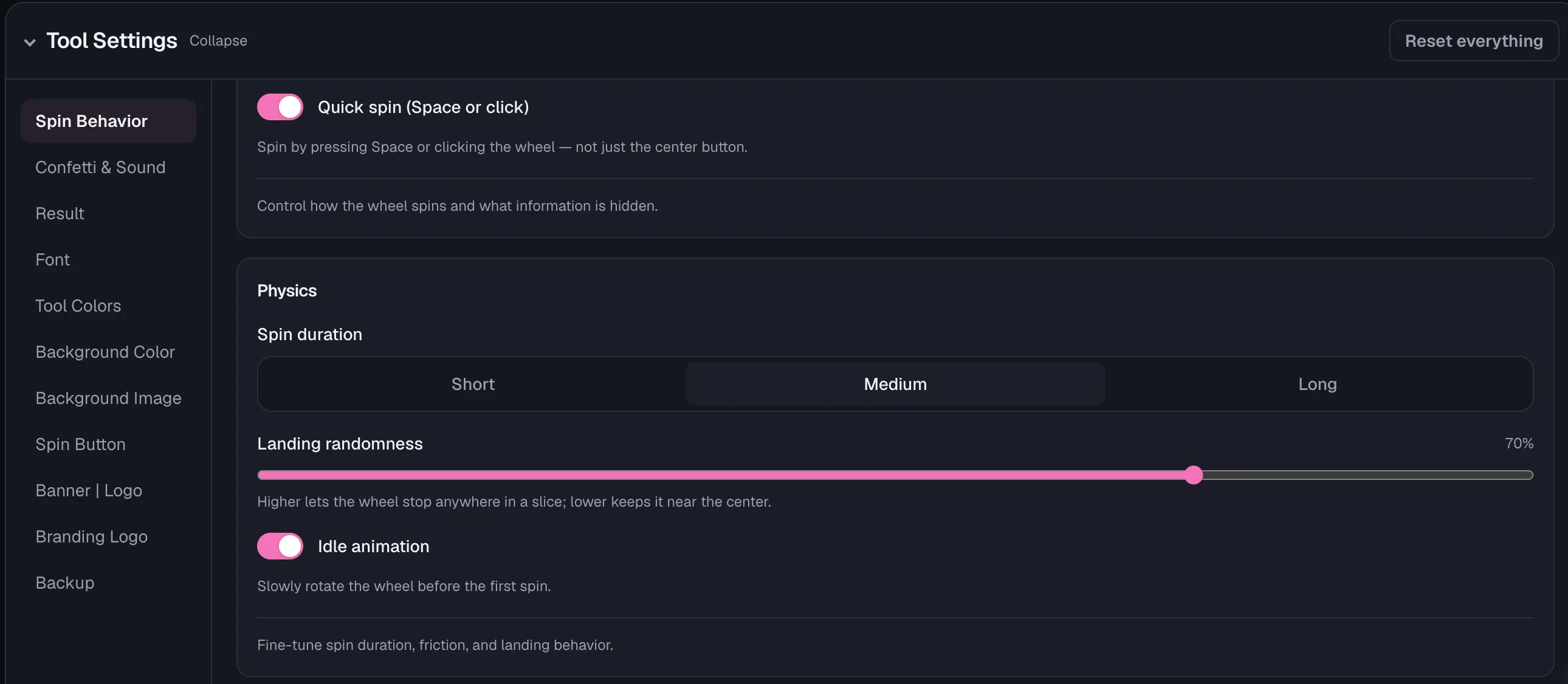
The wheel spins using a real physics simulation, drag, friction, and a small wobble as it slows down, not a canned CSS animation.
Each spin plays out a little differently, which is what makes the result feel like an actual spin instead of a scripted reveal.
A fixed-duration animation would look the same every time and feel fake for raffles or classroom picks.
Physics-based motion also lets you tune spin length and landing randomness separately, so the wheel matches how dramatic you want the reveal to feel.
Weighted outcomes
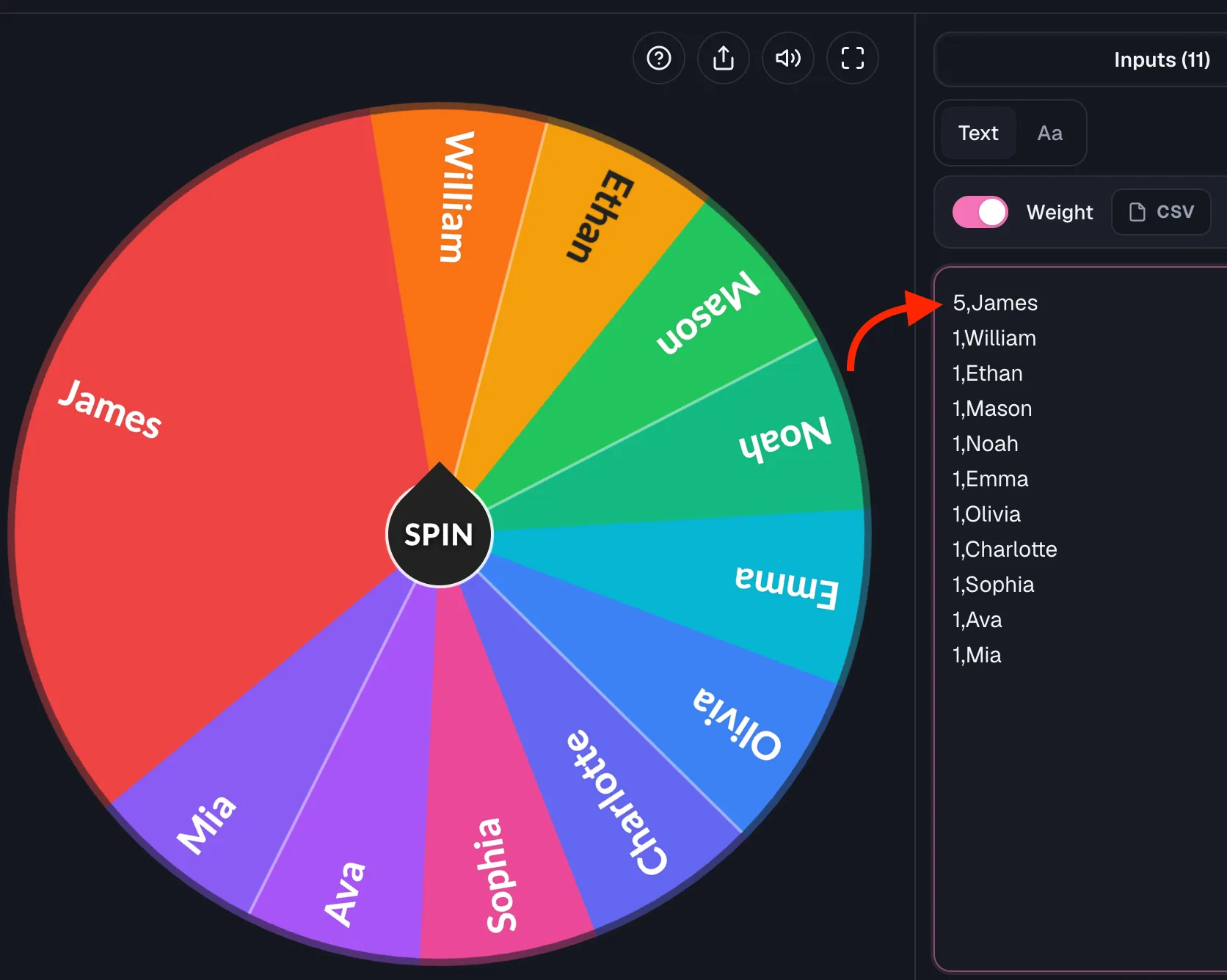
Weighted slices let you give some entries better odds than others by setting a weight on each one.
A higher weight makes both the slice bigger and the entry more likely to win, without duplicating names to fake the odds.
The weight column is ready on every new wheel, sitting quietly at 1 until you change it, so a weighted row stands out at a glance.
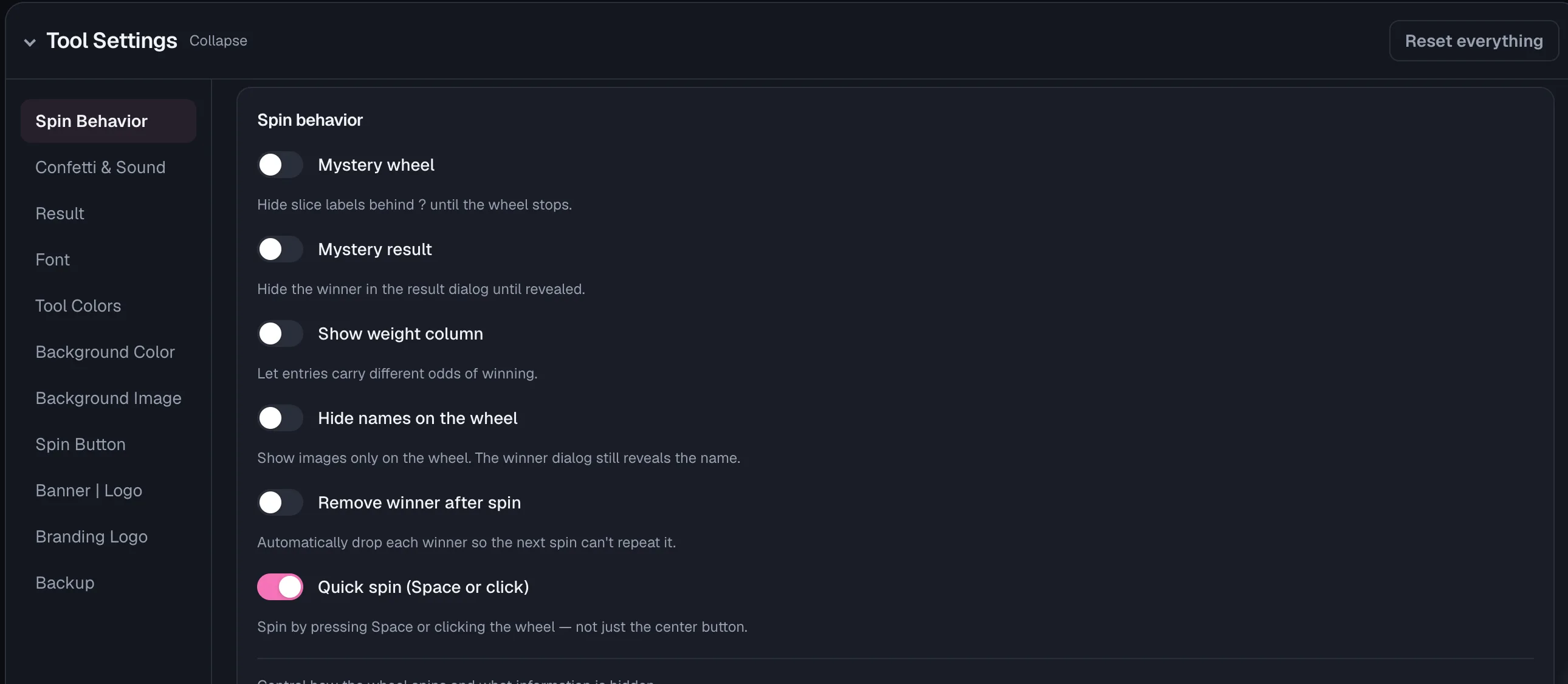
You can still turn the column off in the input fields menu or in Spin Behavior.
List tools such as the raffle wheel and the random name picker have the same option. Switch on Weighted odds under the list and write a number before an option, like "3, Pizza". It stays off until you turn it on.
This is what makes prize tiers and loaded raffles possible: a grand prize can keep a small slice but real odds, while common prizes fill the rest of the wheel.
Idle pre-spin motion
Before anyone hits spin, the wheel can rotate slowly on its own, a subtle idle motion that signals it is live and ready rather than a static image.
On a desktop or laptop it holds still the moment your cursor moves onto the wheel, and picks the drift back up when you move away.
On a touch screen it does the same while you hold a slice to preview it.
It also checks on load, so a wheel that opens under a cursor already resting on it starts still rather than drifting.
It turns itself off automatically when your device has reduced motion enabled.
It is a small touch, but it tells first-time visitors the wheel is interactive before they even touch it, and it respects accessibility settings by default.
Pausing under the cursor matters just as much.
A slice you are trying to read, or whose preview you just opened, stays where it is instead of sliding out from under you.
Seven pointer styles
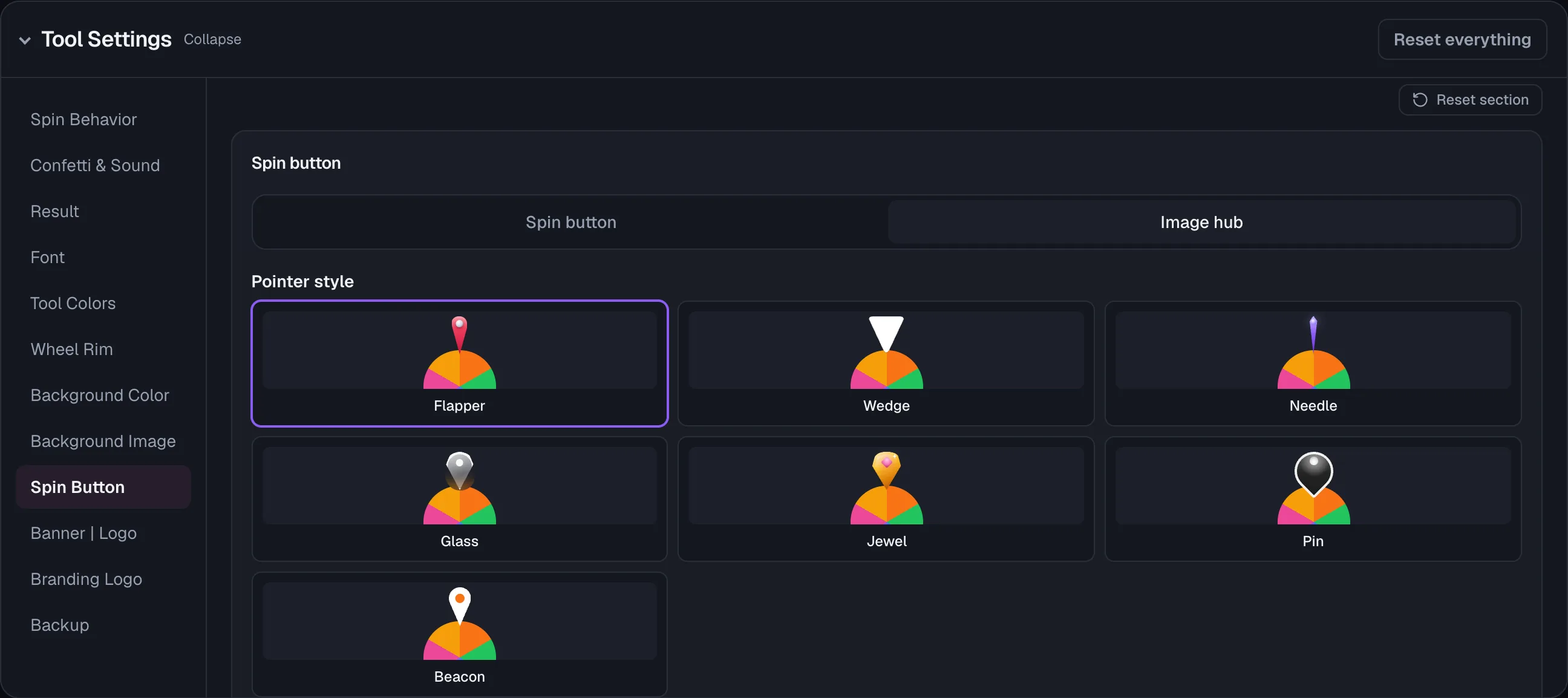
Seven pointer designs, flapper, wedge, needle, glass, jewel, pin, and beacon, decide how the winning slice gets marked, and each one animates a little differently as it crosses a slice boundary. The beacon's dot lights up in the color of whichever slice is under it.
A flapper suits a classic carnival wheel, while a jewel or glass pointer fits a premium giveaway or streaming overlay. It is a styling choice with no effect on fairness.
Two center button modes
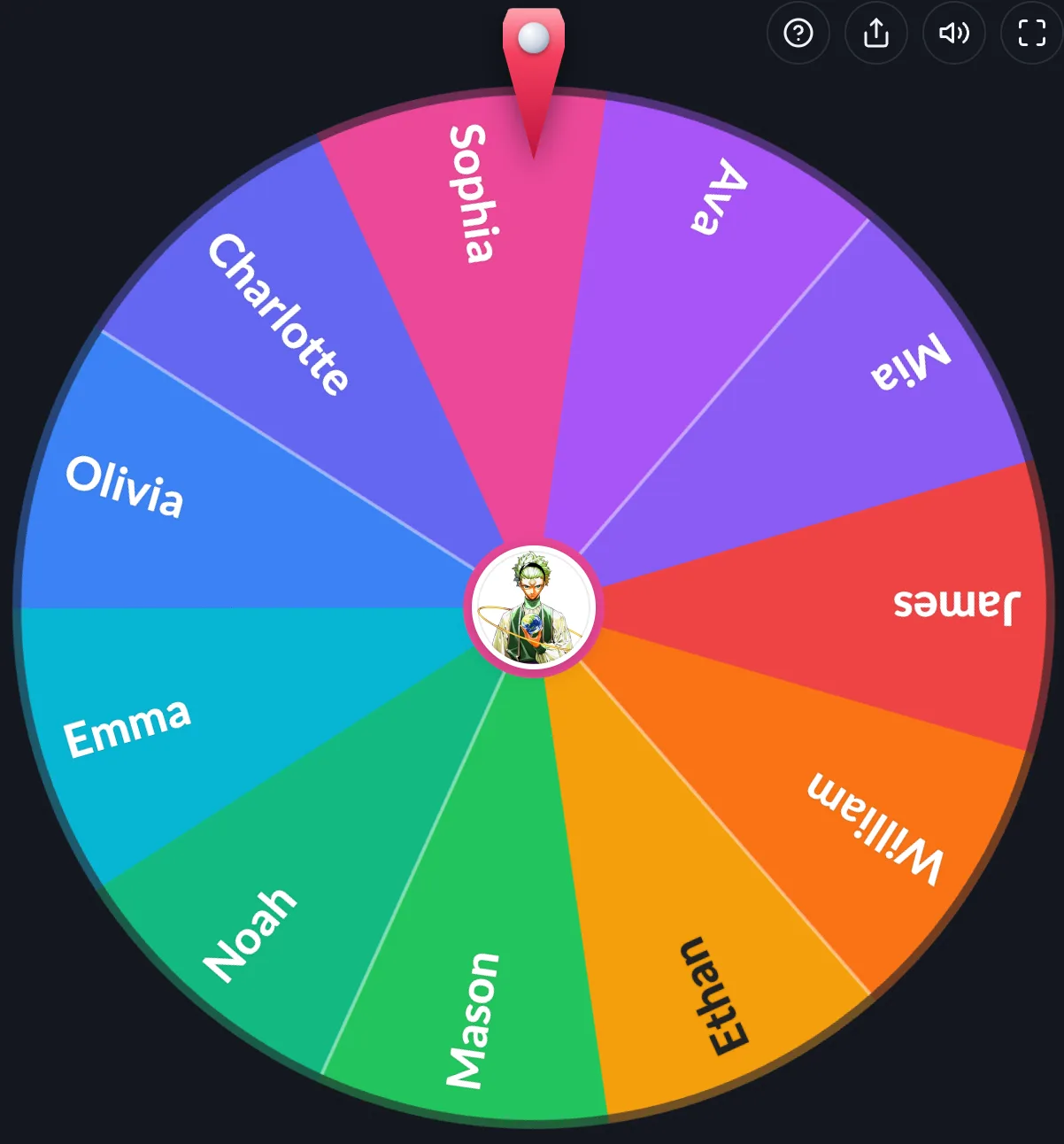
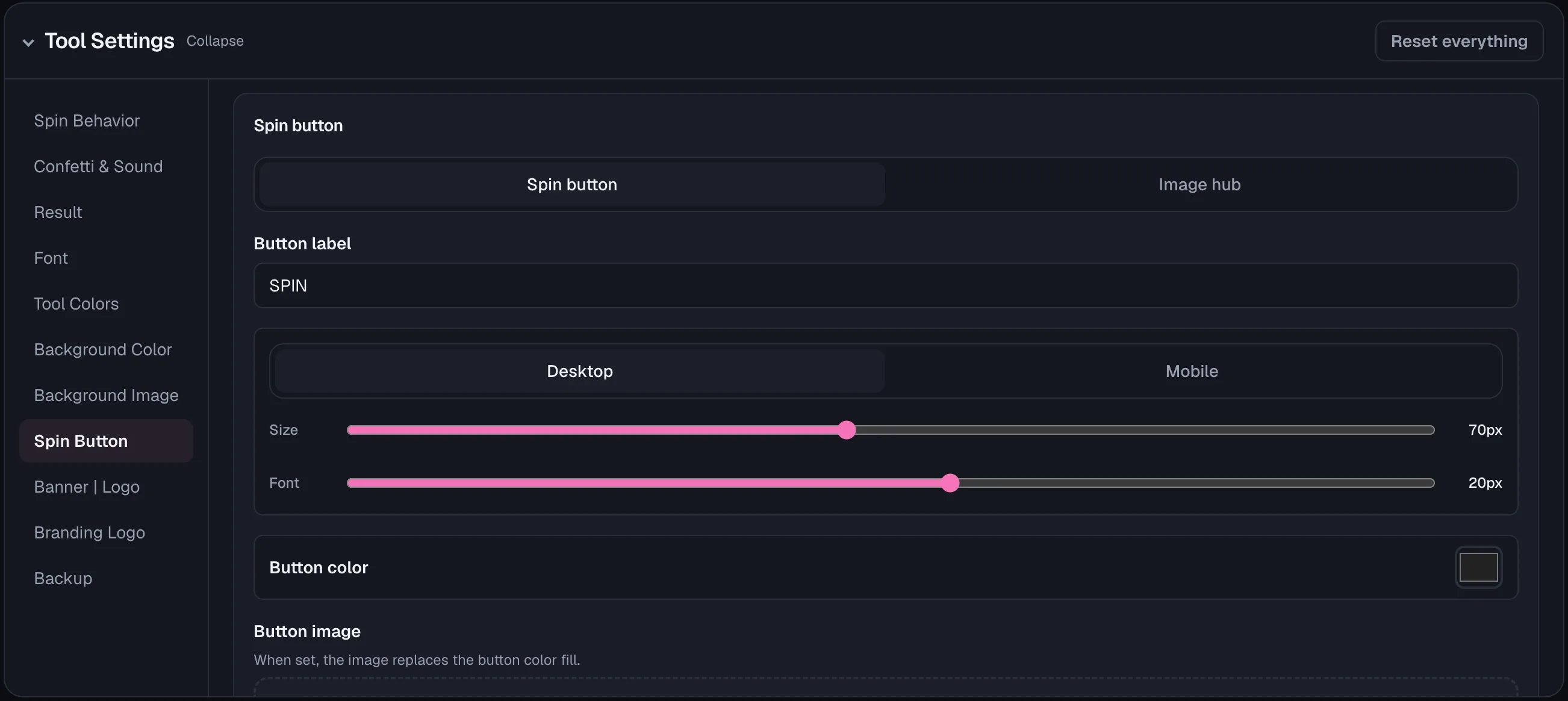
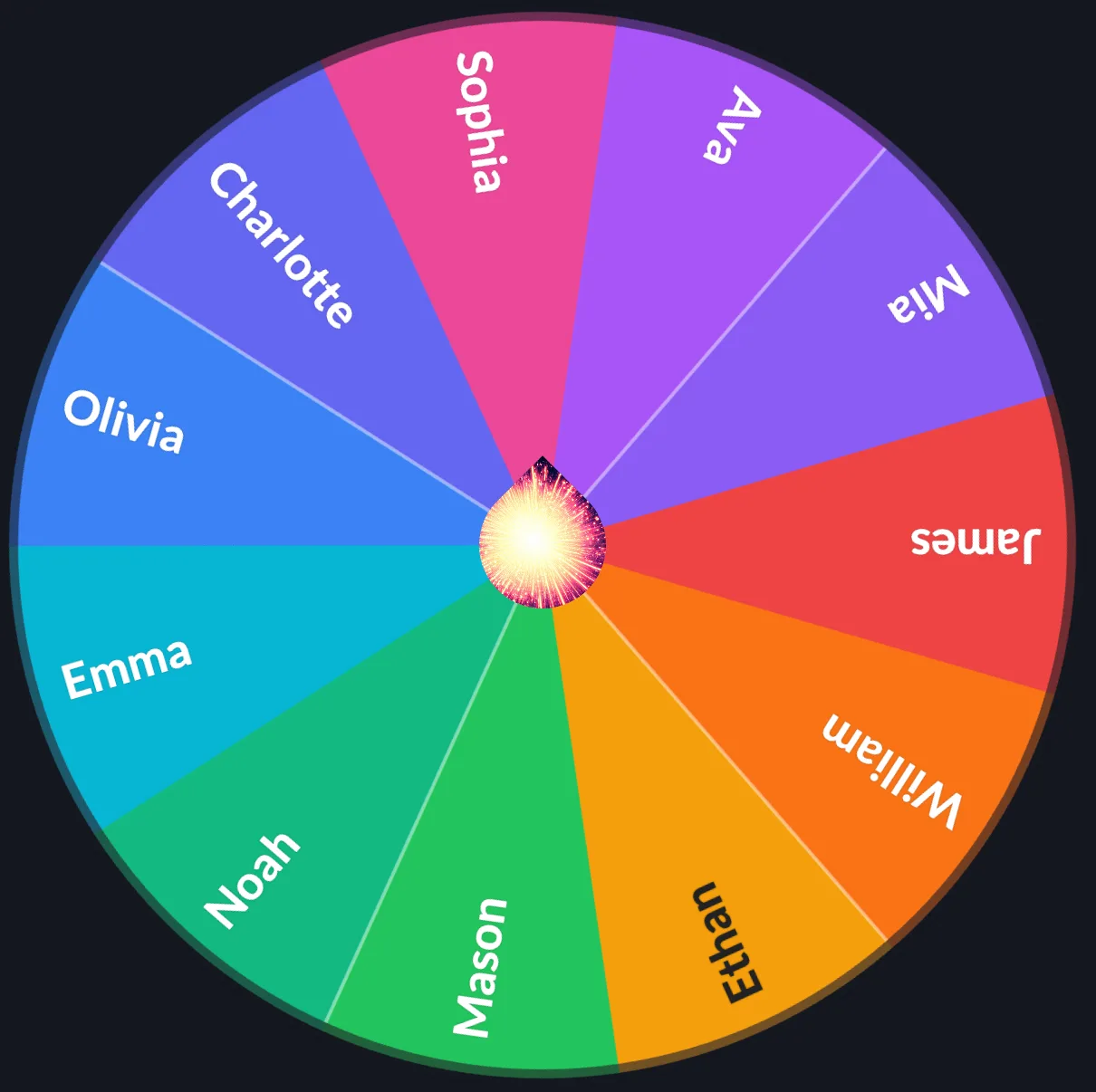
The middle of the wheel works one of two ways.
The first is a classic teardrop SPIN button whose tip doubles as the pointer.
The second is hub mode, where the whole center disc is a white, tappable circle with its own separate animated pointer on top.
Hub mode gives you a bigger, easier target to tap on mobile and a cleaner look for branded or embedded wheels.
Bottle mode
Bottle mode inverts the usual wheel: the face is held perfectly still and a bottle in the middle spins instead.
It comes to rest with its cap pointing at the winning slice.
The same physics decides the result, so the landing is exactly as fair as a normal spin.
It makes the classic party ritual work on a screen, where a real bottle needs a real table.
Eleven bottles ship with it, and any uploaded photo can be spun in their place.
Your own truths and dares
Alongside the thousand-plus prompts that ship with Bottle mode, you can write your own truths, dares, and questions, edit them in place, and remove the ones that stop landing.
They join every draw regardless of which prompt pack is selected, because a prompt you wrote for your own group has no rating to filter it by.
A set can be saved to a file and loaded back later, which is also how you move it to another device or hand it to a friend.
Every group has its own running jokes, and no general-purpose prompt bank can hold them.
It also fixes a real gap for players outside English: the bundled prompts are English-only, so writing your own is the way to play the game in your own language.
Winner highlight
When the wheel stops, the winning slice gets a highlighted fill and stroke so the result is obvious at a glance.
That happens even from across a classroom or a stream overlay, before the result dialog even opens.
It closes the gap between the wheel stopping and the audience actually knowing who won, which matters most on a shared screen.
Entry & Slice Customization
Beyond plain text, every slice can carry an image, a custom color, and its own font treatment, so the wheel reads well no matter what you are picking between.
Images on any entry
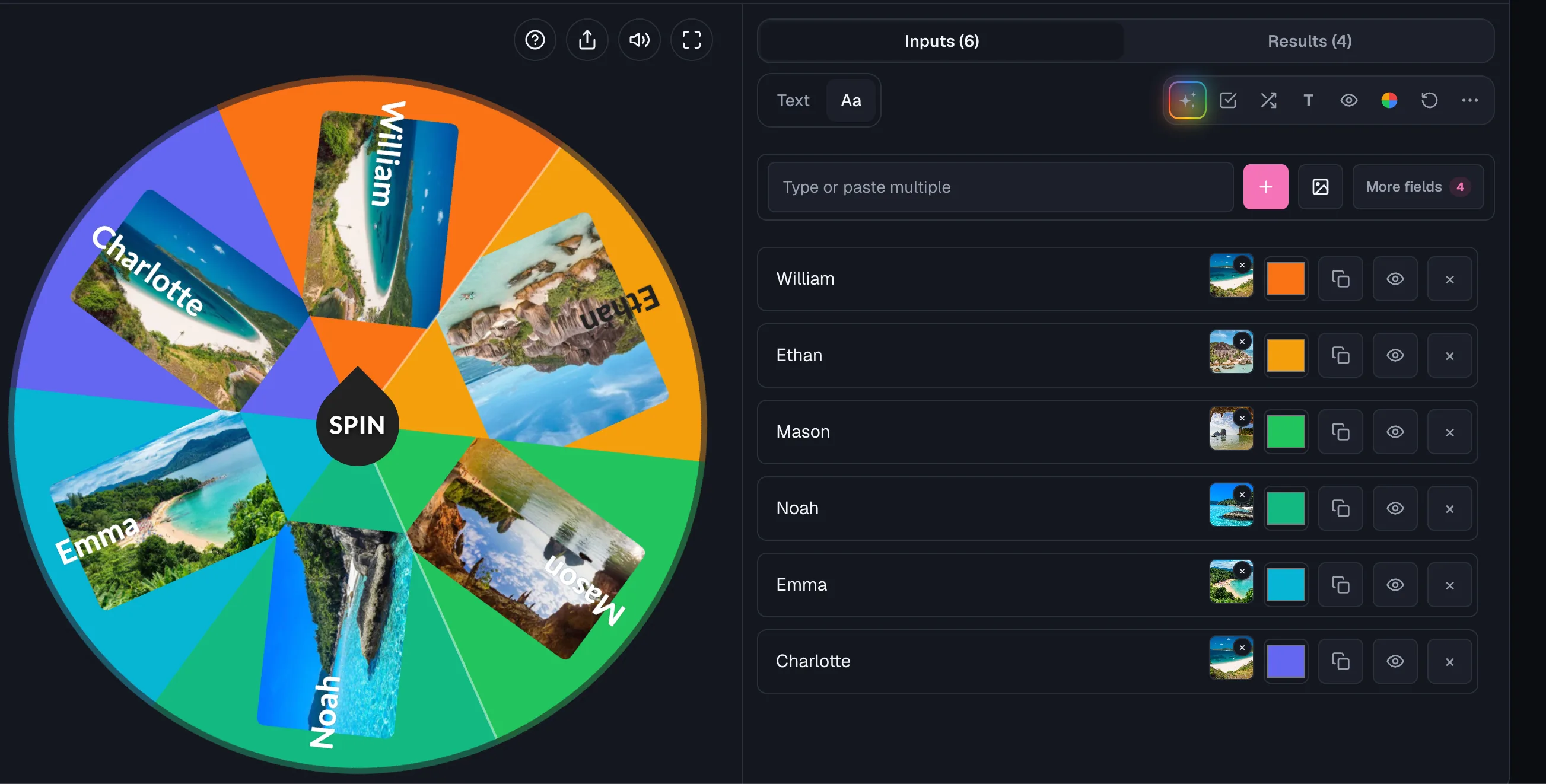
Any entry can carry its own image instead of, or alongside, its text label, drawn right into the slice.
It works for team logos, food photos, prize pictures, or character sprites, anything that makes a slice easier to recognize at a glance.
Each picture can show as a small icon, sit upright before the entry's name, or fill the whole slice. The small button on an image switches that one entry, and the Image style buttons above the list switch every picture at once. New pictures pick up the style the others already share.
On a desktop or laptop, pointing at a slice pops up a preview of its picture and highlights the matching row in the entries list.
It scrolls to that row when it is out of view.
On a phone or tablet, the same preview opens when you press and hold a slice, and closes when you lift your finger, so a tap still spins the wheel.
It works in images-only mode too: with names hidden on the wheel, pointing at or holding a slice still shows its picture.
The preview also covers long names.
When an entry is too long to fit its slice and the wheel shortens it, pointing at or holding that slice shows the full text.
Photos straight off a phone work too, including the HEIC format that iPhones and many newer Android phones save by default.
Text-only wheels work fine for names, but a visual wheel reads faster for younger audiences and looks better on a stream or a shared screen.
Background image modes
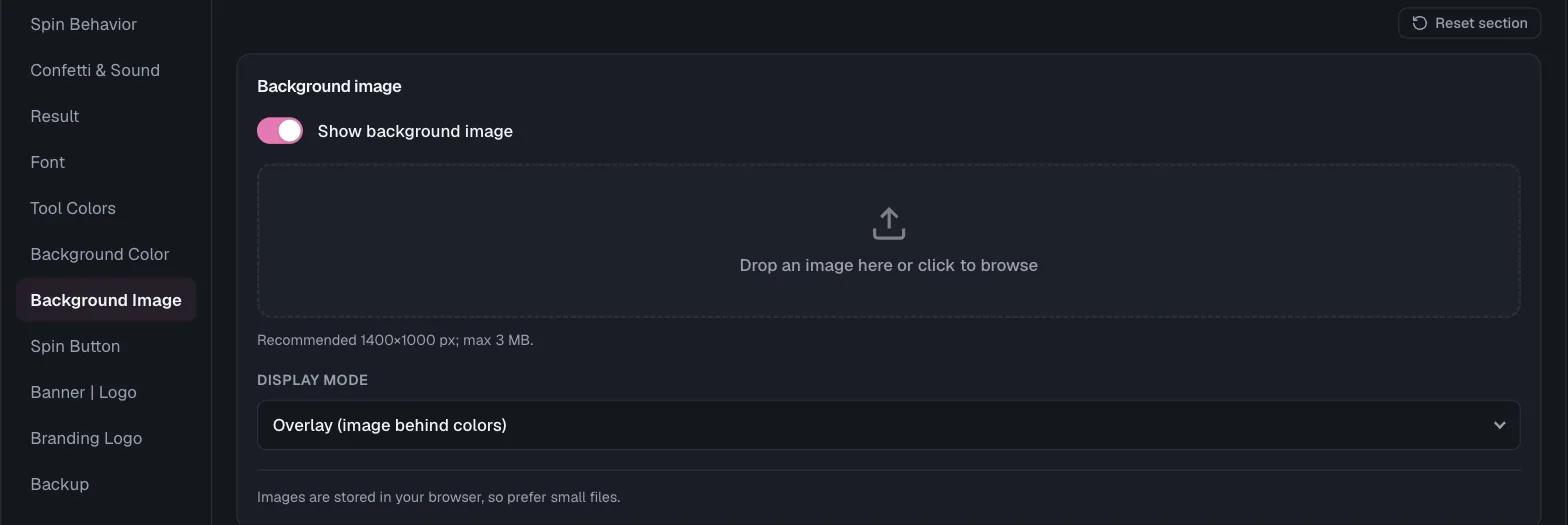
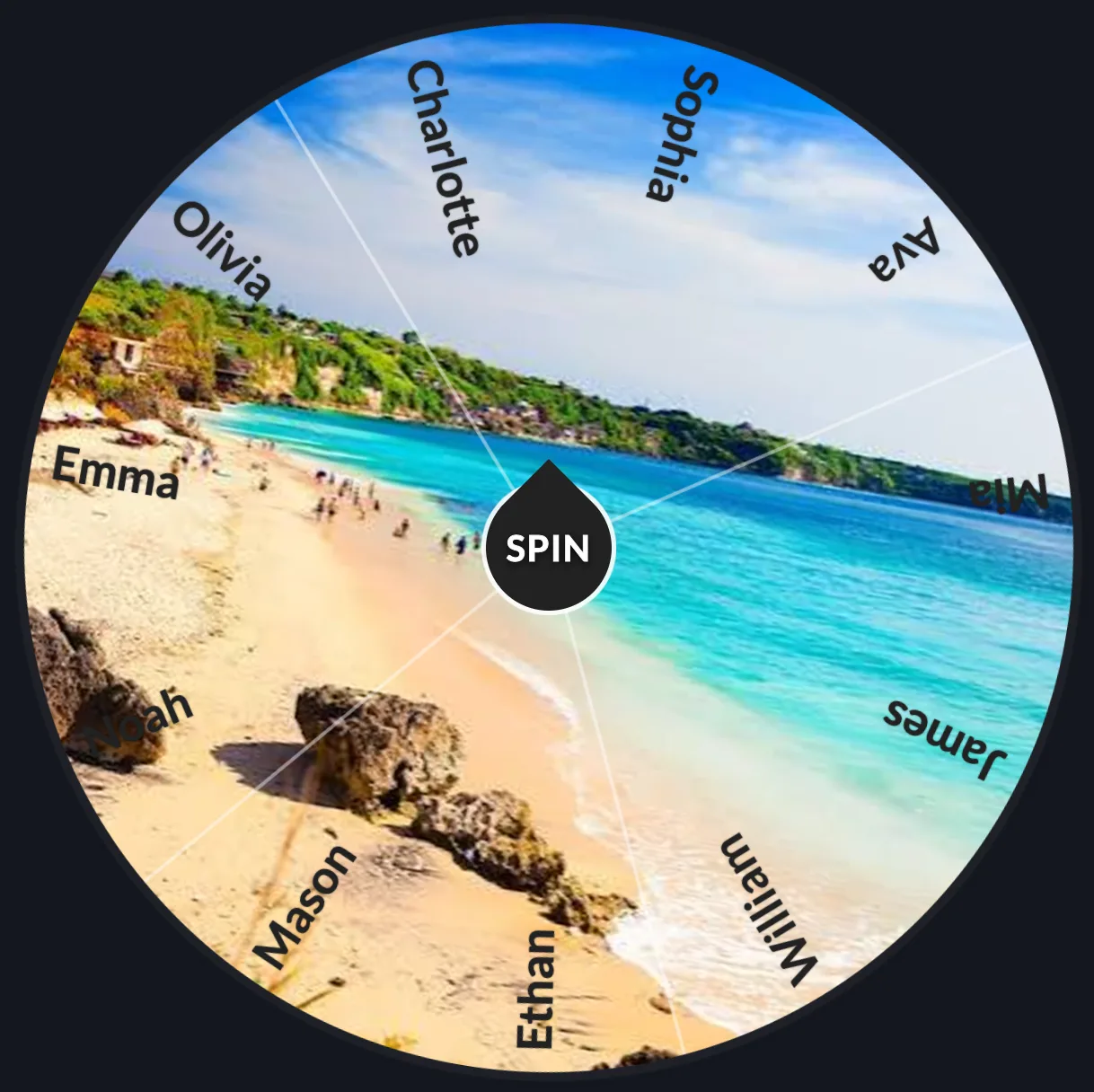
You can set a background image behind the whole wheel in one of three modes.
Overlay tints your slice colors over the image. Background shows the image with no color tint. Colors uses your slice colors with no image at all.
Overlay is the most commonly used mode because it keeps entries readable while still showing off a themed background image underneath.
Custom fonts and dividers
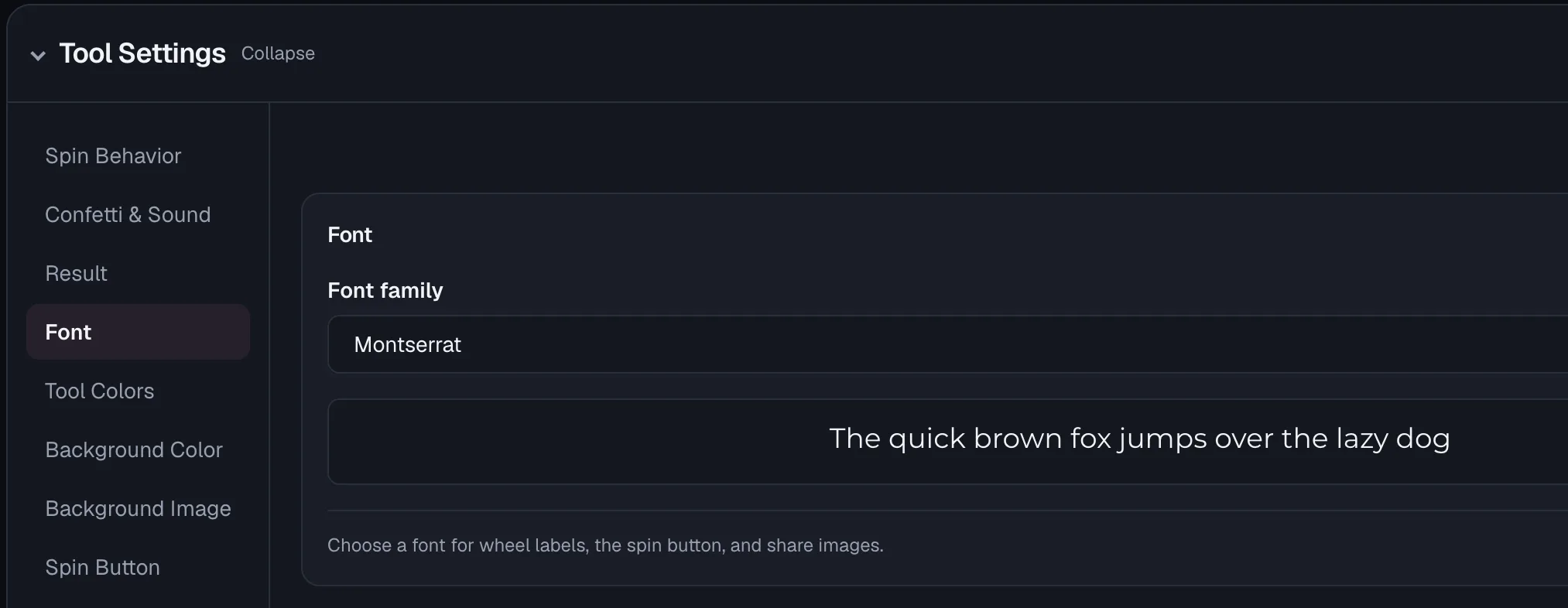
Slice labels can use a custom font from the built-in set, and thin dividers between slices can be turned on to make each option easier to tell apart.
That matters most on wheels with many similarly colored entries.
Long or crowded entry lists get harder to read fast. A matching font and clear dividers keep a busy wheel legible.
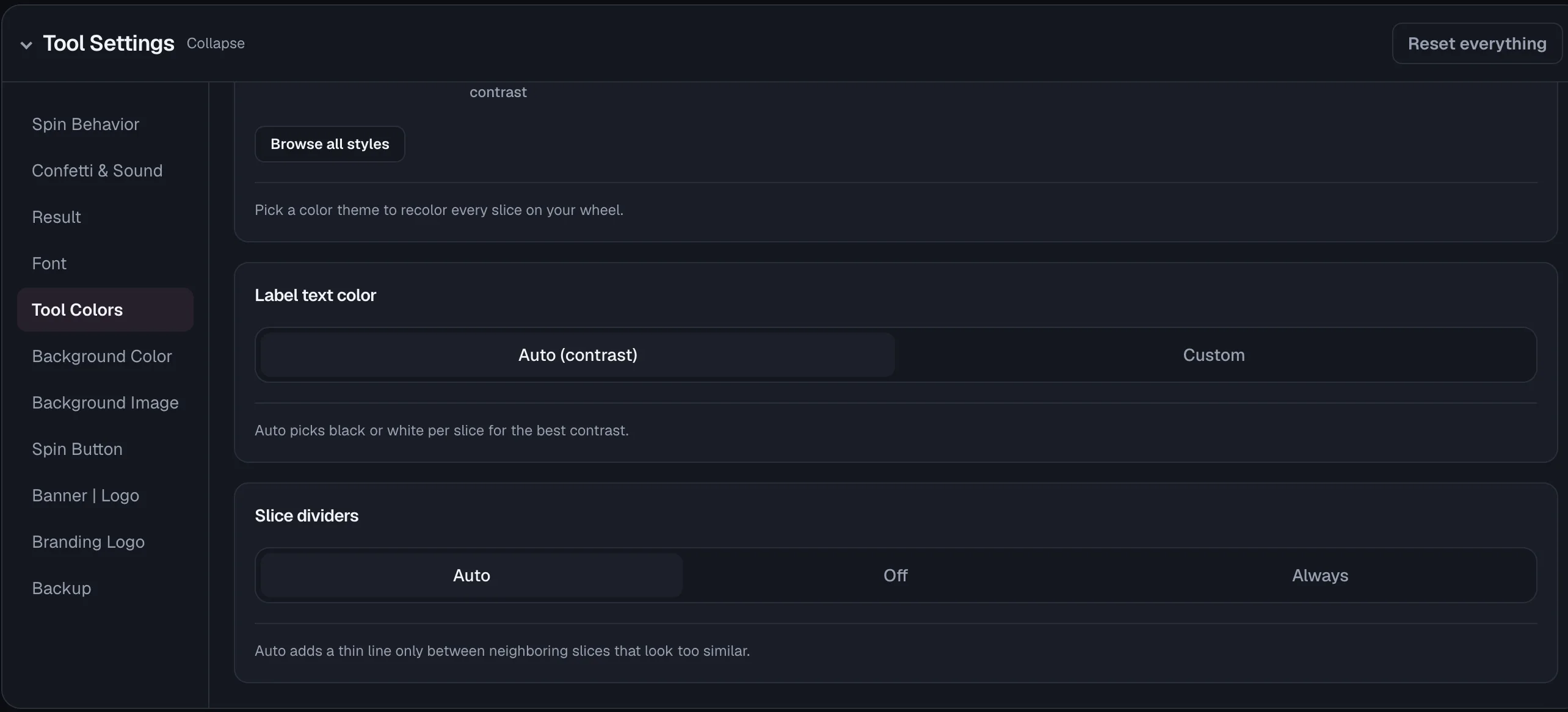
Color theme picker
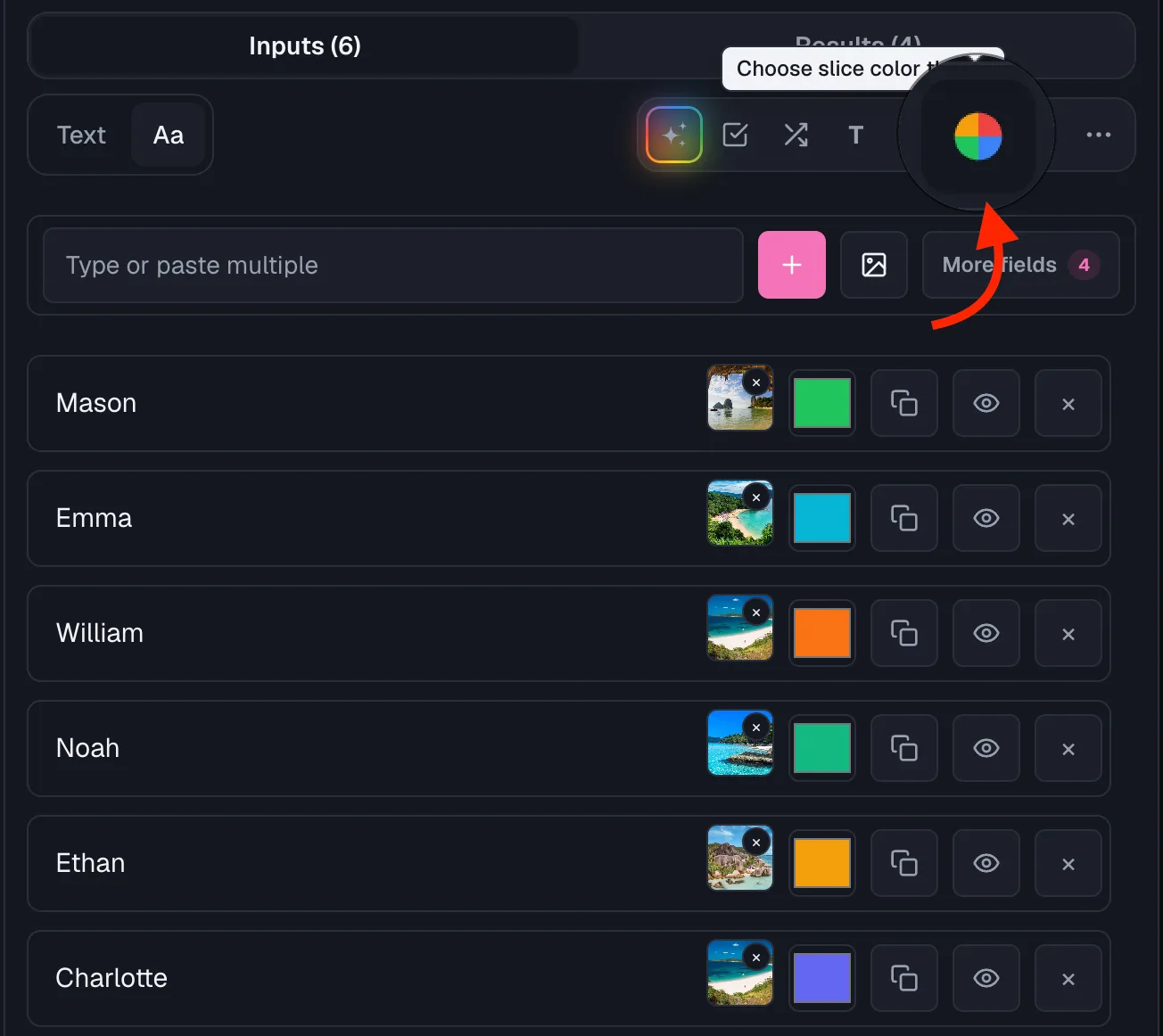
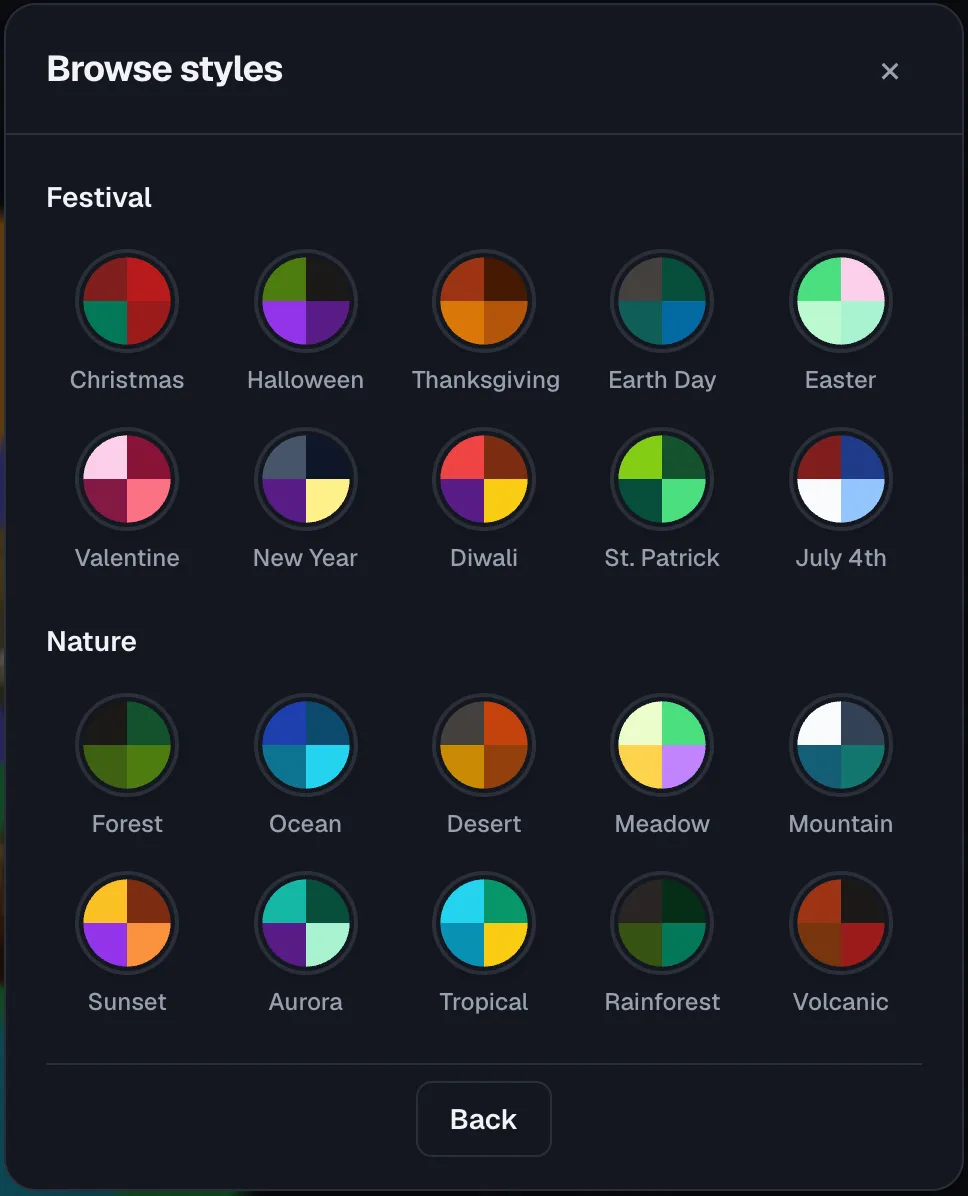
A built-in color theme picker lets you recolor every slice at once from a browsable gallery of ready-made palettes.
You can also set your own custom colors per entry if you want full control instead.
Picking colors one slice at a time is slow on a 30-entry wheel. A palette applies a coherent look in one click.
Theming & Branding
The wheel can match your site or stream's look automatically, and carry your own logo when the wheel itself should feel like your brand.
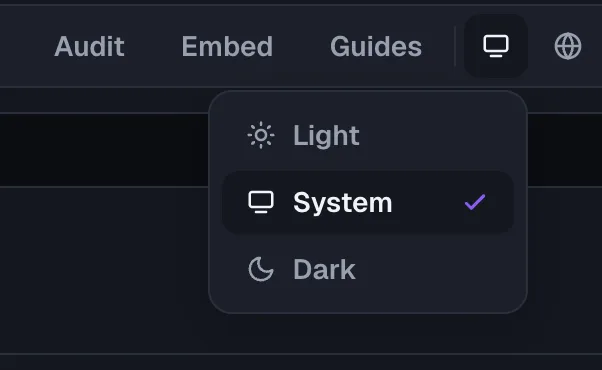
Automatic dark and light theme
The wheel reads its background and text colors from the same design variables as the rest of the page.
So it switches between light and dark mode automatically whenever your site's theme changes, with no separate wheel setting to manage.
A wheel that stays bright white in dark mode looks broken. Automatic syncing means it never falls out of step with the page around it.
Wheel rims
The Wheel Rim section in Tool Settings frames your wheel with one of 20 decorative rims, sorted into Classic, Modern and Seasonal tabs next to the plain slice tint and stroke. The rim is drawn into the wheel itself, so it shows on shared links, embeds and share images too.
On every tool page, the Wheel style button next to Slice colors opens the same rims, plus the pointer and spin button. Picking a pointer shape swaps the SPIN button for a plain center disc, and picking SPIN button brings it back.
Animated rims such as the marquee lights, LED dots and the Christmas garland react to every spin. When your device asks for reduced motion, they hold still.
A rim changes the whole feel of a wheel, from a casino roulette bowl for game night to a garland for a holiday draw.
Each rim downloads only when you choose it, so a wheel with the default rim loads no rim artwork at all.
Branding logo overlay
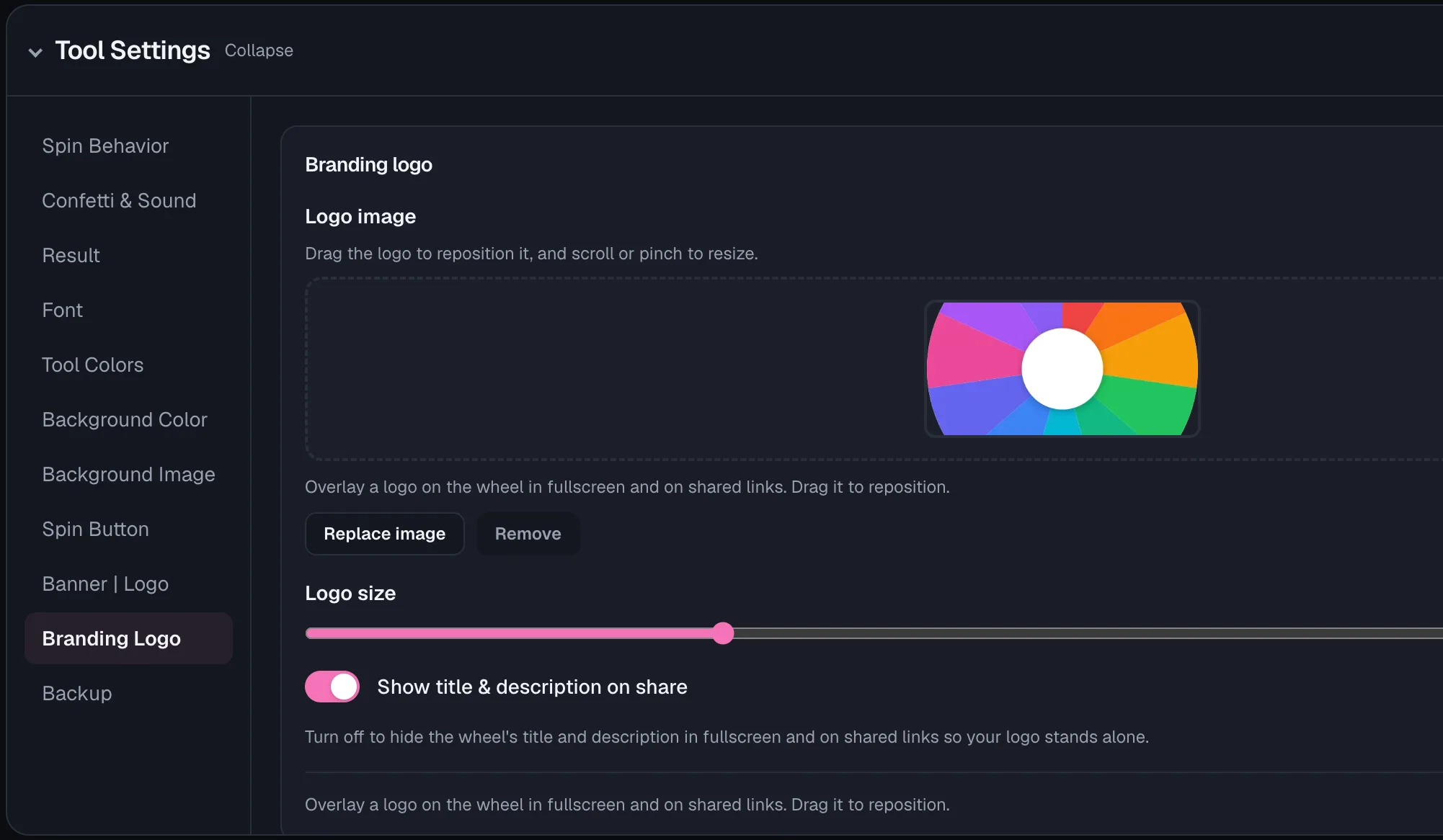
You can place your own logo image on top of the wheel, dragging it to position and pinching or scrolling to resize it.
So streams and shared links carry your branding directly on the wheel itself.
On a shared link the logo takes the description's place, so the page shows your title and your logo and nothing competing with them.
For streamers and teachers who reuse the same wheel often, a logo makes every shared link and screenshot instantly recognizable as theirs.
Clean share mode
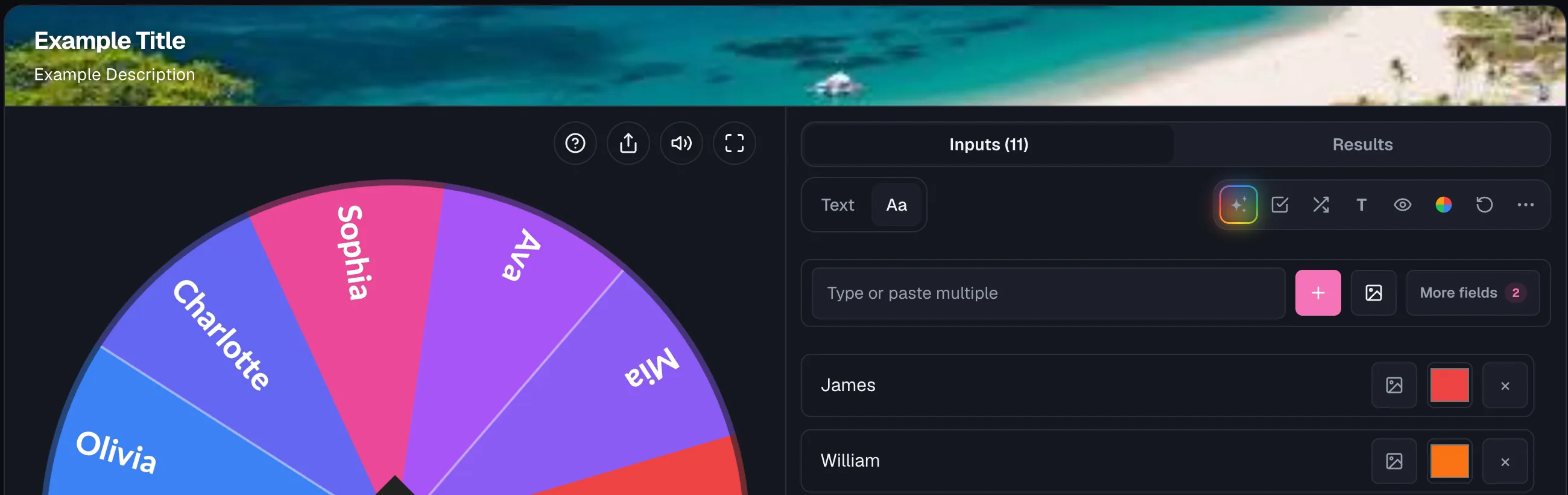
Separate switches hide the WheelOfNames.io branding, the title, and the description on your shared link, each on its own.
That leaves just the wheel and your logo on screen with no extra text competing for attention.
It is built for the moment your branding, not the wheel's internal title, should be the thing viewers actually notice.
Sound & Celebration Effects
A spin can end quietly or with a proper celebration, sound and confetti included, and both are easy to turn off if you would rather keep things simple.
Built-in sound effects
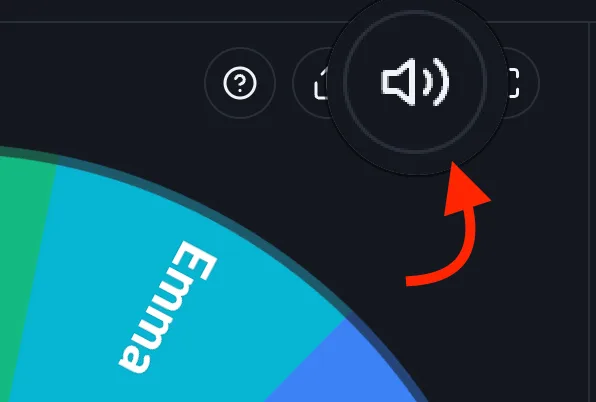
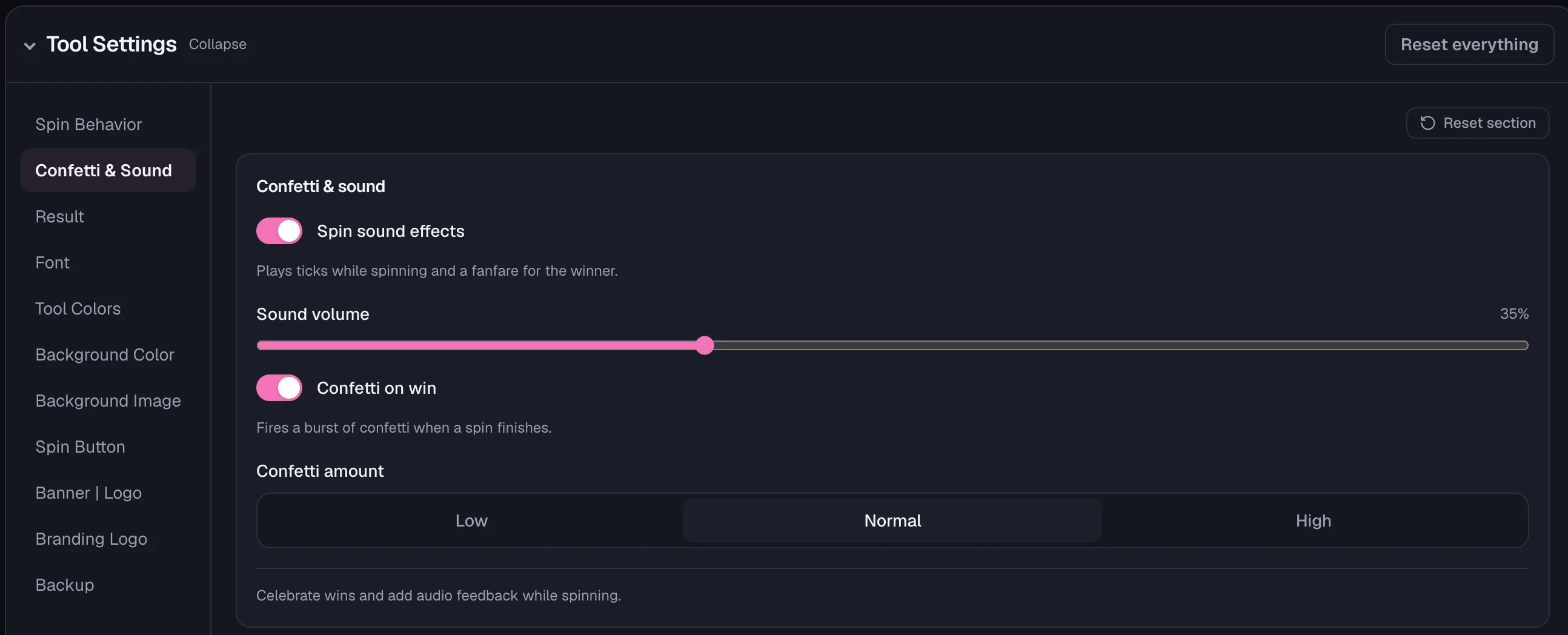
Built-in sound plays a tick every time the pointer crosses a slice and a winner sound when the wheel lands.
It all works without you needing to record or upload any audio yourself.
The ticking sound alone does a lot of work: it gives the audience an audible sense of the wheel slowing down before the winner is even visible.
Sound library
The music-note button above your entries opens the sound library, with a switch between tick and winner sounds. A pick made while the wheel is muted is saved without turning sound back on. Tool Settings → Confetti & Sound shows the two sounds in use, each with a play button and a Change button that opens the same library.
The library holds 47 ticks and 48 winner sounds as cards you tap to hear and apply, in twelve groups: Classic, Game show, Arcade, Soft, Romantic, Cartoon, Sports, Sci-fi, Nature, Birthday, Festivals, and Bottle.
Festivals covers New Year, Lunar New Year, Holi, Easter, Ramadan, Eid, Navratri, Diwali, Halloween, Thanksgiving, Hanukkah, and Christmas, each with its own tick and winner sound.
Spin the Bottle sounds like any other wheel until you turn on Bottle sounds, right under the bottle picker. Then a plastic water bottle, a beer bottle, a wine bottle, champagne, and heavy spirit glass each roll and land with their own sound, and choosing a different bottle changes the sound with it.
Your choice is saved with the wheel and travels with a shared link.
A wooden clack suits a classroom, a game show bell suits a giveaway, dandiya sticks suit a Navratri night, and a soft chime suits a quiet room, so the wheel can sound like the occasion instead of the same fanfare every time.
Confetti celebration
A confetti burst fires the moment a winner is chosen, and you can turn it off or set the amount to Low, Normal, or High.
So the celebration matches how big a moment the result actually is.
It turns a plain result into a moment worth screenshotting, which matters most for giveaways and classroom rewards.
Entry Management Tools
Getting names onto the wheel, and keeping them organized once you have thirty or more, is its own set of tools separate from the wheel visuals.
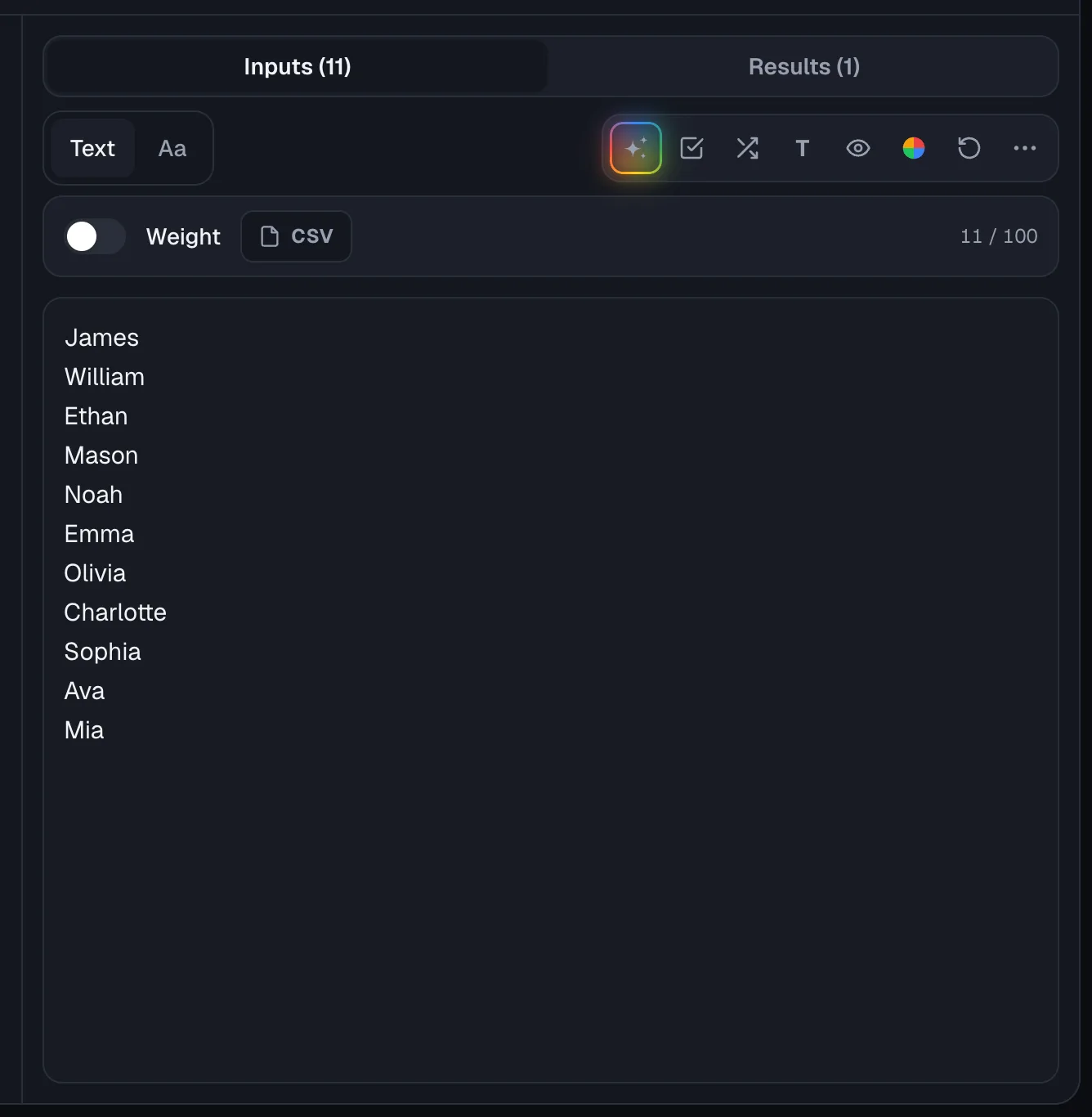
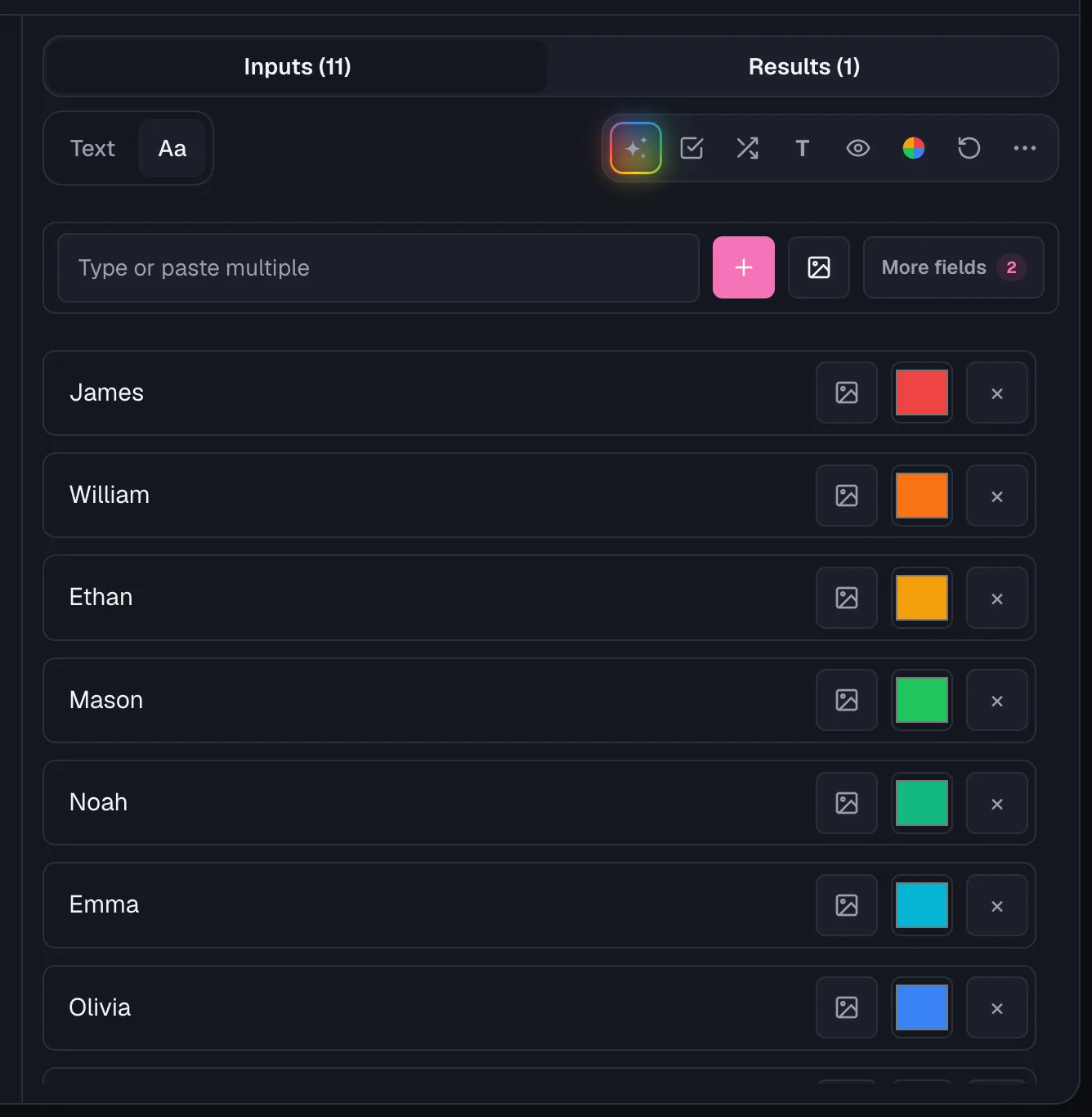
Table and free-text input
Entries can be added two ways.
One is a spreadsheet-style table with a row per entry and columns for weight, color, and image.
The other is a plain free-text box where you paste one entry per line and let the app build the rows for you.
Free-text mode is the fastest way to paste a class list from another app. Table mode is better once you need per-entry control.
CSV import
A spreadsheet of names can be dropped straight onto the entries panel, or picked from the CSV button that sits in both the table and text views.
That button opens a short menu: upload a file, or download one of two samples to start from.
The file can be a single column of names (a name header on top is fine), or carry a weight,label header when you want the odds to come in with the list.
Each sample matches one of those two shapes.
Imported names are added after the ones already on your wheel, so you can bring in two class lists one after the other. A brand-new wheel's sample names are replaced instead.
Importing a weighted file switches the weight column on for you, so the numbers land as odds rather than as part of the name.
Class lists, raffle entrants, and team rosters almost always start life in a spreadsheet.
Retyping thirty names to get them onto a wheel is the fastest way to put someone off using one at all.
Collapsible side panel
On a desktop screen the entries and results panel can be folded away, handing its whole column to the wheel.
A handle on the edge between the wheel and the panel folds it away and brings it back, and the choice is remembered.
So a wheel you set up once and then present from stays full-width every time you open it.
Once a wheel is built, the entry list has done its job.
Collapsing it matters most on a projector, a stream overlay, or a shared screen.
There every pixel of wheel is worth more than a list nobody is editing.
Per-row controls
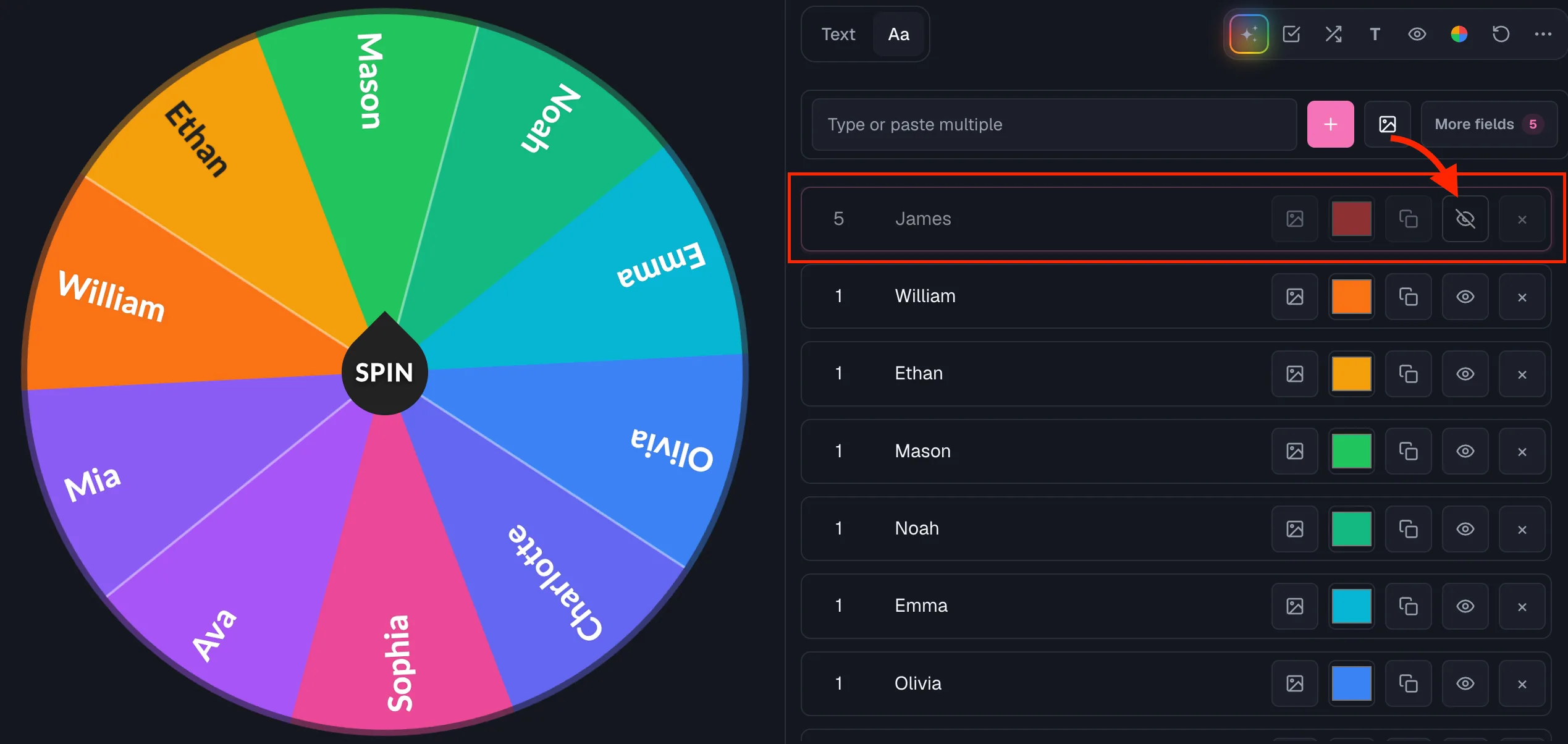
Every entry row supports its own weight, a one-click duplicate, and a show or hide toggle to bench an entry without deleting it.
It also has its own image and color, with optional columns you can turn on only when you need them.
Hiding instead of deleting matters most for recurring wheels, like a rotating chore list where names come and go each week.
Shuffle and sort
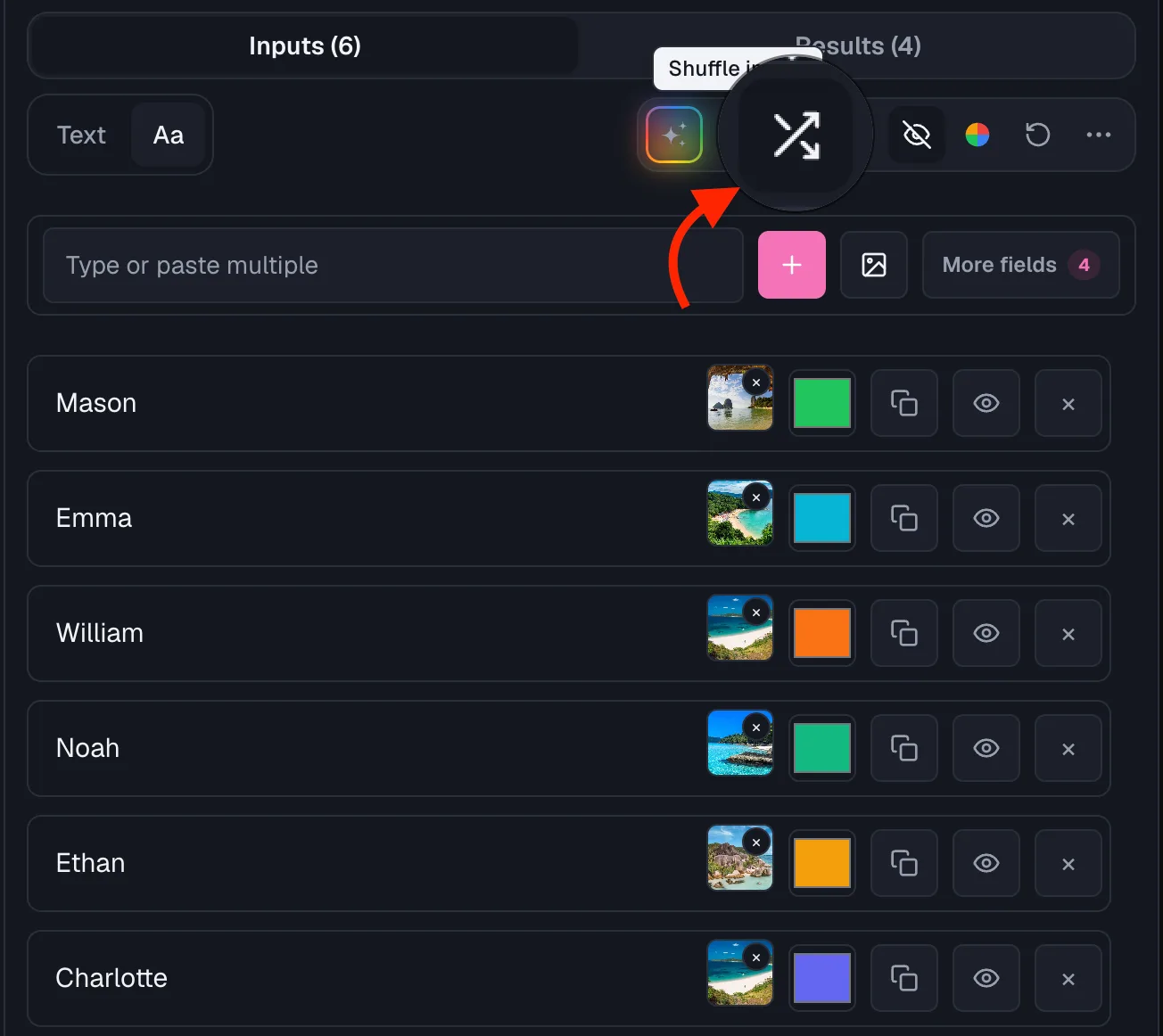
A one-click shuffle randomizes the order of your entries, and A to Z Sort puts the list in alphabetical order.
That helps before a spin if you want the visual order on the wheel to look intentional.
List tools such as the random name picker and the raffle wheel have the same buttons under their list: Shuffle, Sort A to Z, and Remove duplicates, which drops repeated options in one click.
Order on the wheel does not change the odds, but a shuffled or sorted list looks more deliberate on camera or a shared screen.
Mystery Wheel
Mystery Wheel hides every slice's label behind a question mark until the wheel stops spinning.
So nobody, including the person running it, can see which name sits where before the result lands.
It removes any perception that the spinner steered the outcome, which matters most for raffles run in front of a skeptical audience.
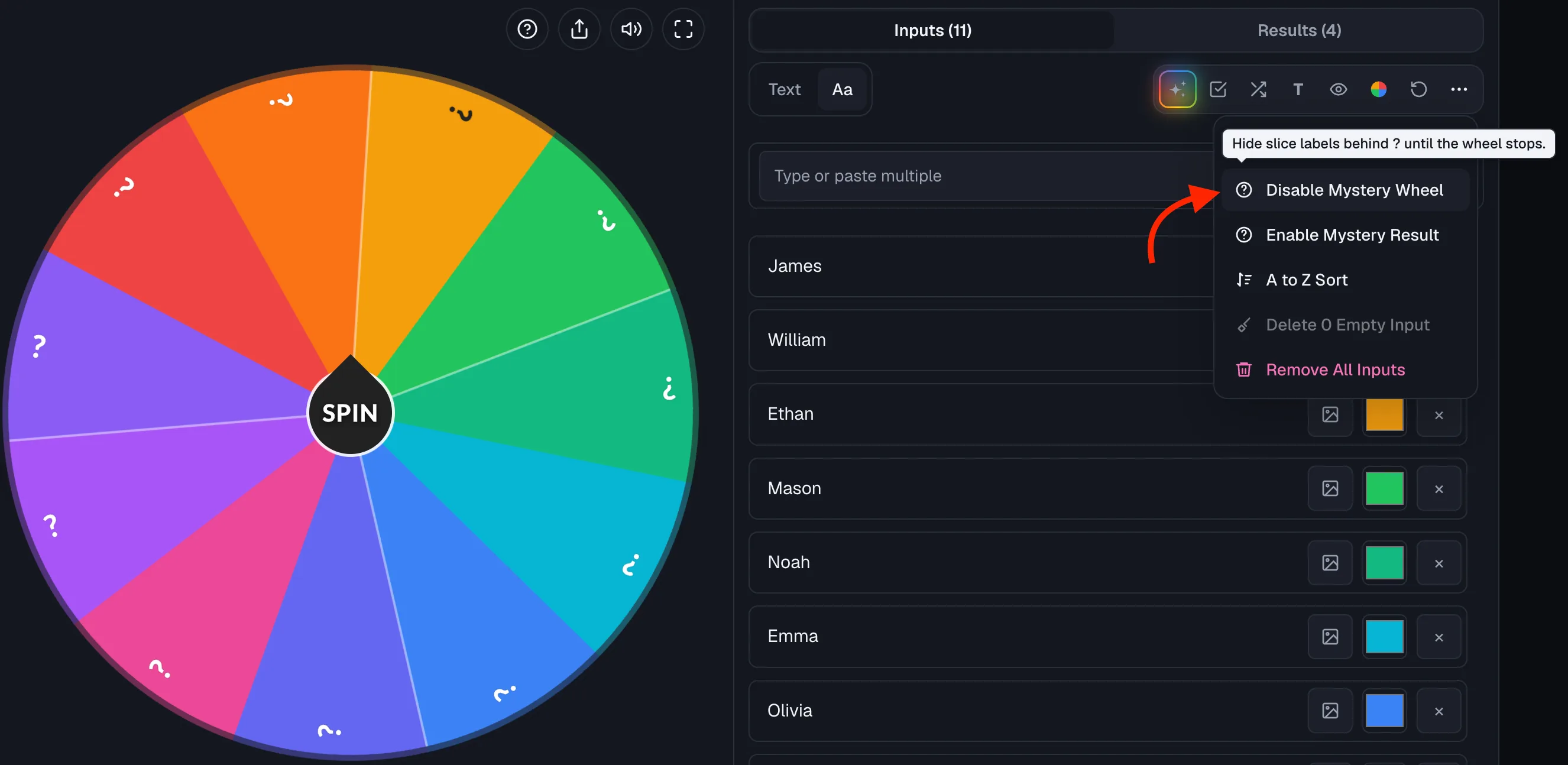
Mystery Result
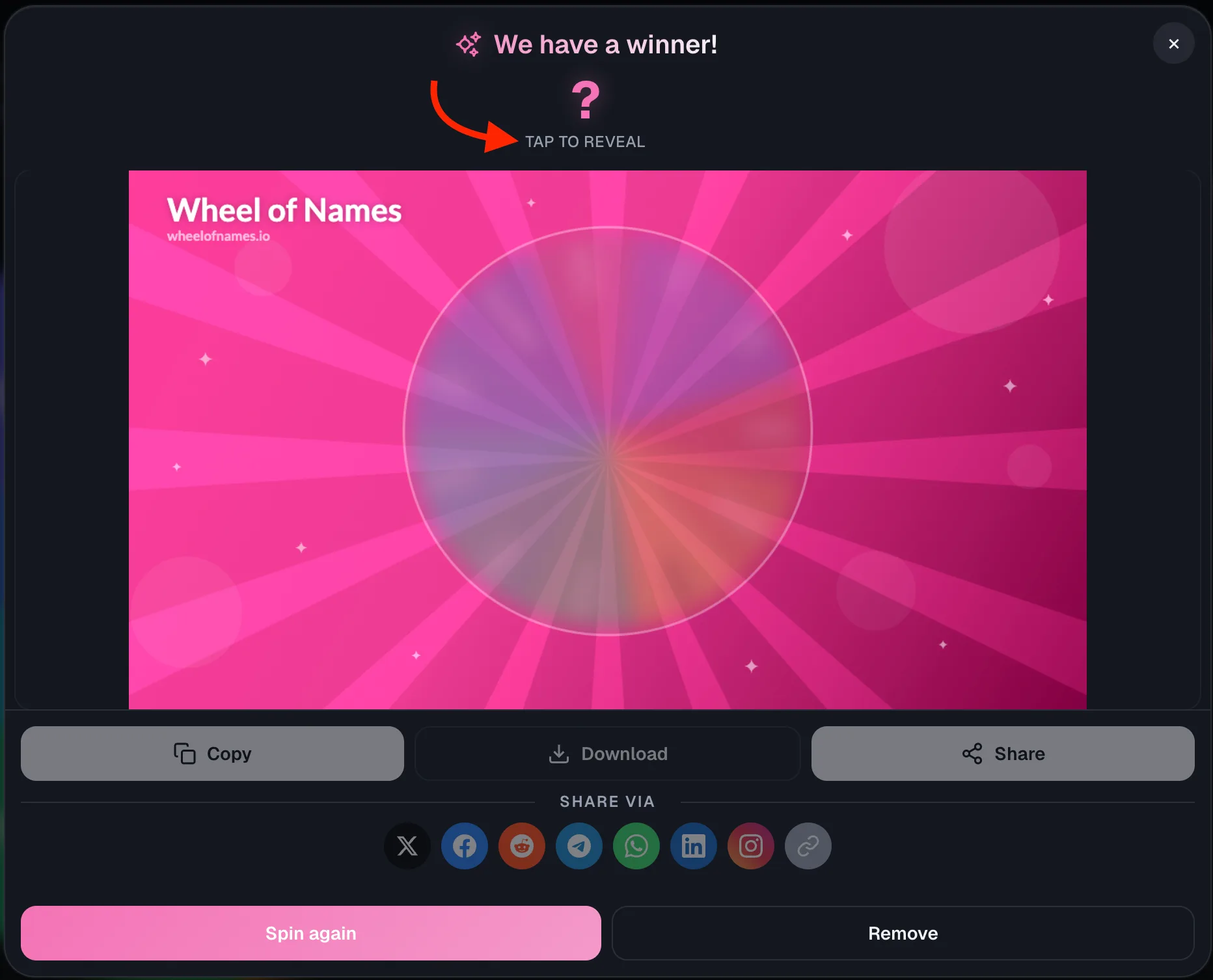
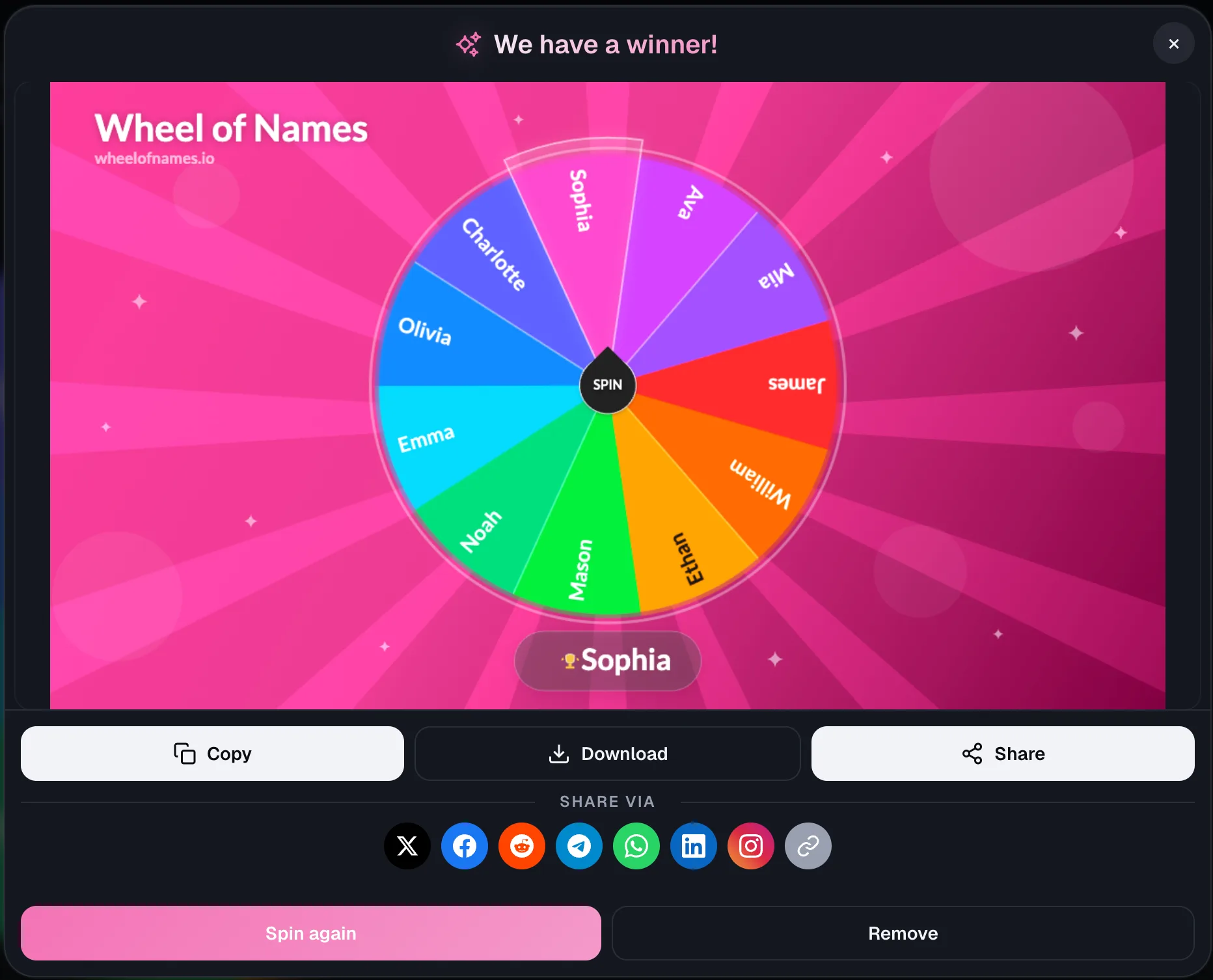
Mystery Result keeps the winner's name hidden in the result dialog after the wheel stops, until you choose to reveal it.
That adds a beat of suspense between the spin ending and the name actually being shown.
It works well for award-style reveals where you want to build anticipation for a few seconds before announcing who won.
No repeat winners
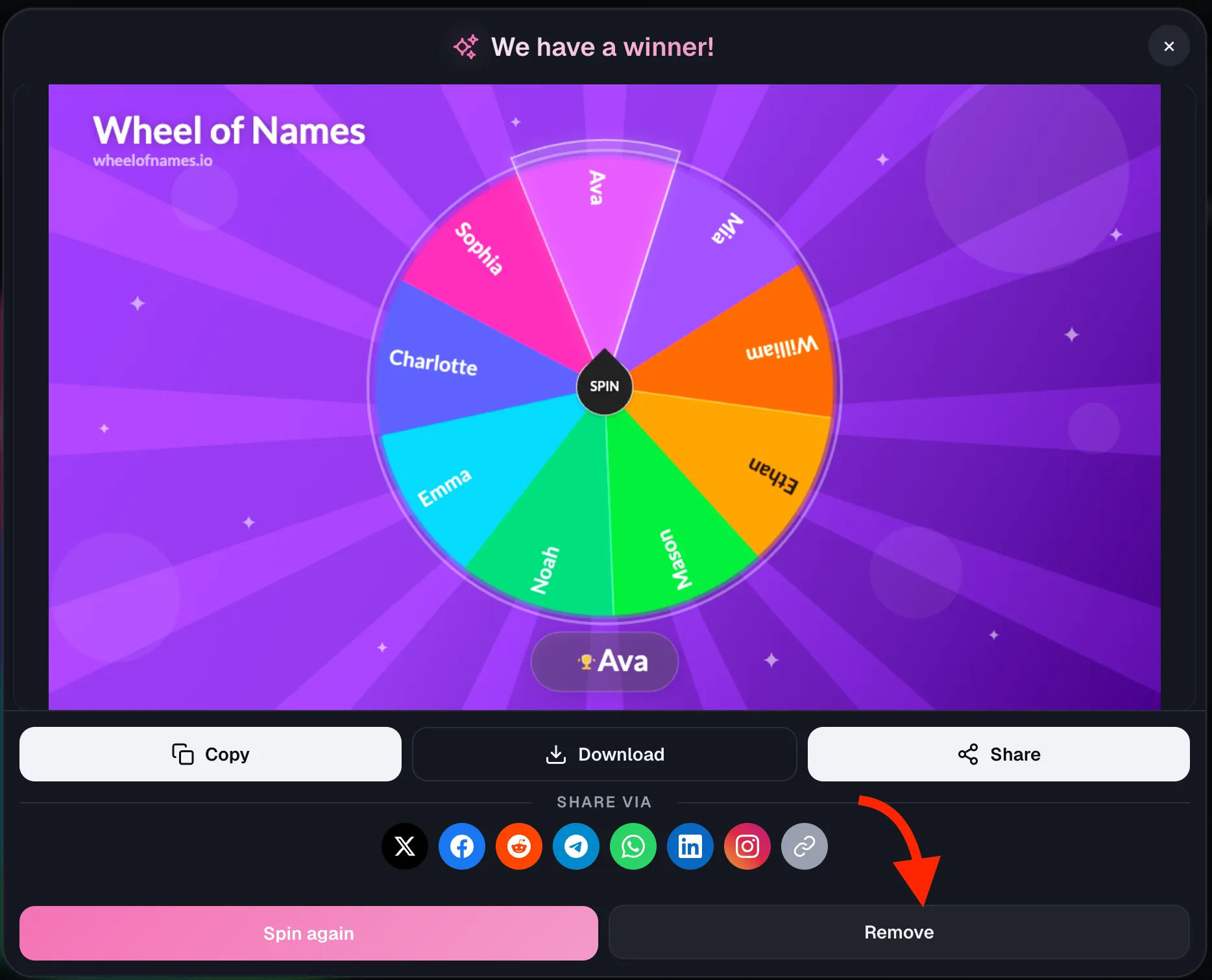
Turning on Remove winner after spin automatically drops each winning entry off the wheel the moment it is picked.
So the next spin can never land on that same name again.
This is the setting that turns a single wheel into a multi-prize raffle: keep spinning and every draw is guaranteed to be a fresh name.
Cycling result titles
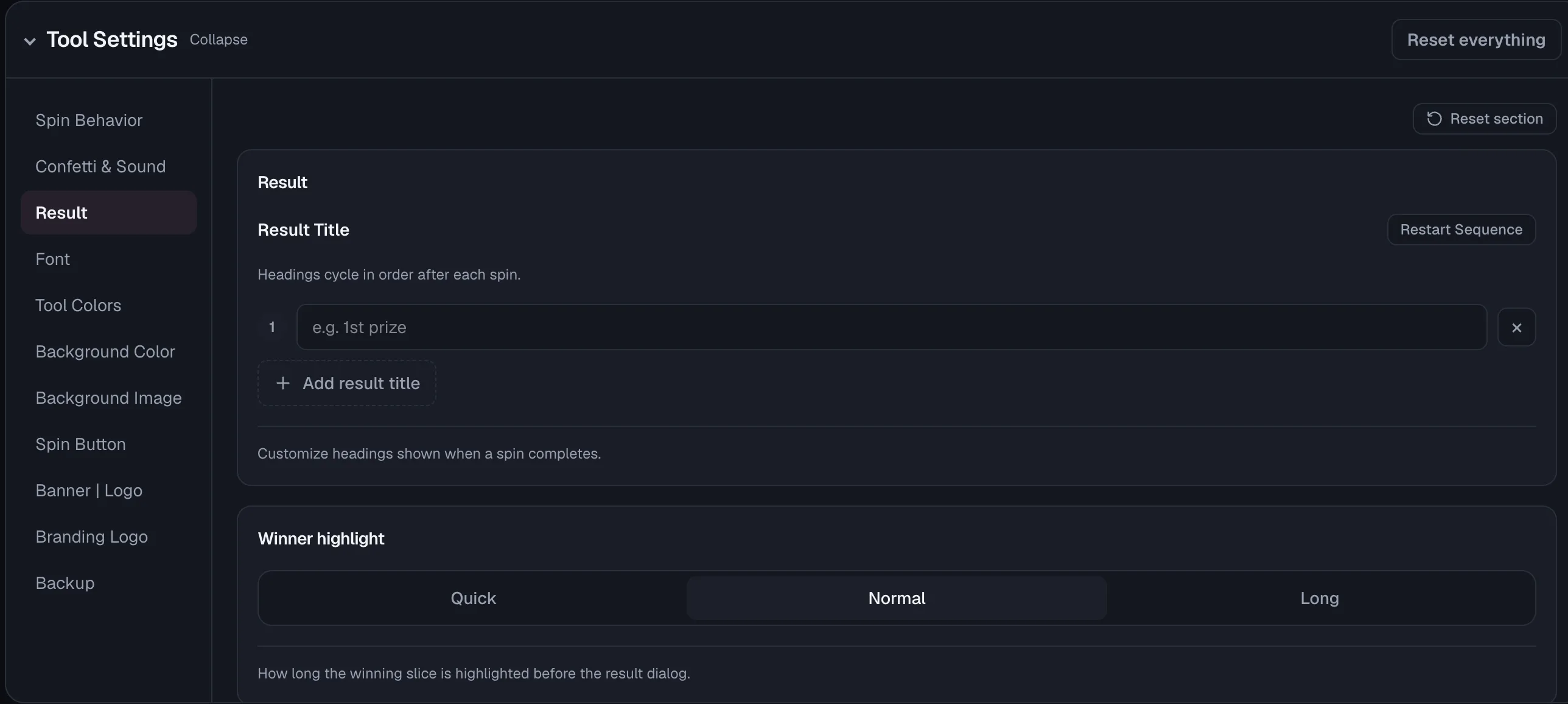
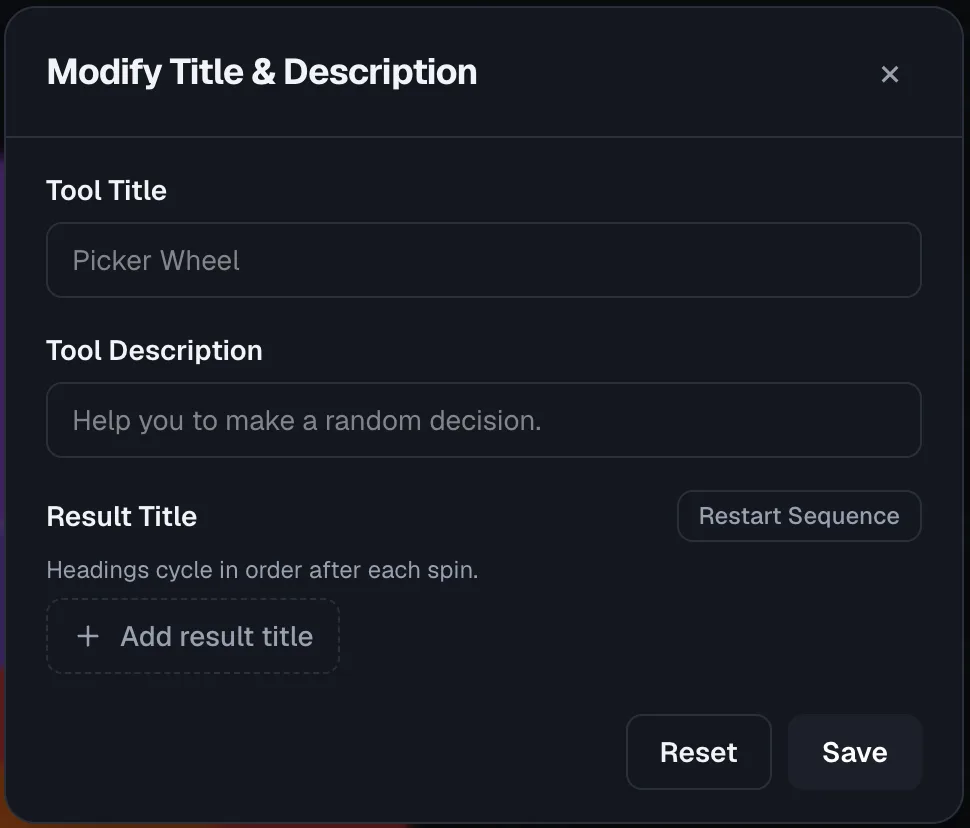
You can set a list of result headings, like 1st prize, 2nd prize, 3rd prize, that cycle in order after each spin.
That way the result dialog labels every winner correctly without you editing anything between draws.
It is built for multi-prize draws where the stakes change each round, so the result screen always names the right tier automatically.
Save, Export & Backup
Everything you build lives in your own browser, with no account required, and you can move it to a file or another device whenever you need to.
No-account saving
Wheels save automatically to your browser's local storage as you edit them, no account or sign-up required.
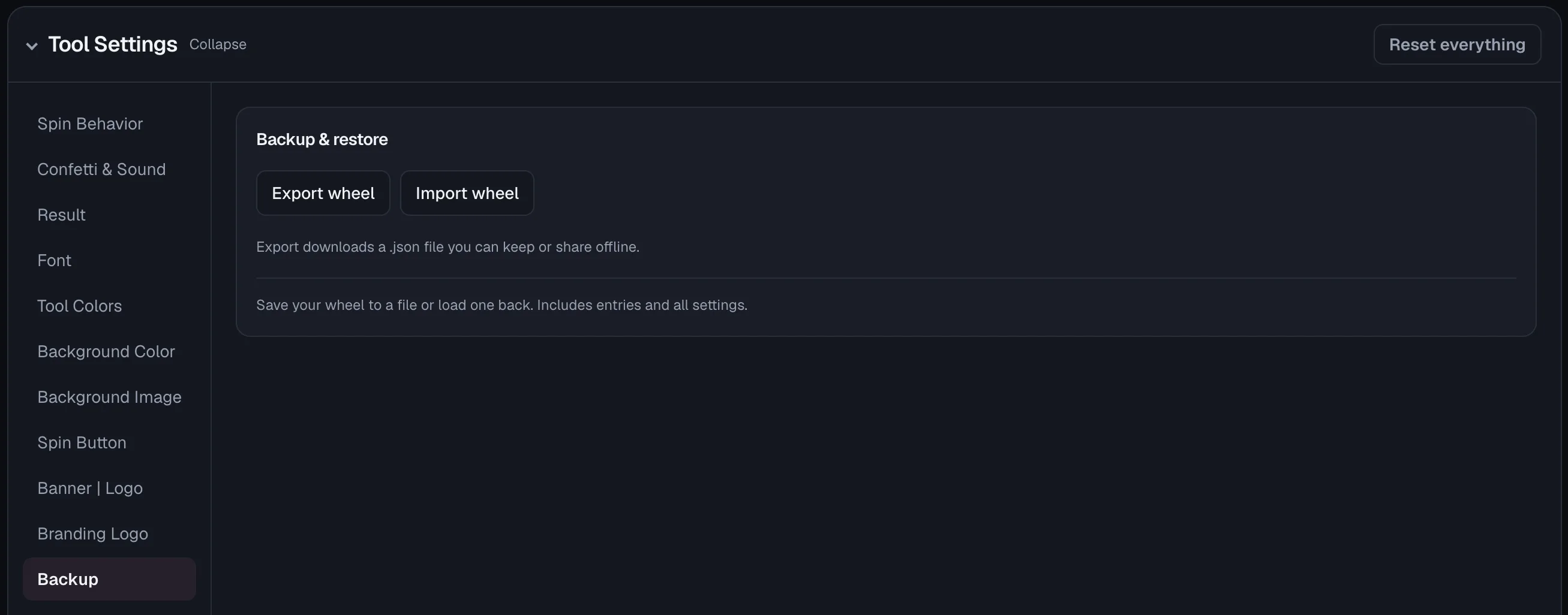
Each tool page keeps its own saved wheel, and Backup & restore lets you keep extra wheels as files and load whichever one you need.
It means a teacher can keep a class-picker wheel and a rewards wheel side by side, saved locally, without ever creating a login.
Backup and restore
The Backup & restore panel exports your current wheel to a downloadable JSON file.
Importing that file later restores every entry, color, and setting exactly as it was, whether on the same device or a different one.
Local storage alone will not survive clearing your browser data or switching computers. A backup file is the safety net for that.
Up to 500 entries per wheel
A single wheel holds up to 500 text entries, enough for a full class roster, a raffle list, or a tournament bracket.
The entry list only renders the rows you can actually see, so editing stays responsive at that size.
Entries that carry an image are capped at 100, since every image has to be decoded and held in memory.
Past roughly a hundred slices there is no room left to draw a readable label.
So above that the wheel shows colour bands and the winner is announced in the result panel.
That keeps very large wheels genuinely usable instead of filling them with text nobody can read.
Sharing & Community
A wheel does not have to stay private. It can go out as a link, live in the public gallery, or have its winning result shared straight to social media.
Instant link sharing
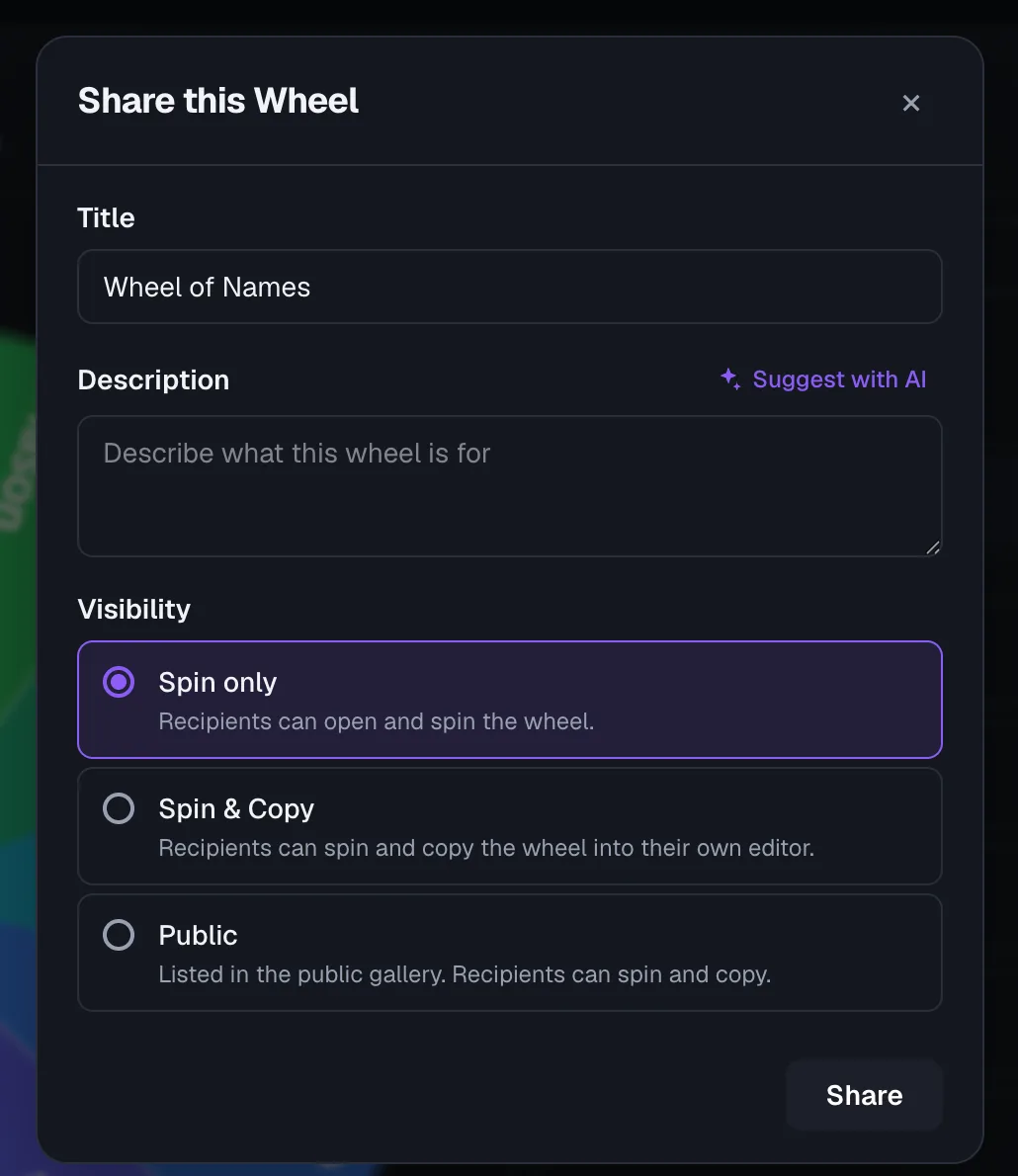
Sharing a wheel generates a link anyone can open and spin instantly, with no install or account needed on their end.
Your own shared links are all listed together under My Shares so you can find and manage them later.
It is the fastest way to hand a wheel to a class, a stream chat, or a team without walking anyone through setup.
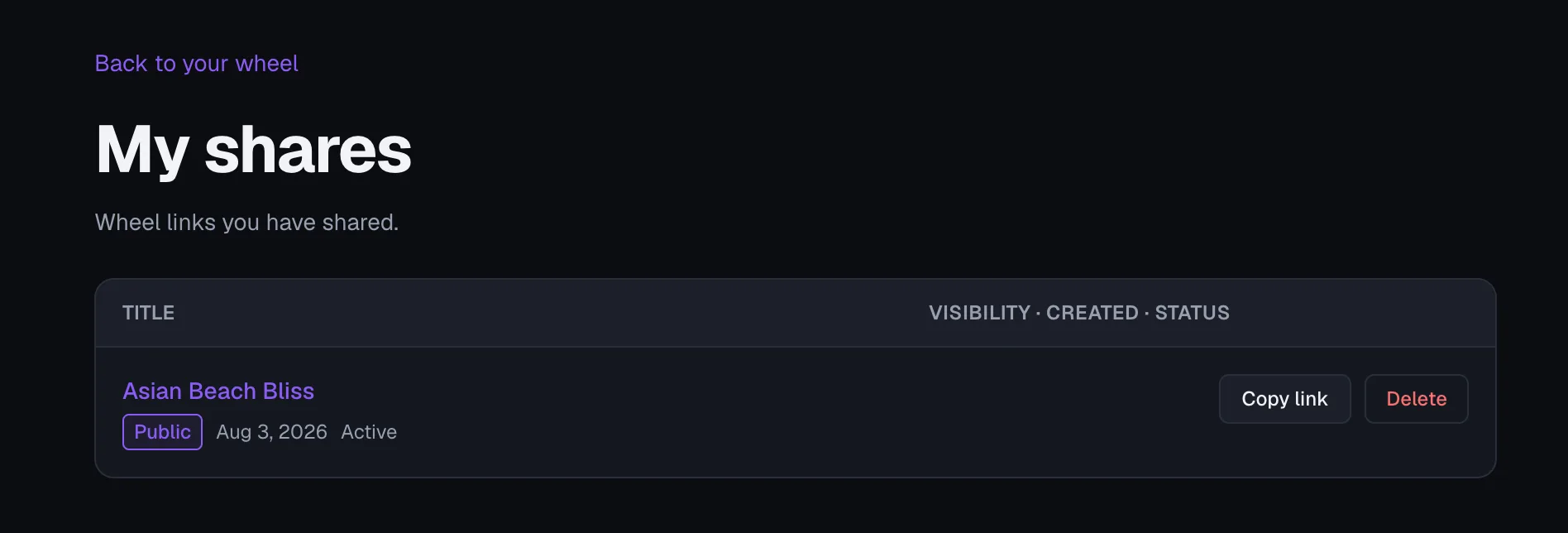
Your shared links, remembered without an account
Every wheel you share is recorded in your browser and listed on the My Shares page.
So a visitor with no account can still come back later, copy a link again, or clear it from the list.
Sign in afterwards and My Shares offers to save those links to your account in one click.
That keeps the same link while making it deletable and available on your other devices.
Most people share a wheel long before they think about making an account.
Losing that link the moment the dialog closes was the fastest way to lose the wheel itself.
Control what the shared page shows
One eye button in the toolbar opens a panel for choosing what a visitor sees: the WheelOfNames.io branding, the wheel title, and the description.
Each is toggled independently and saved with the wheel.
Turning branding off leaves only a small attribution link in the footer.
A wheel embedded in a classroom lesson or a brand giveaway often needs to look like it belongs to the person running it, not to us.
Public gallery
The community Gallery lists wheels shared publicly by other users, searchable and sortable, with staff-picked wheels surfaced separately.
Every submission passes through a moderation queue before it becomes visible to everyone.
Moderation is what keeps a public, searchable gallery usable instead of turning into an open dumping ground.
Winner result sharing
After a spin, choose Share result to create a card with one of 17 free templates in Story, Post, Square, or Wide format.
Choose whether to show the wheel name, date, and odds. Copy, download, or share the card through the native share sheet or social buttons.
Sharing the actual winning moment, not just the wheel itself, is what turns a private pick into something people post.
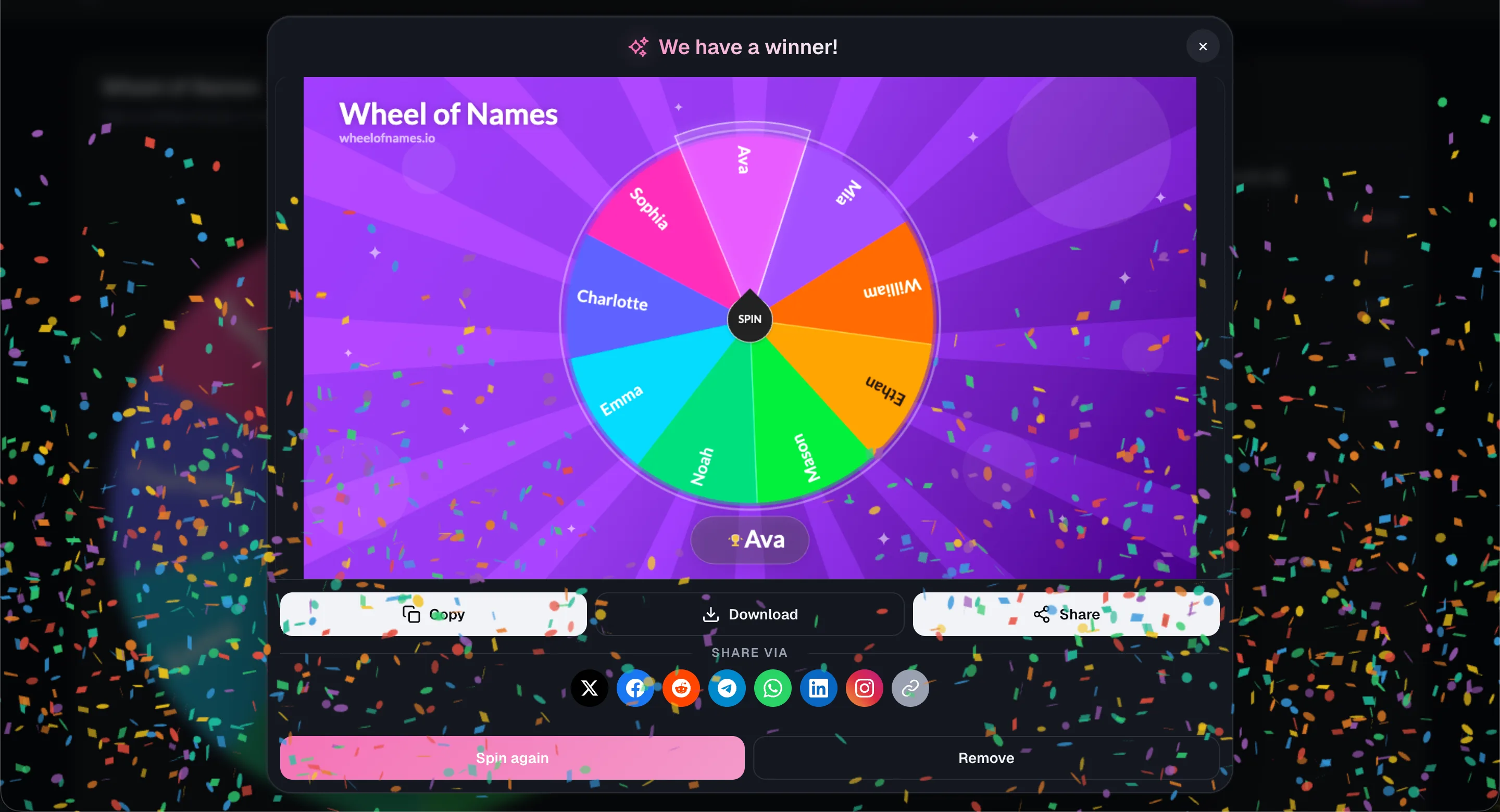
Share a tool straight from the wheel
Every tool page carries a share button in the wheel toolbar, next to the sound and fullscreen controls.
It opens the same share sheet as the winner screen (native share sheet, copy link, and the full social row).
It also attaches that page's own preview card, so the link unfurls with artwork in chats and posts.
Spin the Bottle adds a second entry point on the prompt card itself, for the moment the bottle lands.
Its message names the player and the deck, never the prompt text, so the adult packs stay out of public timelines.
Party games are played in a room together and passed on by word of mouth, so the share has to be one tap from the moment worth talking about.
AI-Powered Generation
When enabled, an AI assistant can build, extend, or clean up a wheel from a short description, with every suggestion left for you to review before it touches your wheel.
Generate, expand, and cleanup modes
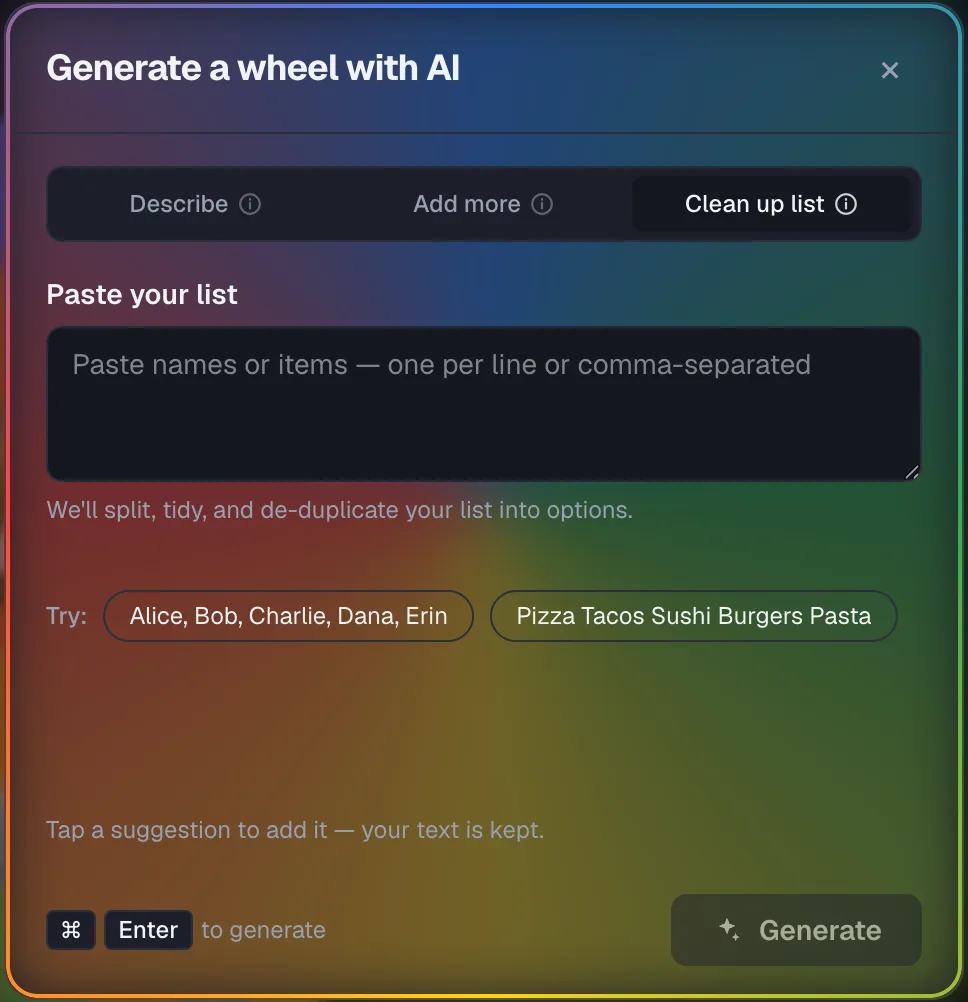
AI generation covers three jobs. Generate builds a brand-new wheel from a text description.
Expand adds more entries that fit the ones you already have, and cleanup tidies up a pasted or messy list into consistent entries.
Each mode solves a different starting point: a blank wheel, a short list that needs padding out, or a rough copy-pasted list.
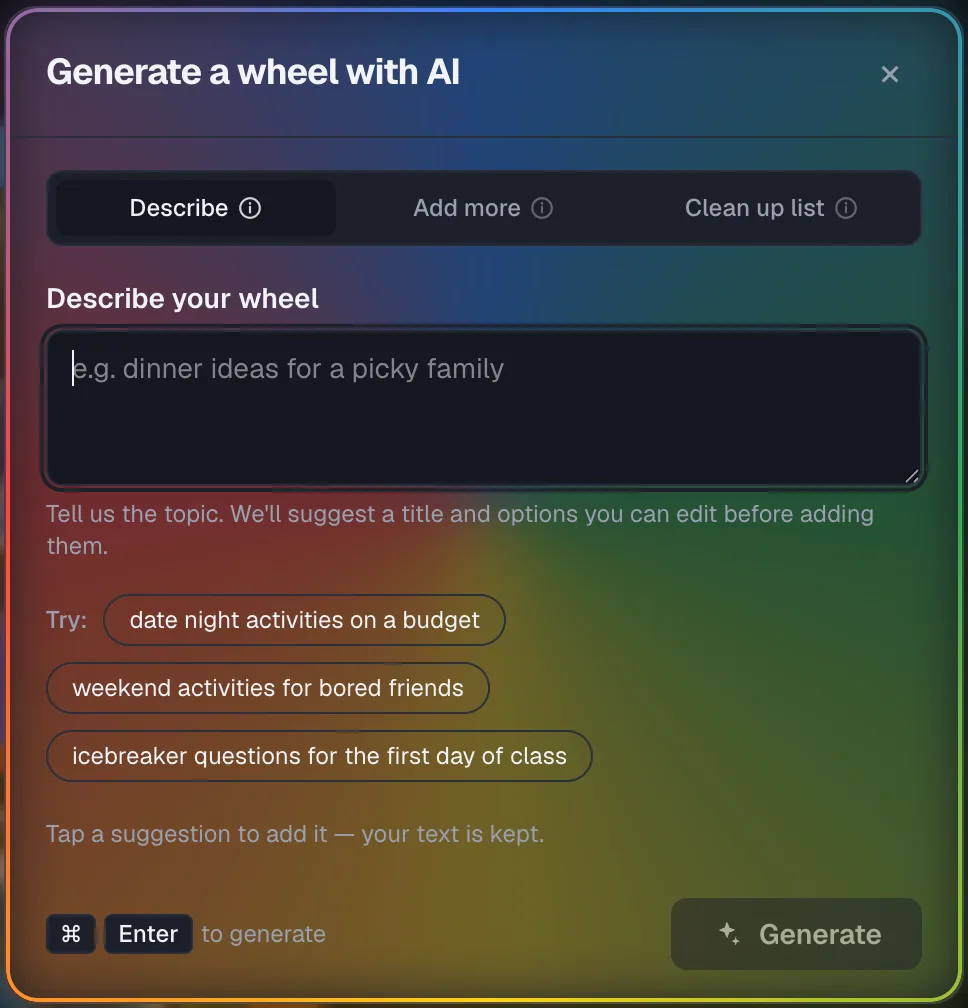
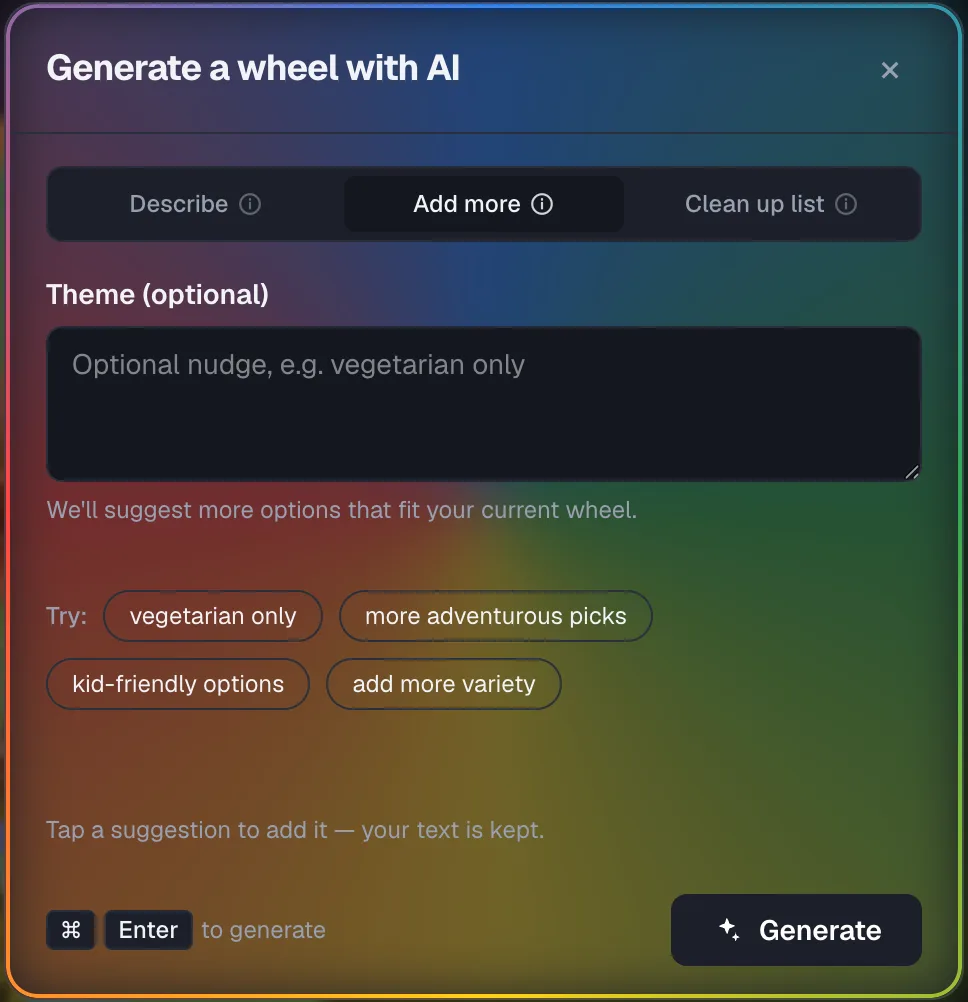
Editable AI suggestions
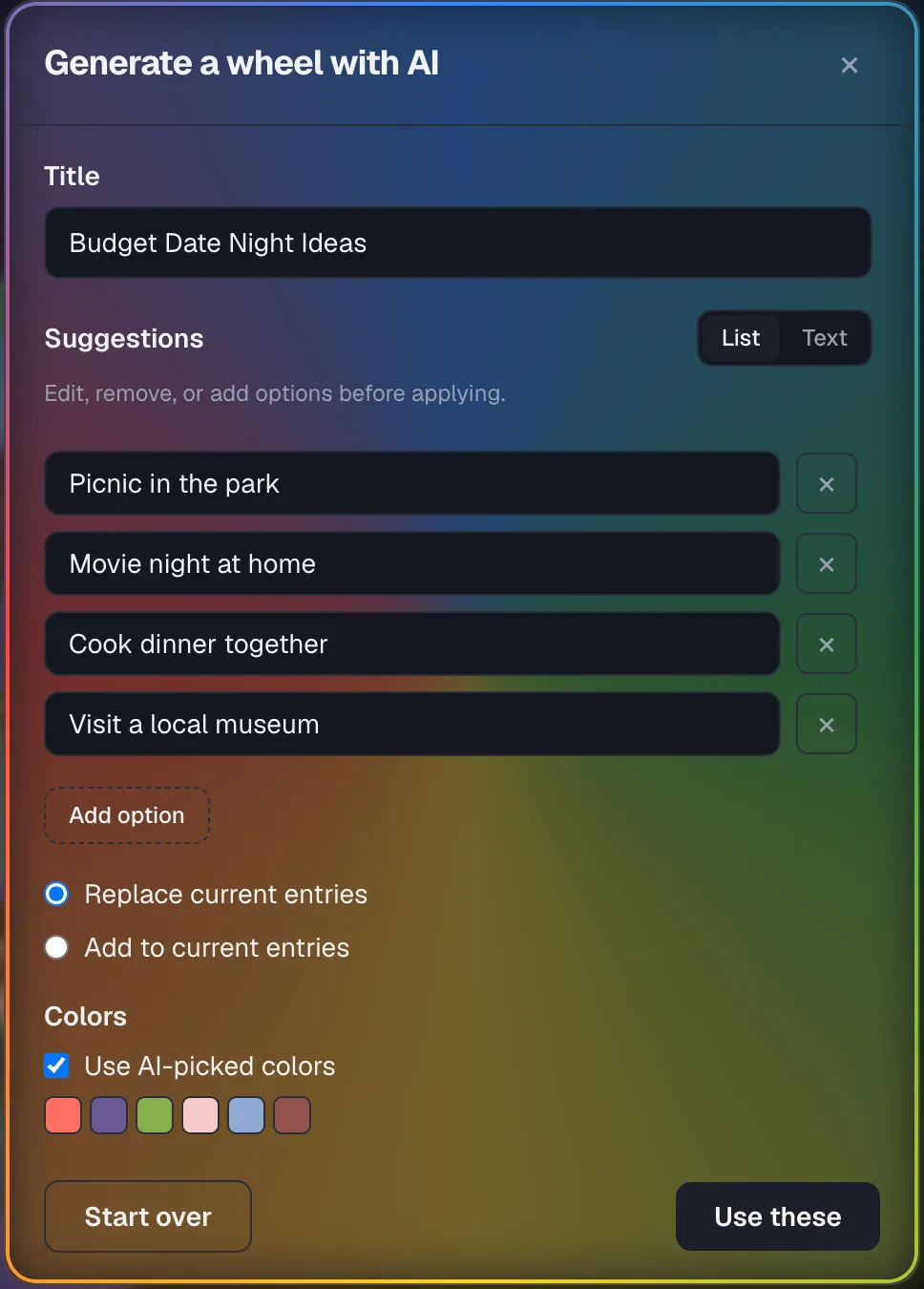
The AI suggests a title, a full set of entries, and matching colors in one pass, all shown to you as an editable draft.
Nothing gets added to your actual wheel until you review and accept the suggestion.
Keeping a human review step means the AI can move fast without ever silently overwriting a wheel you already built.
AI-generated share descriptions
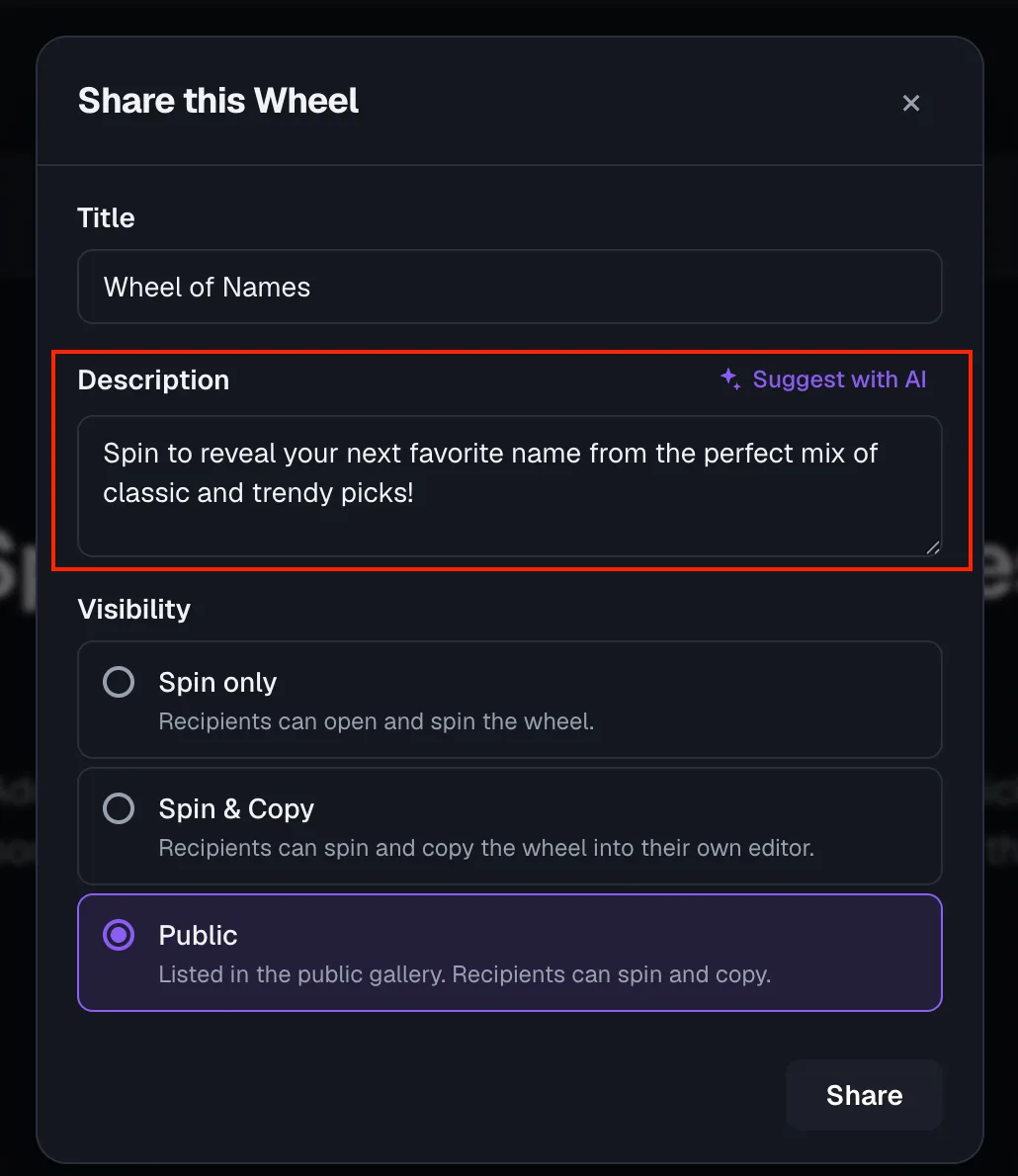
When you make a wheel public, the Share dialog can write a short description of it for you automatically, based on its title and entries.
That saves you from summarizing your own wheel from scratch.
A public gallery entry with no description gets skipped over. Auto-filling one removes the last bit of friction before sharing.
Templates & Themed Tools
Beyond the general-purpose wheel, a set of ready-made templates and themed tools cover common use cases without any setup.
Templates gallery
The Templates gallery is a library of 65 pre-built starting wheels across ten sections, from everyday decisions and randomizers to work meetings, food and drink, holidays, creators, and kids.
You can search it, filter by section, open a wheel, and immediately start editing instead of building one from a blank page.
It is the fastest path from needing a wheel for something specific to an actual working wheel, especially for a first-time visitor.
Templates that show off the wheel
Each template arrives with its settings already configured for the job.
A giveaway wheel comes with weighted prize tiers and a long celebratory spin, and a draw comes with no-repeat winners turned on.
A gift exchange keeps the winner hidden until you reveal it, and a mindfulness wheel comes with the sound off.
Every card labels what it demonstrates, so the features are visible before you even open one.
Most of the wheel's depth is behind settings nobody opens by accident.
Letting a template arrive pre-configured turns each one into a working example of a feature you might not have known existed.
GTA 6 themed wheels
A set of Grand Theft Auto 6 themed wheels lets you spin for your next in-game activity, a random character, a crew name, or a region of Leonida to explore.
Every one of them is fully editable.
Themed tools like this bring in visitors searching for that specific game or topic, not just generic random wheel searches.
Pokemon roulette
The Pokemon roulette wheel spins across a roster of Pokemon sprites, with filters for generation and type.
It can also pick a random starter or randomize a full team in one spin.
It draws from a roster of roughly a thousand Pokemon, filtered down live rather than showing every option on one crowded wheel.
Random country generator
The random country generator spins across all 195 countries, with a flag on every slice.
Filter by continent, untick any country, and show flag and name, the flag alone for a guess-the-flag quiz, or the name alone.
Up to 60 countries fit on the wheel at once, so a pick from all 195 shows a random 60 with a Reshuffle button instead of one unreadable wheel.
Secret Santa generator
The Secret Santa generator draws gift exchange names on a wheel. Add pairs who shouldn't draw each other, an optional budget and exchange day, and choose how to draw.
Spin together passes one device around: each person picks their name, spins a wheel of hidden names, and sees their match on a private card. Private links draws everyone at once and gives each person a link that spins to their own match.
Every spin can only land on someone who still leaves a match for everyone else, so nobody draws themselves and the last person is never stuck. With private links the organizer never sees the pairs and can take part, and no account or server storage is involved.
Multi wheel spinner
The Multi Wheel Spinner puts two wheels on screen, each with its own list. The first picks who and the second picks what, and Spin all spins both at the same time for one result.
The winner card shows both wheels and both picks, ready to copy or share as one image. Either wheel can be spun on its own to re-roll just that half, and each wheel can have its own slice colors, rim, and pointer.
One spin answers two questions that belong together: a name and a prize, a player and a task, a student and a topic.
Turn on Remove both after each pair is drawn and both halves of every pair leave their wheels, so nobody wins twice and no prize is handed out twice. Every pair is listed in the results tab.
Random team generator
The random team generator splits a list of players into teams, either a set number of teams or a set number of players per team. Leftover players can spread across the teams or form one smaller team.
Rate players from 1 to 5 to balance the teams by skill, name captains, lock someone to a team, and add rules for players who must be apart or together. Split instantly, or spin to draft: the wheel picks one player per team in turn, like picking sides at school.
When the teams are made you can drag players between them, copy the teams as text, print them, share a link, and spin for who starts.
One solver works out the whole split before the first spin, so a draft can never paint itself into a corner and break a rule on the last pick. When rules can't all fit, it names the one in the way.
Shared links carry only names, never skill ratings, and the last split is remembered on this device so the next one can mix people up.
Color picker wheel
The color picker wheel spins to a single random color from a rainbow, basic, pastel, warm, or cool set, and shows the winning shade's name and swatch once it lands.
It is a quick way to settle on a color for a project, a game, or a design choice without scrolling a palette manually.
Charades generators
A family of charades wheels spins up a random word or phrase to act out, with ready-made sets for kids, dumb charades using movie names, and Christmas.
There are also general game night sets, and every set is editable.
Ready-made word lists save the setup work of typing out a charades list from scratch before a game night.
Illustrated everyday wheels
Five tool wheels arrive with a picture on every slice instead of text alone: what to eat, what to watch, the workout wheel, the chore wheel, and the classroom jobs wheel.
The art is bundled with the app, so it loads instantly and keeps working offline, and every slice is still editable text underneath.
A picture is read faster than a label mid-spin, and it makes these wheels usable by children who cannot read the options yet.
That matters most for the chore and classroom job wheels.
Random topic generator
The Random Topic Generator spins a wheel of topics to talk, write, or debate about, drawn from ten categories: conversation, debate, speaking, writing, drawing, science, history, tech, funny, and general.
Each one runs at easy, medium, or hard difficulty.
It solves the blank-page problem in one spin, whether you need an icebreaker, a class debate motion, a writing prompt, or a sketch idea.
A built-in speaking timer starts on its own the moment the wheel lands, and an optional read-aloud uses the browser's own voice.
Together they turn the wheel into an impromptu-speaking drill rather than just a topic list.
Spin the Bottle
Spin the Bottle is a full truth or dare game built on bottle mode. A game-mode switch picks between two shapes.
Truth or dare, the default, lands every spin on a deck and deals a prompt from a bank of over 1,000.
Players first puts two wheels on screen at once: a roster wheel that picks whose turn it is, and the bottle wheel that picks the deck.
Spin all runs a whole round across both, or either wheel can be spun on its own to re-roll just the player or just the deck. Each wheel has its own wheel style, and the players wheel can take its own slice colors.
Mode packs filter the bank to the room you are in: Family for kids and relatives, and Teen Party and Friends Night for bolder prompts.
Couples holds date-night questions written for two.
Adult content stays locked behind an explicit opt-in, so the game is always safe to hand to whoever is next.
A third deck of would-you-rather, never-have-I-ever, and most-likely-to questions can be switched on when the group wants a change of pace, and nothing repeats until a deck is exhausted.
On the two-wheel game the player the roster landed on stays named until the next round begins.
The deck wheel scrolls itself into view as soon as the roster stops, so a round never appears to end at "who".
The bottle picker sits in the panel rather than behind a disclosure, so all eleven bottles and your own photo are one tap away.
The results list names the player each prompt went to.
Embeddable wheel
The Embed tool lets you customize a wheel and then copy an iframe code that drops the live, spinnable wheel directly onto your own website or blog post.
It puts a fully working wheel on someone else's page without them needing to build or host anything themselves.
An embed stays live for as long as the page keeps getting visitors, and only expires after 180 days with no views.
Works Offline (PWA)
The app installs like a native app and keeps working once it has loaded, even without an internet connection.
Installable app
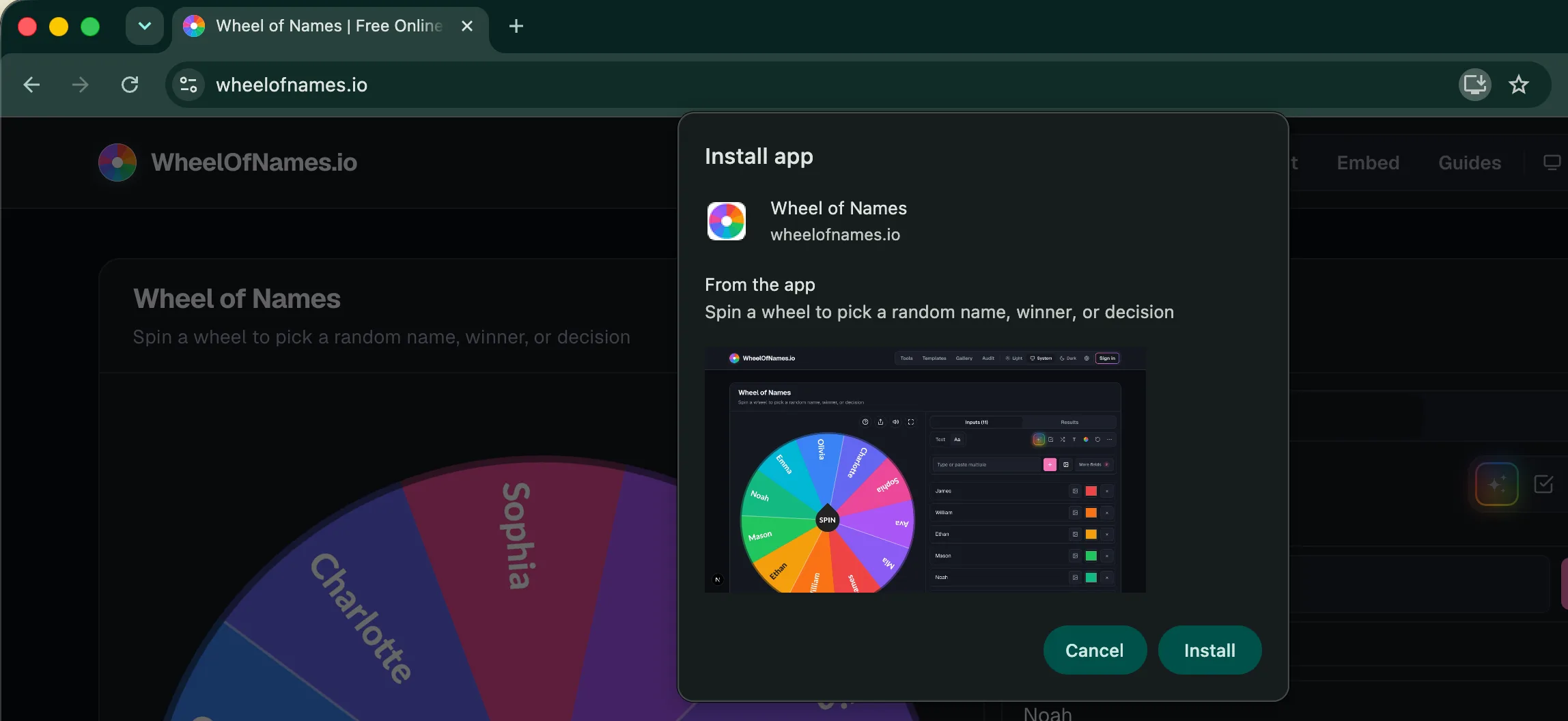
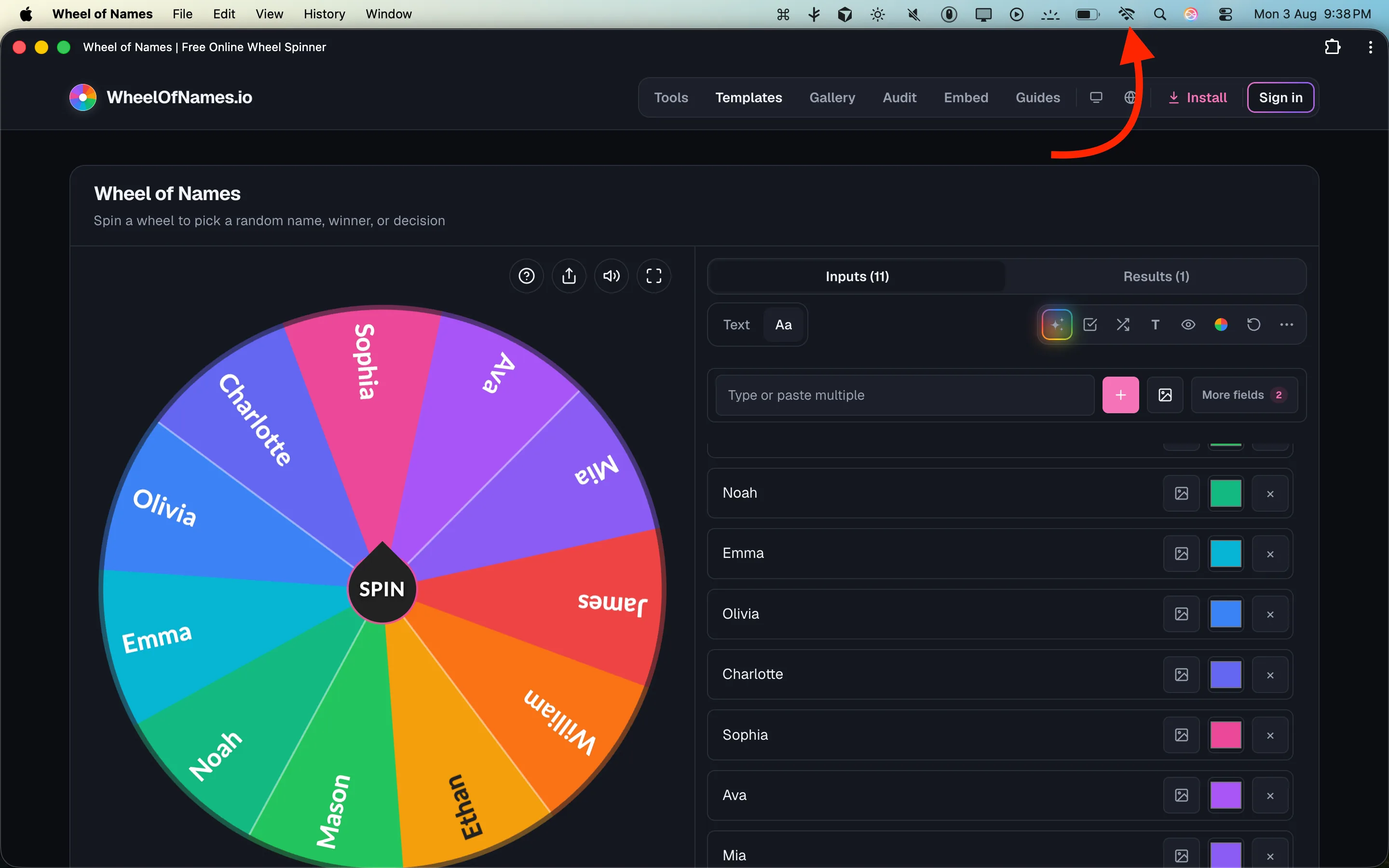
The wheel app can be installed to your phone or desktop home screen as a Progressive Web App.
It launches in its own window rather than a browser tab, the same way a native app would.
An installed app is one tap away instead of a bookmark to dig up, which matters for a wheel you spin often.
Offline support
Once the app has loaded, a service worker lets it keep working without an internet connection.
An existing wheel stays fully usable mid-flight, in a classroom with spotty Wi-Fi, or anywhere else the connection drops.
A spin wheel used live, in a classroom or on stage, cannot afford to break the moment the connection wobbles.
Accessibility & Keyboard Shortcuts
The wheel can be run entirely from the keyboard, and its animations respect your device's motion settings by default.
Keyboard shortcuts
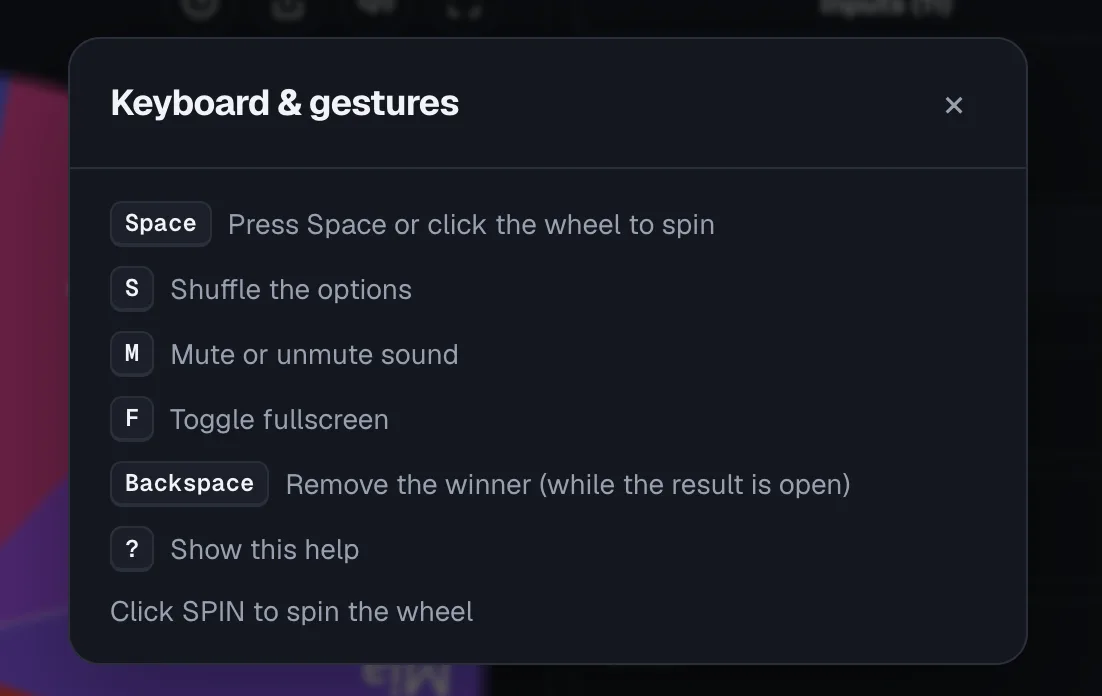
Space spins the wheel, S shuffles the entries, M mutes or unmutes sound, F toggles fullscreen, and Backspace removes the current winner.
? opens a help dialog listing every shortcut, so the wheel can be run hands-free from the keyboard.
Keyboard control matters most when the wheel is projected on a classroom screen and the presenter is standing away from the mouse.
Logo placement gestures
A branding logo placed on the wheel can be repositioned by dragging it and resized by scrolling or pinching.
These are the same direct-manipulation gestures you would expect from a photo editor rather than a settings form.
Direct gestures are faster than typing pixel offsets into a form, especially for a one-off adjustment before going live.
Reduced motion respected everywhere
Every animation the wheel plays, the idle pre-spin motion, the pointer's kick on each slice cross, and the hub button's press ripple, checks your device's reduced-motion setting first.
It turns itself off when that setting is on.
Motion-sensitive users should not have to choose between using the app and avoiding animations that bother them.
Fairness & Trust
You do not have to take it on faith that the wheel is fair. A built-in tool proves it with real numbers.
Built-in randomness audit
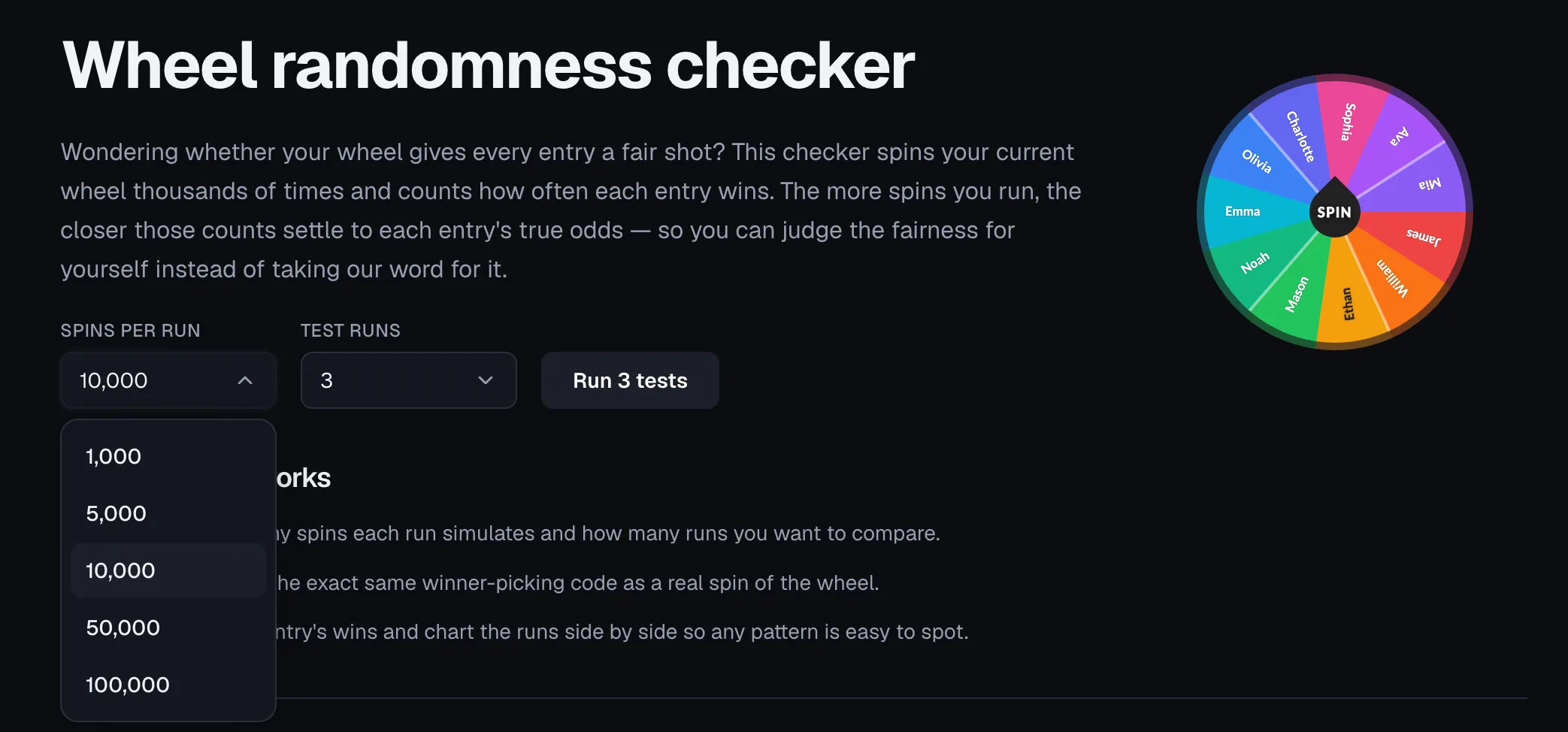
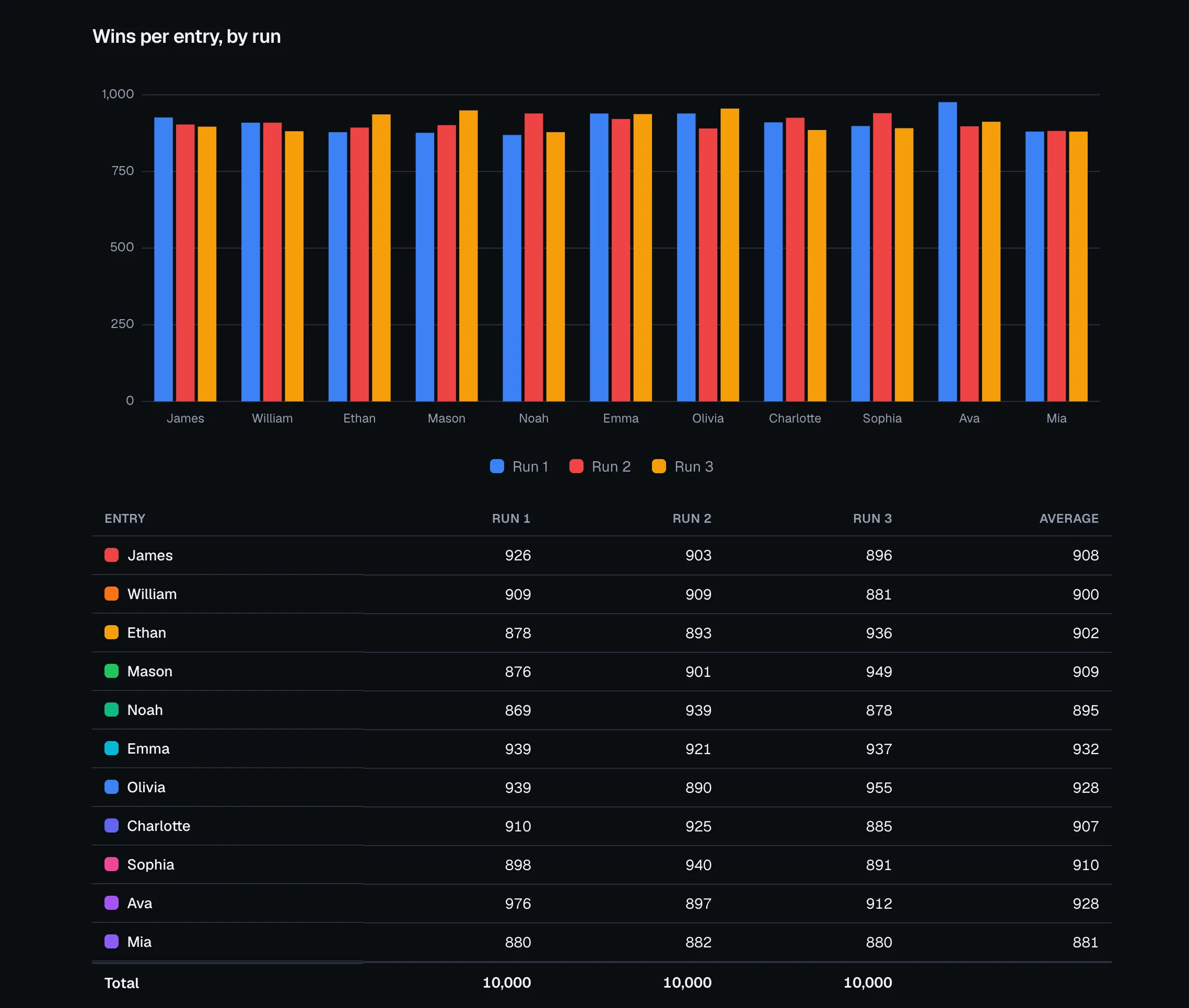
The Randomness checker runs 10,000 simulated spins right in your browser using your browser's own cryptographically secure random generator.
It then shows the actual win distribution across every entry next to the share each entry is supposed to win.
Weighted wheels are covered too: when your entries have different weights, the results table adds a Weight column, and an Expected column with each entry's exact odds.
A Difference column shows how far the run landed from those odds, with a dashed expected-value marker over every bar in the chart.
Anyone can claim a wheel is fair. Running 10,000 real spins in front of you and showing the results is proof, not a promise.
Raw win counts alone are not proof once entries carry different weights, because uneven counts are the correct outcome.
Showing the expected share alongside them is what turns the numbers into something you can actually check.
The page also states whether weights are switched on for the wheel being tested, so a result is never quietly measured against the wrong odds.
For a deeper look at how the randomness itself works, see our guide on whether Wheel of Names can be rigged.
Account settings and data control
If you create an account to keep your shared wheels together, Account settings lets you permanently delete your account and the shared wheels you own.
You can do this at any time, no support ticket required.
You should not need to email support to walk away with your data gone.
Self-service deletion means the choice is always yours, whether you created an account to manage your shared links or to keep your language across devices.
Frequently asked questions
- How many features does the wheel spinner actually have?
This page covers around 40 individual features across wheel physics, entry customization, sound and confetti, sharing, AI generation, themed tools, offline support, accessibility, and a built-in fairness audit.
Every feature listed here is live in the app today, not a roadmap item.
- Is every feature on this page free to use?
Yes. Every feature described here, including weighted slices, backup files, sharing, and the fairness audit, is free with no account required.
AI generation is the one feature that depends on whether a given deployment has it turned on.
- Do I need to create an account to use these features?
No account is required for any core feature. Wheels save to your browser automatically, and even sharing a link or browsing the public gallery works without signing up.
- Does the wheel work without an internet connection?
Yes. Once the app has loaded once, it works offline as an installed Progressive Web App, so an existing wheel keeps spinning even if your connection drops mid-session.
- How do I know the wheel picks a fair, random winner?
The built-in Randomness checker runs 10,000 simulated spins using your browser's secure random generator and shows the real win distribution for every entry.
So you can verify the fairness yourself instead of taking our word for it.