AI Wheel Generation
How to Use the Wheel of Names AI Generator
Typing out twenty options by hand is the slowest part of building a wheel. The AI generator turns a one-line description into a full, editable draft instead.
Key takeaways
- Three modes cover three different starting points: Describe builds a brand-new wheel from a prompt, Add more extends the entries you already have, and Clean up list tidies a pasted, messy list.
- Prompts are capped at 300 characters and every result lands as an editable draft first. Nothing touches your wheel until you review it and choose Use these.
- The AI also suggests a title, a spin button label, a font, and either a matching preset palette or its own custom colors, all editable before you apply them.
- The same assistant can write a short public description for you in the Share dialog, so a public wheel isn't left blank.
What the AI generator actually builds for you
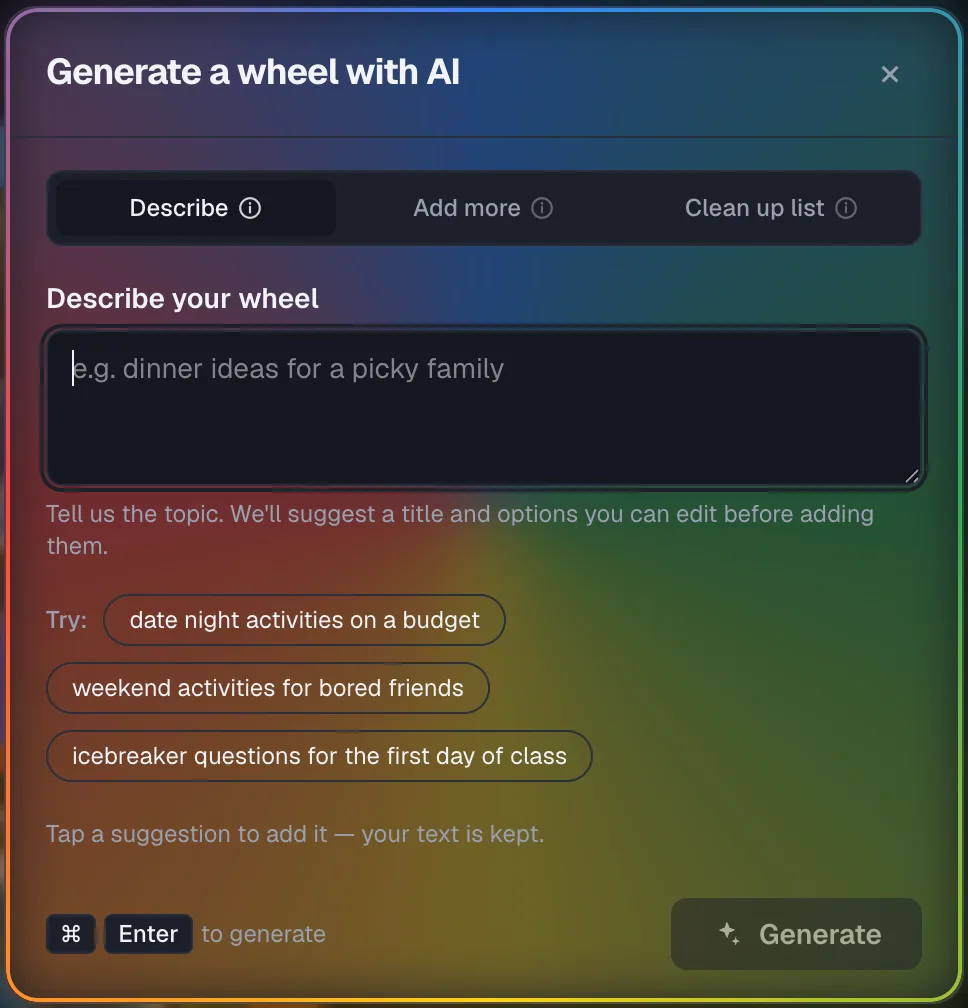
The button reads Generate with AI, and it opens one dialog with three tabs: Describe, Add more, and Clean up list.
Each tab solves a different problem, so picking the right one matters more than the wording of your prompt.
Describe replaces your current wheel with a new one built from scratch.
Add more appends fresh entries to what's already there, and Clean up list reformats a pasted block of text into proper entries.
| Mode | What it does | Best for |
|---|---|---|
| Describe | Builds a brand-new wheel (title, entries, colors) from a text prompt | Starting from a blank wheel |
| Add more | Suggests fresh entries that fit your current wheel, then appends them | A short list that needs padding out |
| Clean up list | Splits and de-duplicates a pasted list into consistent entries | A rough list copied from somewhere else |
Generate a brand-new wheel with Describe
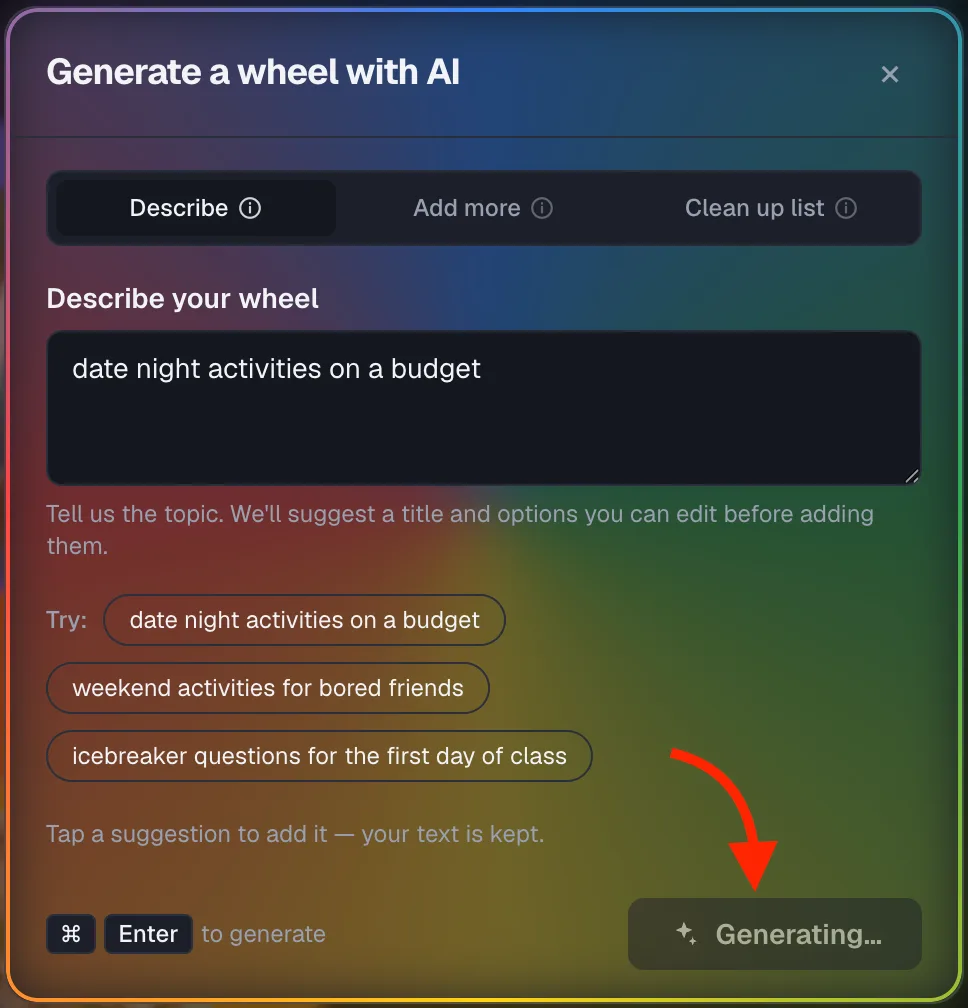
Open Generate with AI from the toolbar and stay on the Describe tab, the default view.
Type what you want the wheel to be about. A short, specific sentence works better than a single keyword.
- Be specific about the activity and any constraint: "date night activities on a budget" beats just "date ideas."
- Mention an audience if it matters, like a classroom, a party, or a work team, so the tone of the entries matches.
- Keep it under 300 characters. The field cuts you off there, so long, rambling prompts get truncated anyway.
- Tap an example chip if you're stuck. They're real starting prompts, not just placeholder text.
Add more options without starting over
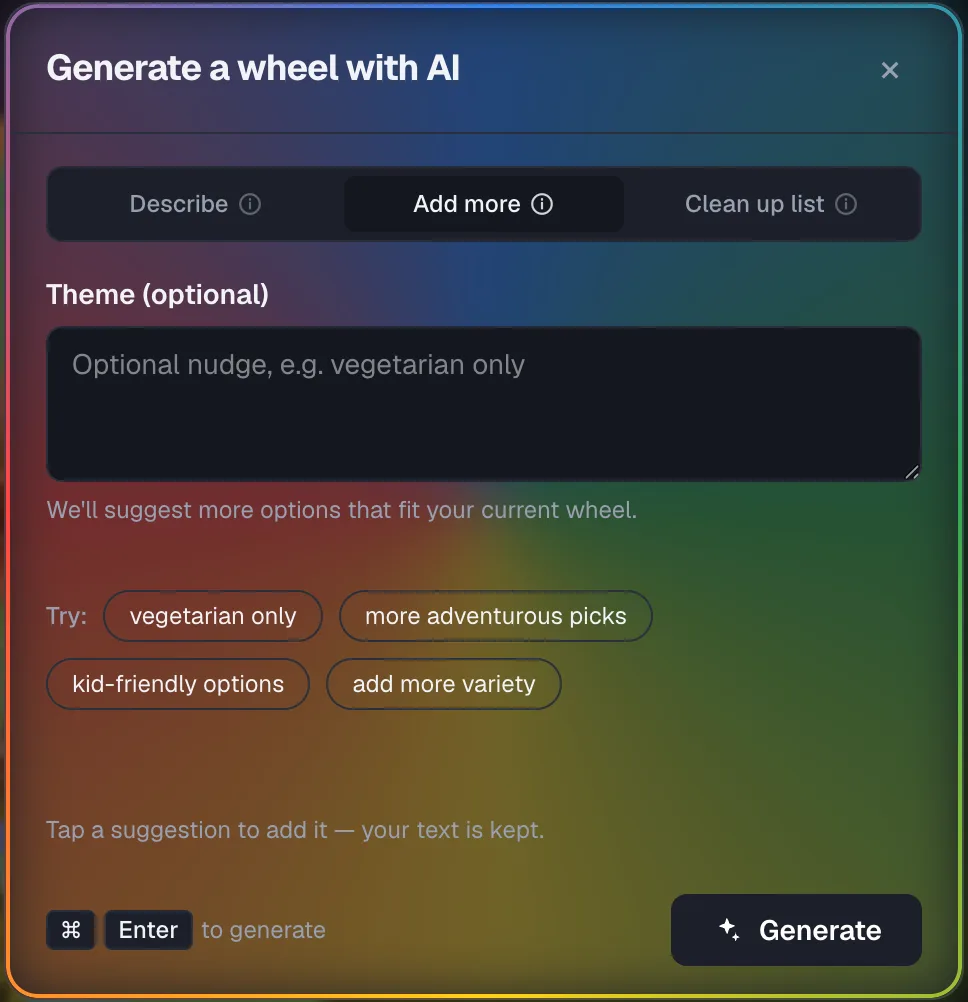
Switch to the Add more tab when your wheel already has some entries and just needs to be bigger.
This mode never replaces what you've built. It reads your current entries for context, then suggests new ones that fit alongside them.
The Theme field here is optional, not required like Describe's prompt. Leave it blank and the AI infers a direction from your existing entries alone.
- Use the Theme field to nudge the results, like "vegetarian only" or "more adventurous picks."
- Add more works best once you already have two or three entries for it to read as context.
- Run it more than once if you need a bigger wheel. Each pass adds to what's already there instead of overwriting it.
Turn a messy pasted list into clean entries
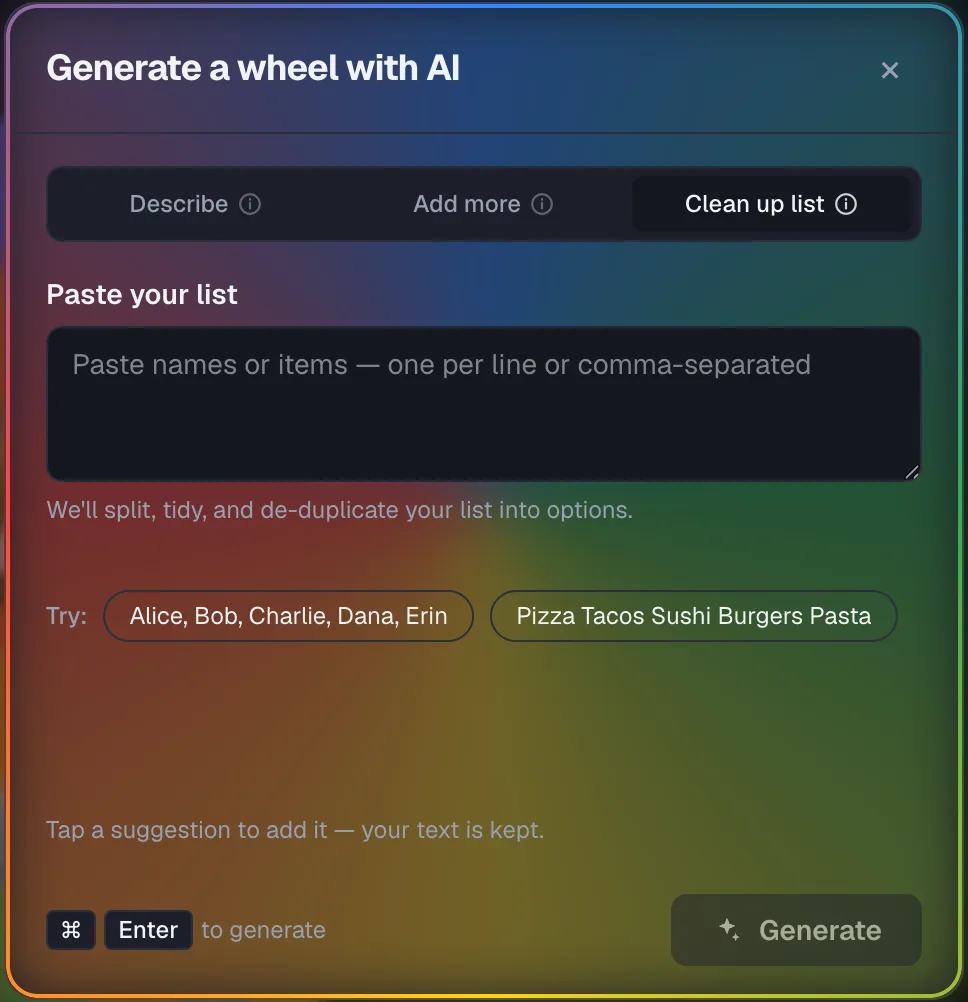
Clean up list is for text you already have: a roster copied from a spreadsheet, a list texted to you, or notes with inconsistent formatting.
Paste the whole block, one item per line or comma-separated, and the AI splits, trims, and de-duplicates it into proper wheel entries.
- This mode replaces your current wheel, the same way Describe does, so review the result before applying it over an existing list.
- It's the fastest option when the raw material already exists somewhere else and just needs tidying, not new ideas.
Review, edit, and apply the suggestions
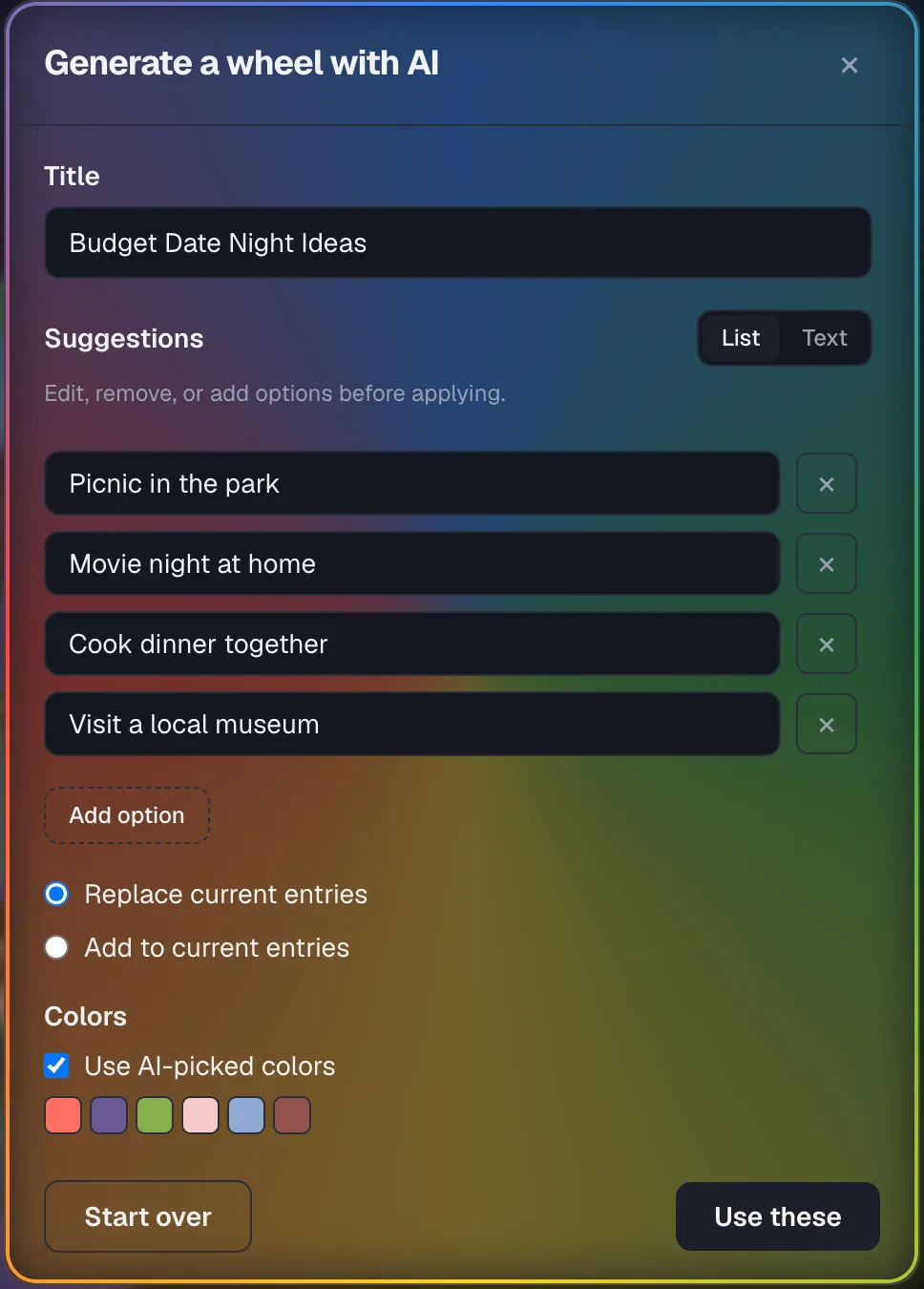
Every mode lands on the same results screen before anything touches your wheel. Nothing is applied automatically.
You can edit the suggested title, add or remove individual options, or switch to Text view and edit the whole list as plain lines.
In any mode, choose Replace current entries or Add to current entries right before applying, so you decide the outcome, not the mode alone. The Use AI-picked colors toggle appears when replacing.
- List view edits one option at a time, in its own row. Text view edits everything as one list, one option per line.
- Toggle Use AI-picked colors to apply the palette the AI suggested, or leave it off to keep your current colors.
- A warning appears if you're about to apply 30 or more entries, since very full wheels get harder to read.
- Click Use these once you're happy with the draft. Nothing is saved until that click.
Let AI write your share description too
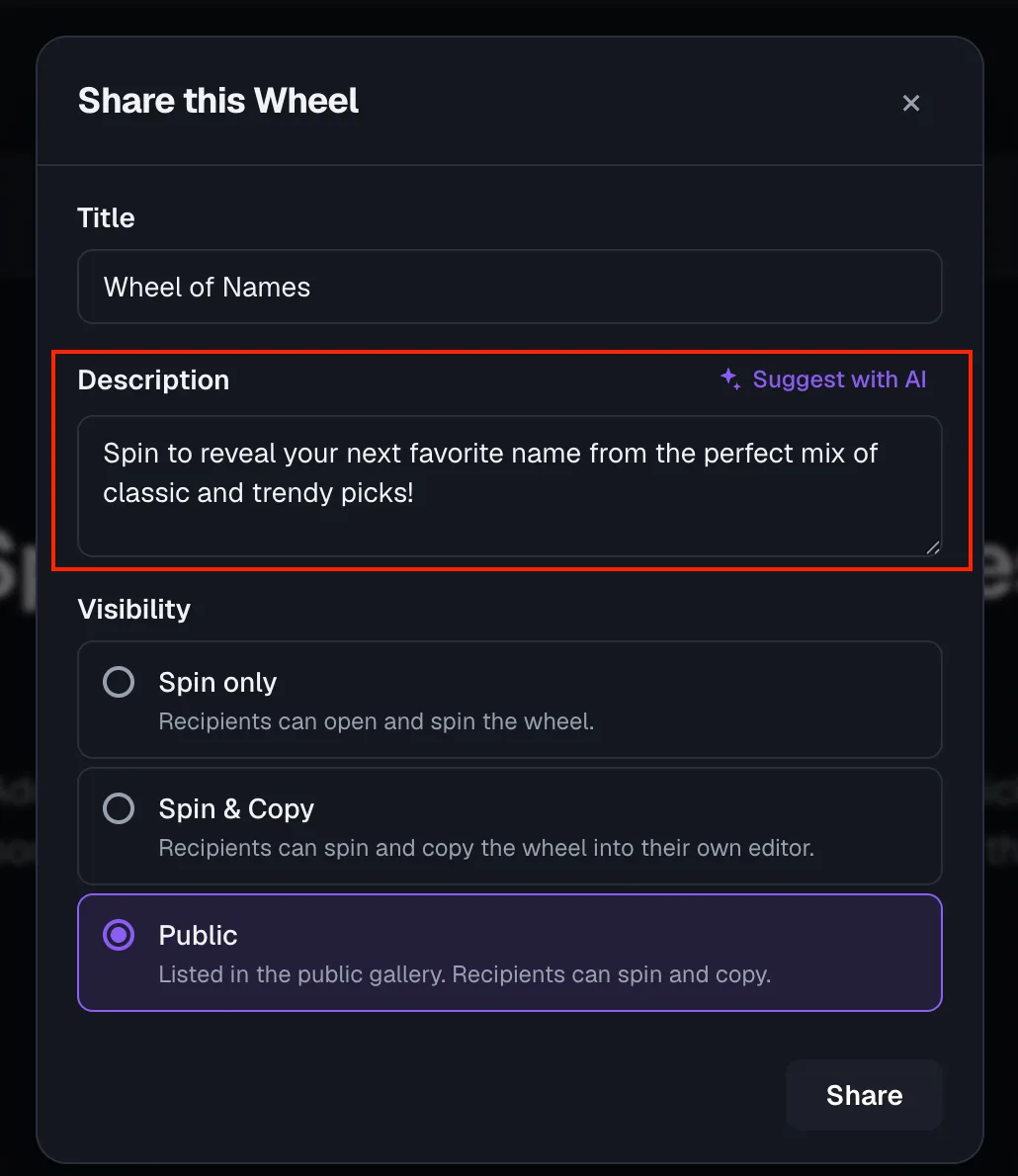
The same assistant shows up a second place: the Share dialog, when you're about to make a wheel public.
A Suggest with AI button next to the Description field writes a short tagline from your wheel's title and entries.
That matters because a public gallery listing with a blank description tends to get skipped over by browsers. A filled-in one gets a click.
- The suggestion fills the Description field only. You can still edit it by hand afterward.
- It reads your existing title and entries, so a more descriptive wheel title produces a better suggestion.
Prompt tips that get noticeably better results
- State the activity and the constraint together: "kid-friendly party games for a 7-year-old's birthday" outperforms "party games."
- Name the group size or setting if it changes what belongs on the wheel, like a classroom of 30 versus a team meeting of 5.
- If the first result is close but not quite right, use Add more to nudge it rather than rewriting the whole prompt from zero.
- Keep names and short, concrete nouns as entries. Very long sentences as individual options get cut off at the wheel's label limit.
Limits and things worth knowing
A few hard limits shape what the AI can return, on any mode.
A generated wheel always has between 2 and 50 entries, each capped at 40 characters, so a prompt asking for hundreds of options gets trimmed to that range.
The generator lives in the toolbar on the full homepage editor and on most list-based tool pages (like the random name picker), not just one place.
If it's ever unavailable, the dialog will say AI generation isn't enabled on this server rather than fail silently.
Ready to try it yourself?
Open the toolFrequently asked questions
- How do I generate a wheel with AI?
Click Generate with AI in the toolbar, stay on the Describe tab, and type a short description of what you want.
Click Generate, review the suggested title and entries, then click Use these to apply them.
- Can I edit the AI's suggestions before they're applied?
Yes. The results screen is a fully editable draft: change the title, edit or remove options in List view, or rewrite the whole list in Text view.
Nothing is saved until you click Use these.
- What happens to my existing wheel when I use Add more?
Add more only appends new entries; it never replaces or deletes what you already have.
Describe and Clean up list do replace your current wheel, but only after you confirm by clicking Use these.
- Does the AI pick colors and fonts, or only names?
It suggests all of it: a title, entries, a spin button label, a font, and either a matching preset palette or its own custom colors.
A toggle on the results screen lets you keep your current colors instead.
- Why do I see "AI generation isn't enabled on this server"?
That message means the AI feature isn't configured on the server you're using right now. The rest of the wheel builder works normally; only the AI-assisted generation is affected.
Sources
- Wheel of Names: AI-Powered Generation, on /features
- OpenAI: Prompt engineering guide