Customize & Share
How to Add a Branding Logo to Your Wheel of Names
Overlay your own logo on the wheel for a branded look on fullscreen, shared links, and embeds, in place of relying on the wheel's default title and description alone.
Key takeaways
- Branding logo upload lives in the full wheel editor on the homepage and in the embed customizer, not on individual tool pages like the random name picker.
- Drag the logo to reposition it. Scroll, trackpad-pinch, or two-finger touch-pinch to resize it, or use the keyboard-accessible size slider in settings.
- Uploading a logo doesn't remove the wheel's title and description by itself. Separate toggles control whether each still shows on a shared link.
- There's currently no keyboard way to reposition the logo, only to resize it.
Where the branding logo control lives
Open Branding logo in the settings panel, part of the full wheel editor on the homepage and the embed customizer.
Individual tool pages, like the raffle wheel or random name picker, use simpler panels built for one job and don't include it.
Step 1: Upload your logo
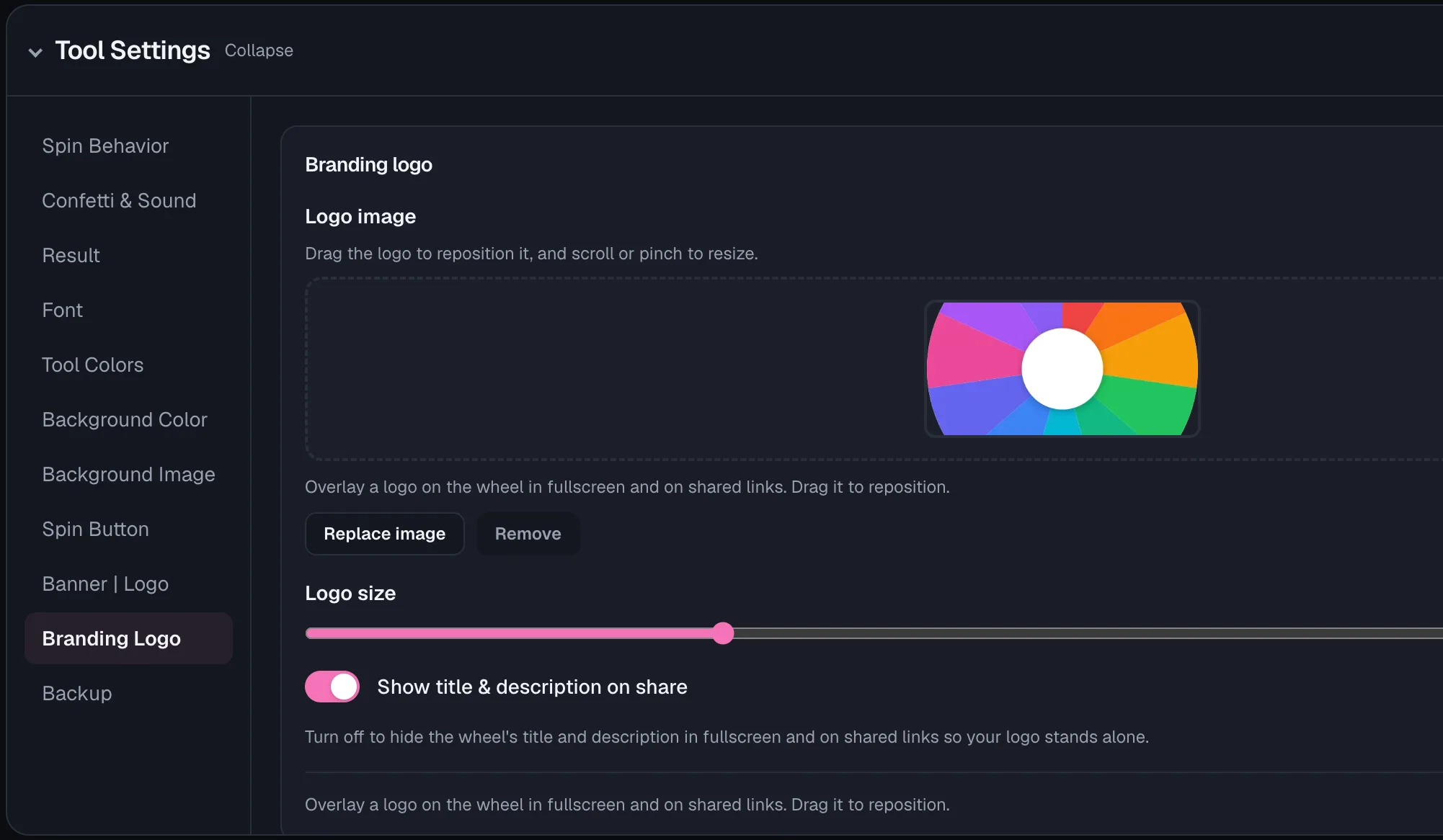
Click the upload zone and choose an image file from your device. Any image works, as long as it's under 3MB.
Wheel of Names compresses it automatically to a maximum 1600px edge, so there's no need to resize it yourself first.
Step 2: Drag to reposition
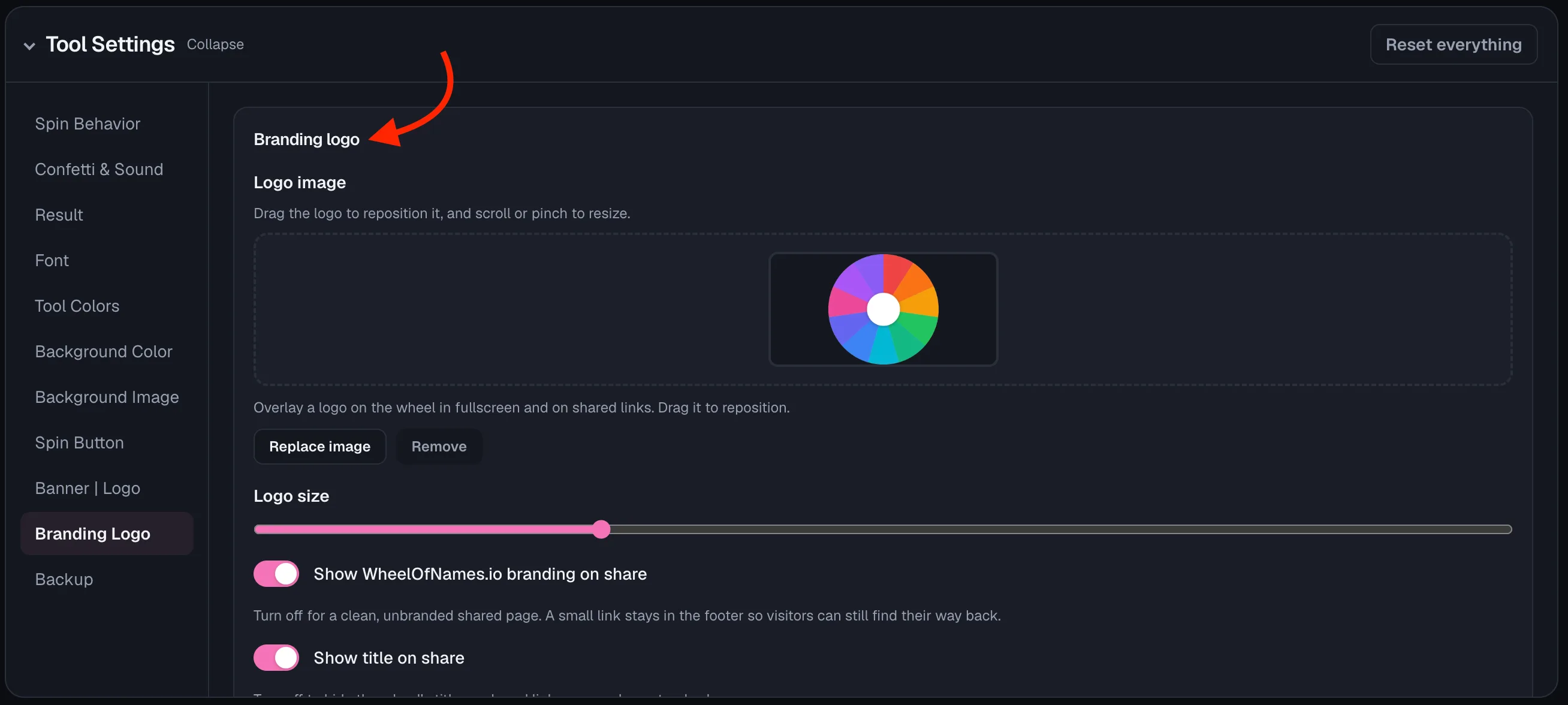
Once uploaded, the logo appears as a draggable layer over the wheel. Click and drag it anywhere you like.
The drag area keeps the logo from covering the wheel's title and description, so both stay legible.
Step 3: Resize it
Scroll or trackpad-pinch over the logo to resize it, or use two fingers to pinch-resize it directly on a touchscreen.
Prefer a keyboard? The Logo size slider in the settings panel resizes it too, from 5% up to 60%.
See it on your wheel
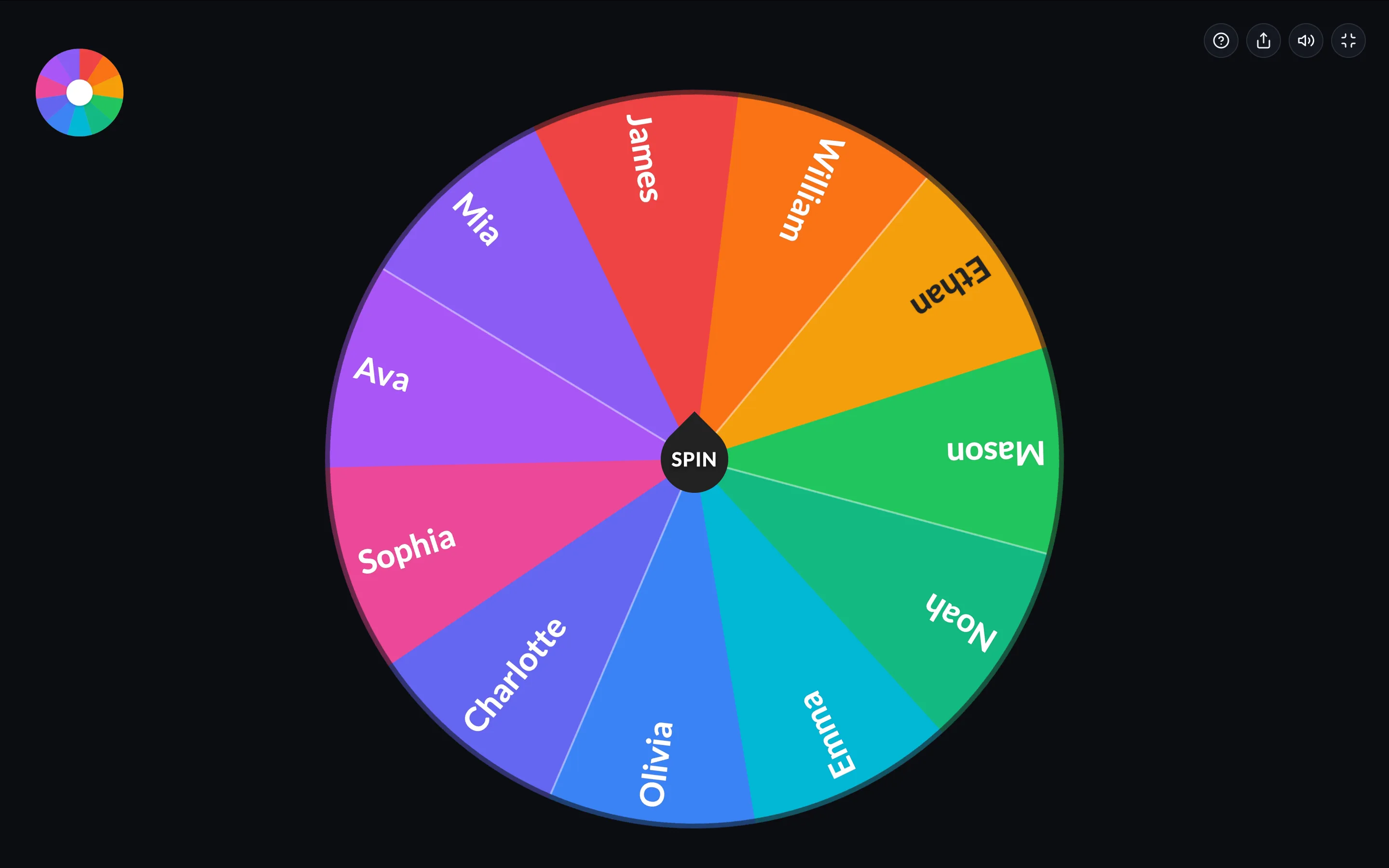
Once placed, your logo shows up in the same spot in fullscreen and on any link you share.
The rest of the wheel keeps working exactly as before, logo and all.
Show your logo without the title and description
The Branding logo section has separate toggles for whether the site's own branding, the wheel's title, and its description show on a shared link.
Turn off Show title on share and Show description on share to let the logo stand alone.
Frequently asked questions
- Can I use my logo on individual tool pages, like the random name picker?
No. Branding logo upload only lives in the full wheel editor on the homepage and in the embed customizer, not on single-purpose tool pages.
- Is there a size limit for my logo image?
Yes. Any image file works, but it has to stay under 3MB. Wheel of Names compresses it automatically to a maximum 1600px edge.
- Can I resize the logo without a mouse or touchscreen?
Yes, partly. The Logo size slider in settings is fully keyboard-accessible. Repositioning the logo currently requires a drag, with no keyboard equivalent yet.
- Does adding a logo hide my wheel's title automatically?
No. Uploading a logo doesn't change your title or description by itself. Separate toggles in the Branding logo section control whether each still shows.