Customize & Share
How to Add Images to a Wheel of Names
Plain text names work fine, but a wheel of photos, movie posters, or team headshots is more fun to watch spin. Here's how to add images to yours.
Key takeaways
- Image uploads live in the full editor on the homepage, and in the embed customizer. Individual tool pages like the random name picker or raffle wheel don't include this option.
- Any image file works. Wheel of Names compresses it to a maximum 768px edge automatically, so you don't need to resize anything yourself first.
- Images are stored locally in your browser by content, not filename, so uploading the exact same photo twice reuses one copy instead of storing it again.
- Each image can show as a small icon on its slice or fill the whole slice, set per entry rather than for the wheel as a whole.
- On a desktop or laptop, pointing at a slice previews its picture and highlights that entry in your list, which makes a long list much easier to work through.
- One toggle switches the wheel to show images without names, though the winner dialog always names the winner in text after every spin.
Where the image option lives (and where it doesn't)
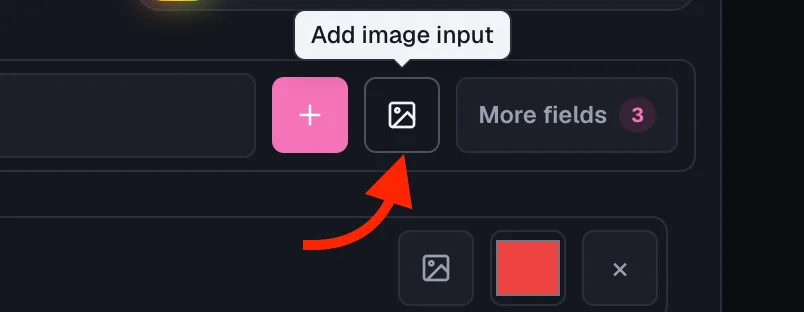
The image button sits inside the entries panel, next to each row's text field, once the Image column is turned on.
It's part of the full wheel editor on the homepage, and it's also available in the embed customizer.
Individual tool pages, like the random name picker or raffle wheel, use simpler panels built for one job and don't include it.
If you want images on your wheel, build it from the homepage editor instead of a dedicated tool page.
Step 1: Turn on the Image column
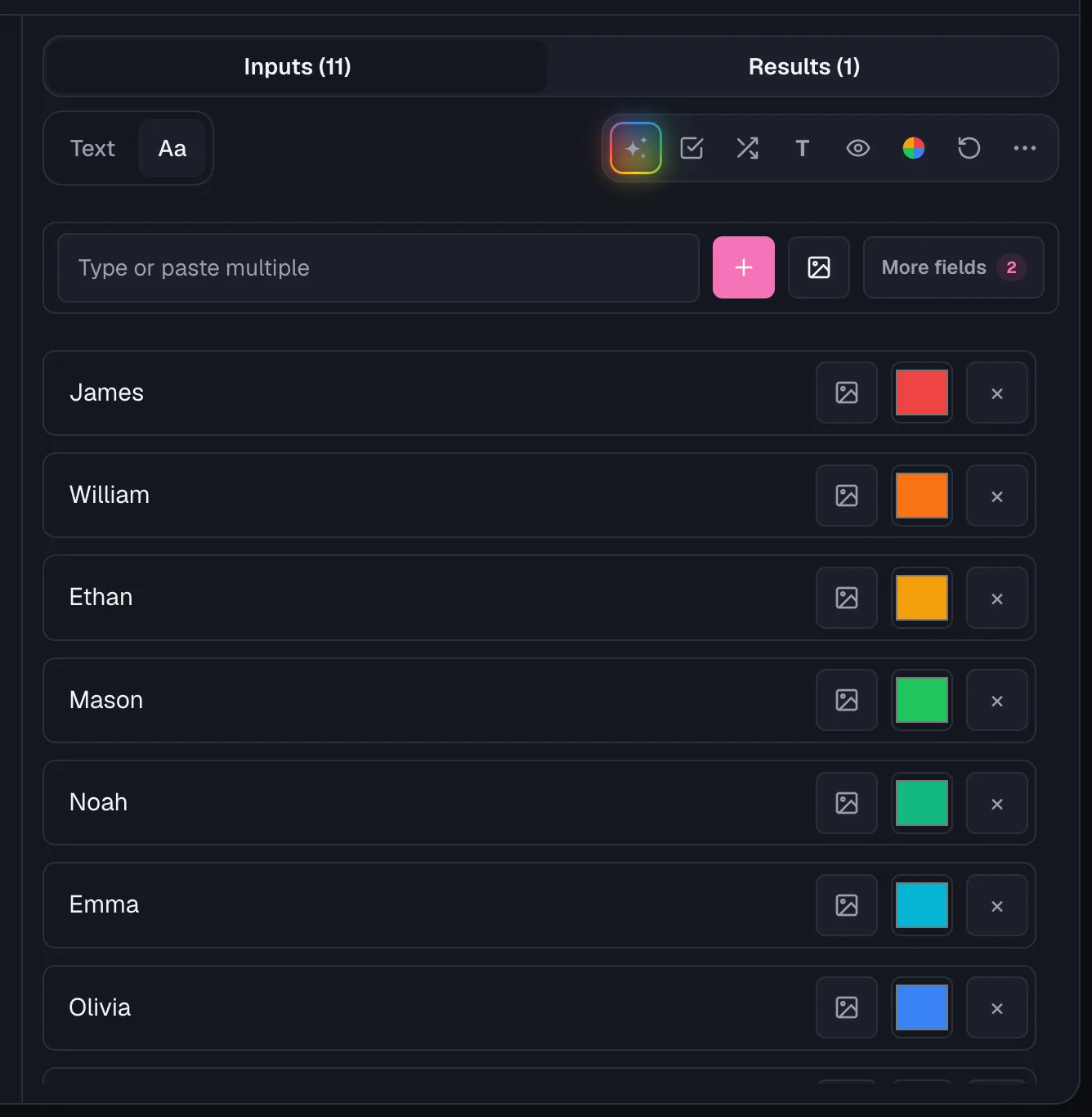
Open the Fields menu above your entry list and switch on Image, alongside Weight, Color, Duplicate, or Hide if you want those too.
Each toggle adds its own control to every row, so turn on only what you actually plan to use.
Step 2: Upload an image to an entry
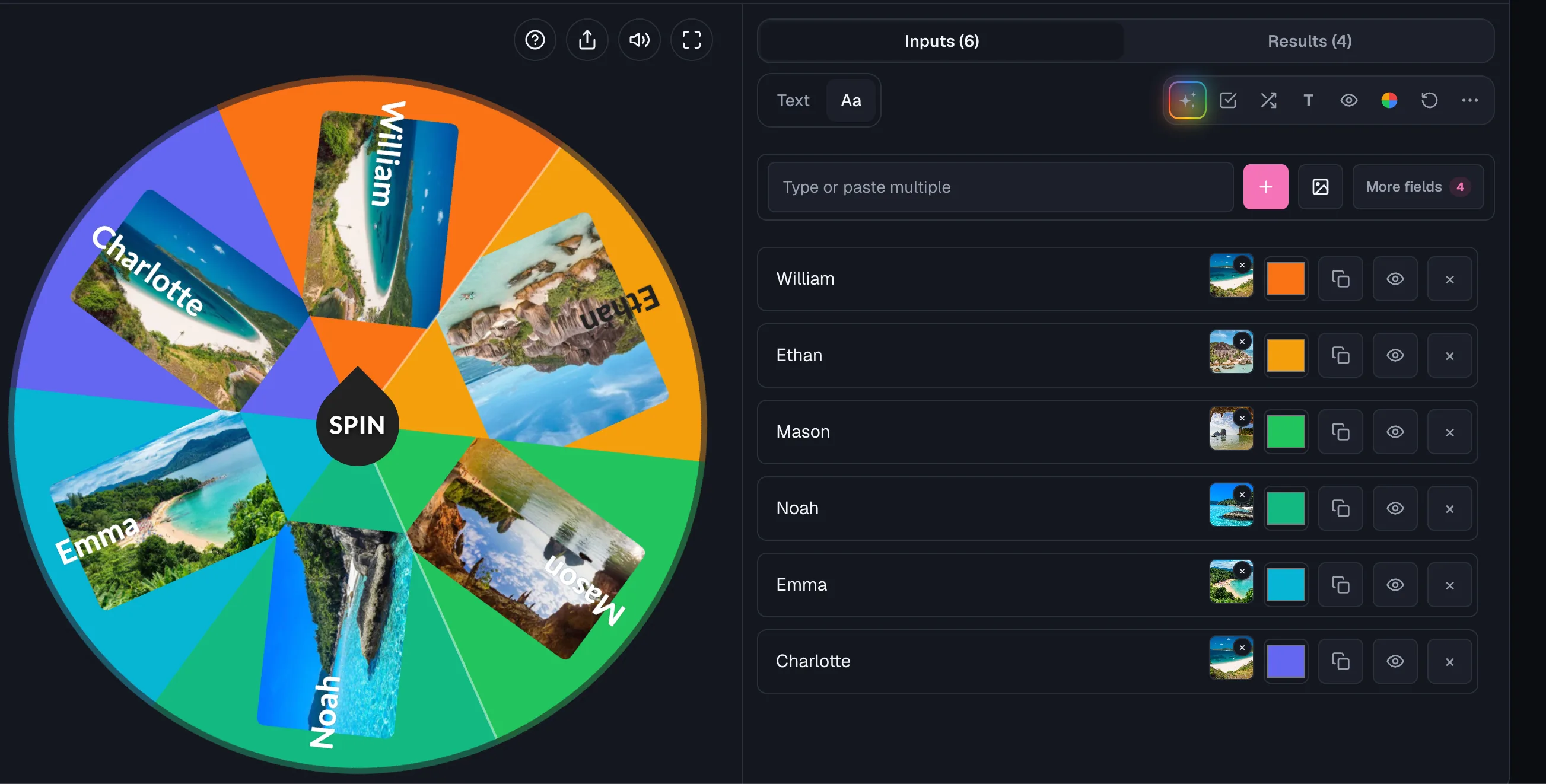
- Click the image icon next to any entry to open a file picker, then choose a photo from your device.
- In Table mode, the toolbar's image button can fill several rows at once, up to the wheel's 100-image limit. Text-only entries go up to 500; images are capped lower because each one has to be decoded and held in memory.
- Wheel of Names compresses each upload to a maximum 768px edge and re-encodes it, so oversized photos never bloat your wheel.
- SVG files are kept exactly as uploaded, since they're already small and scale cleanly at any size.
Step 3: Choose how big each image shows
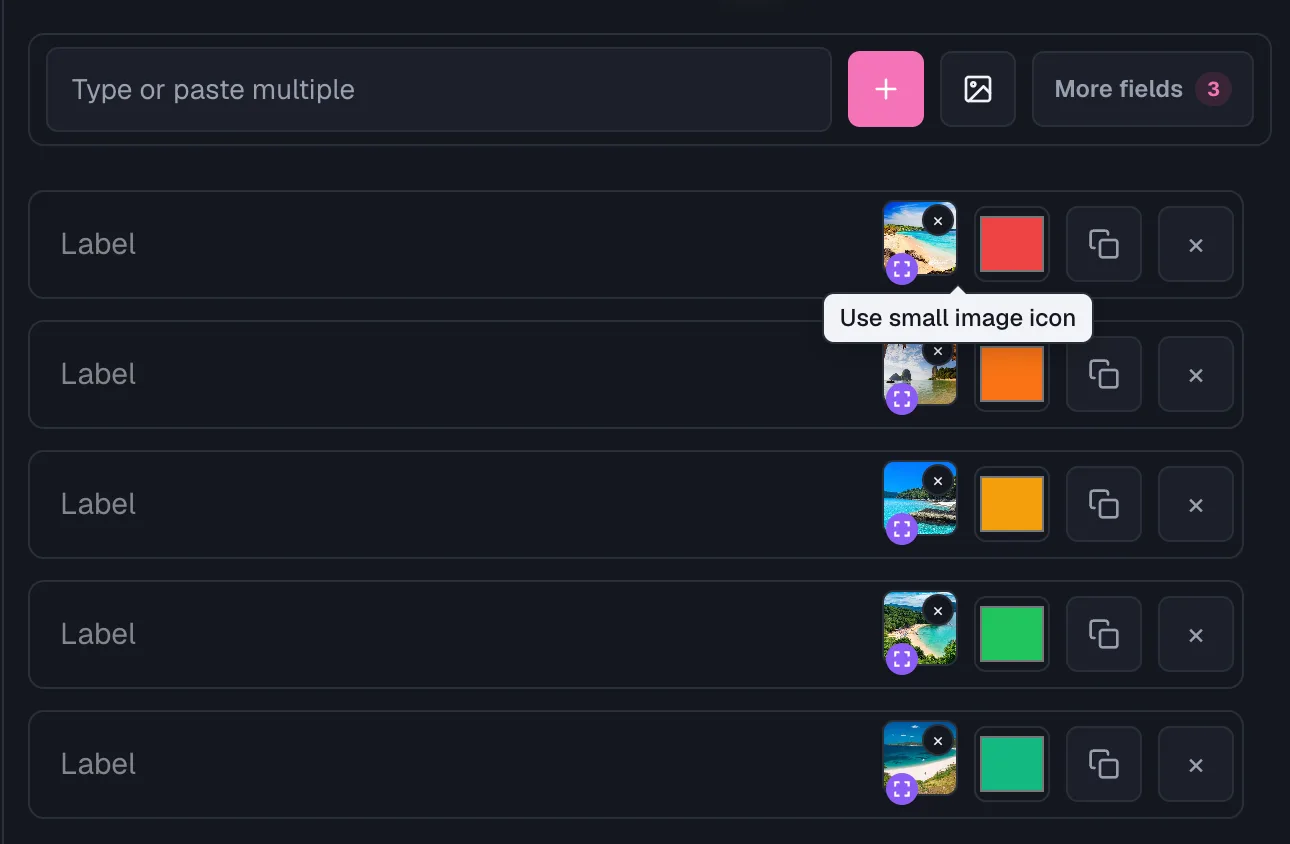
Once an entry has an image, a small badge appears on its image button that switches between two looks.
The default shows the picture as a rounded icon partway along the slice, which keeps the slice color visible around it and reads well on wheels with lots of entries.
Switch it on and the picture fills that slice instead, edge to edge, turned so it sits upright along the slice the same way the label does.
This is set per entry, not for the whole wheel, so you can fill the slices that have a strong photo and leave the rest as icons.
Preview a slice without spinning
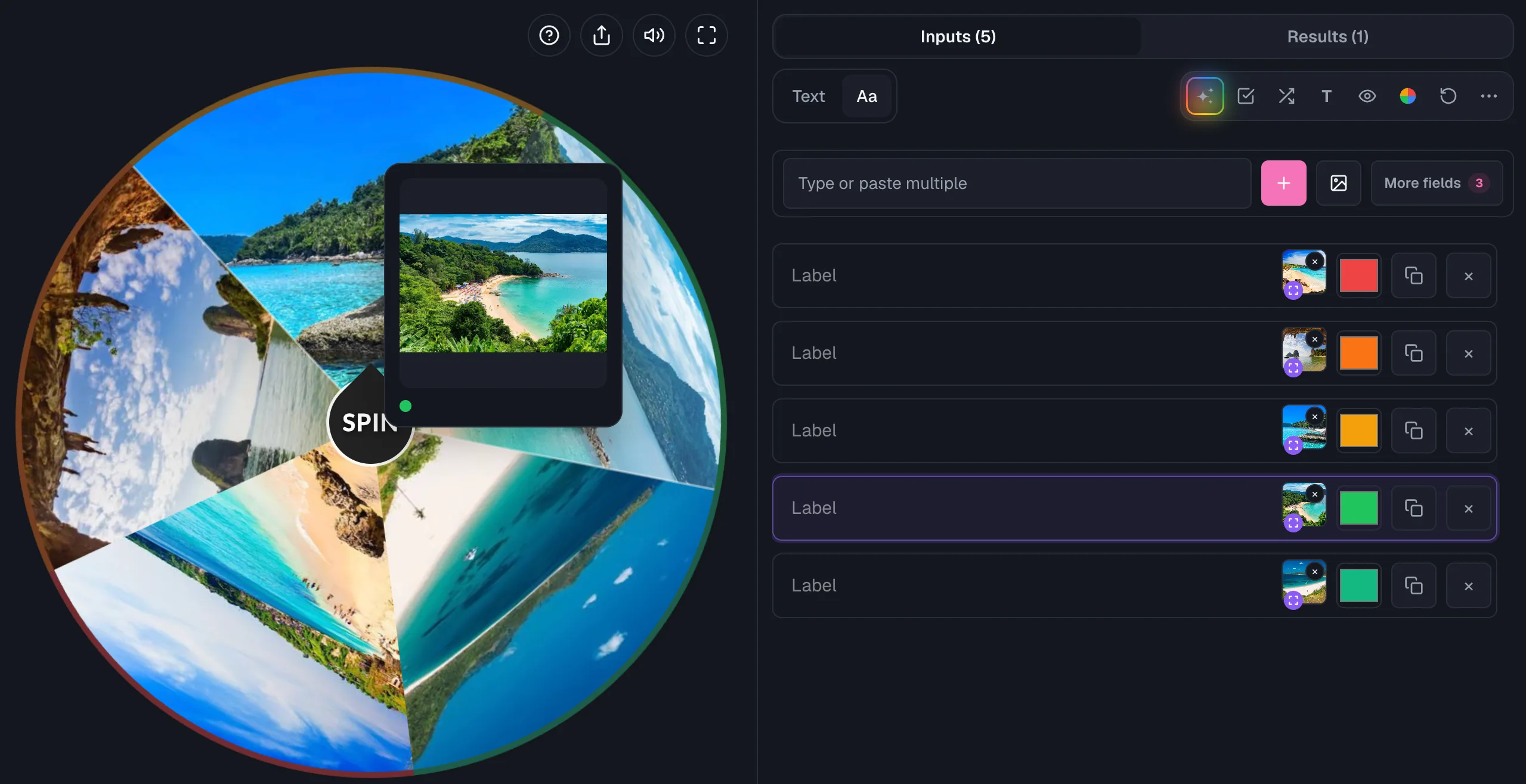
Point at any slice that has a picture and a card pops up showing that image large, along with the entry's name and color.
The same card appears for a name too long to fit its slice, showing the full text the wheel had to shorten.
The matching row in your entries list highlights at the same time, and the list scrolls to it if it was out of view.
On a wheel with dozens of entries, that is the quickest way to find a row.
Look for the slice on the wheel, then edit whichever row lights up.
On a phone or tablet, press and hold a slice for the same card, and lift your finger to close it. A normal tap still spins the wheel.
The wheel also stops its slow idle turn while you point at it or hold a slice, and previews pause while it is spinning.
Show images only, or images plus names
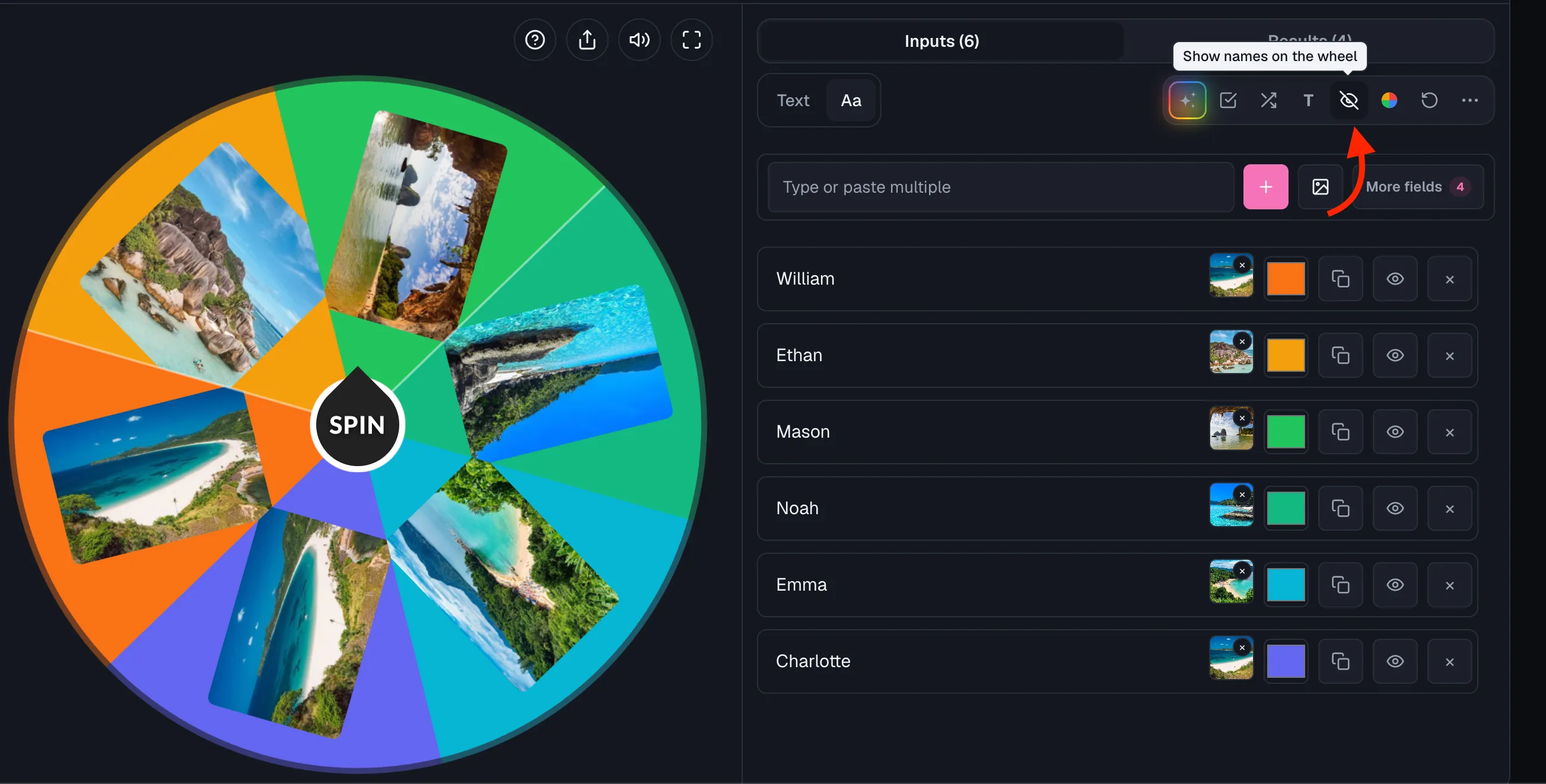
By default, entries show both their image and their text label on the wheel.
Toggle Hide names on the wheel, in the entries toolbar or in Spin Behavior settings, to show images alone for a cleaner look.
The change is only cosmetic. The winner dialog still names the winning entry in text after every spin, so nobody loses track of who actually won.
What happens to an image after you upload it
Uploaded images stay in your browser's local storage, not on a server, until you export, share, or embed the wheel.
Wheel of Names identifies each image by the content of its bytes, not its filename or upload order.
So uploading the same photo to five different entries stores it once, not five separate times.
Clearing your browser's site data clears locally stored images along with the rest of your wheel data.
Tips for images that read well on a spinning wheel
- Pick images with a clear subject in the middle. Slices are pie-shaped, so detail near the edges of a photo often gets cropped out.
- That matters most when a picture fills its whole slice, since a slice is much taller than it is wide. A portrait photo keeps its center and loses its sides. Faces and single objects survive this well, group shots and wide landscapes less so.
- If a photo you want to keep whole gets cropped too tightly, leave that entry on the small icon setting instead, which shows the picture complete.
- Simple, high-contrast images stay readable at small slice sizes better than busy or text-heavy photos do.
- A consistent image style, like all square crops or similar lighting, looks more polished than a mismatched mix once the wheel is spinning.
Frequently asked questions
- Which pages support adding images to a wheel?
Adding images works in the full wheel editor on the homepage and in the embed customizer.
Individual tool pages, like the raffle wheel or random name picker, use simpler panels that don't include an image option.
- Is there a size limit for uploaded images?
Each image is compressed automatically to a maximum 768px edge, so there's no manual size limit to manage yourself.
The one hard cap is on the whole wheel: it must stay under 1MB once exported, shared, or embedded.
- Do my uploaded images get sent to a server?
Not until you export, share, or embed the wheel. Before that, images stay stored locally in your browser and are never uploaded anywhere else.
- Can I show images without any text on the wheel?
Yes. Turn on Hide names on the wheel and entries show only their image on the wheel face. The winner dialog still names the winning entry after each spin.
- Can a picture fill the whole slice instead of showing as a small icon?
Yes. Once an entry has an image, a badge on its image button switches that entry between a small icon and a picture that fills the slice.
It is set per entry, so one wheel can mix both looks.
A filled slice crops the picture to the slice's shape, so pictures with the subject in the middle work best.
- How do I find which entry a slice belongs to?
Point at the slice. Slices with a picture show a preview card with the image and the entry's name, and so do slices whose name was too long to fit.
The matching row in your entries list highlights at the same time, and the list scrolls to it if it was out of view.
On a phone or tablet, press and hold the slice instead, and lift your finger to close the card. A quick tap still spins the wheel.
- Will my images survive if I export my wheel and import it later?
Yes. Export, Import, Share, and Embed all carry images along with the rest of the wheel, as long as the whole file stays under the 1MB size cap.