Classroom & Teacher Guides
How to Customize and Save Your Wheel of Names
There isn't one save mechanism, there are three: auto-save, file export/import, and share links, and each solves a different problem.
Key takeaways
- Your wheel auto-saves to your browser as you edit it. There's no separate "save" step for reopening it later on the same device.
- Use Export/Import (a downloadable .json file) to back up a wheel or move it to a different browser or computer.
- Use a share link to get a wheel onto another device, hand it to a co-teacher, or let students spin it themselves. Links expire after 60 days unopened, or 365 days regardless.
Customization options overview
Before saving anything, it's worth knowing what's actually adjustable, and where.
The purpose-built tool pages (like the classroom picker) keep it to a color theme and sound; everything else below needs the full editor on the wheelofnames.io homepage:
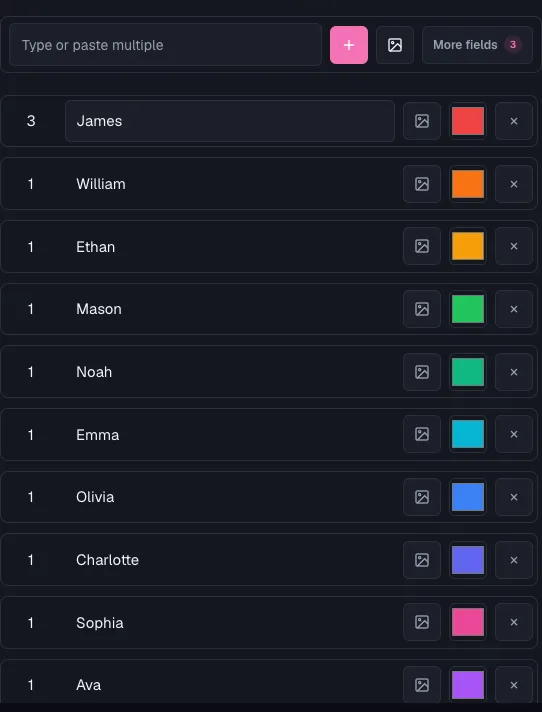
- Slice colors: a color theme is available on every tool page; per-slice manual color overrides (color-coding by team, category, or priority) need the full editor.
- Page background (full editor only): a Default/Tinted toggle with seven preset color swatches, each auto-adjusting for light or dark site theme, plus a native color picker for an exact custom shade.
- Images per entry (full editor only): attach a photo or icon to any entry, useful for younger students or visual categories.
- Weight per entry (full editor only): bias the odds so specific entries are more or less likely to be picked, instead of a flat equal chance.
- Mystery wheel / mystery result (toggled in the full editor, but renders correctly on any page once saved): hide slice labels behind a "?" until the wheel stops, or hide the winner in the result dialog until you reveal it. This is a genuinely different engagement mode from a normal wheel, worth trying for a raffle draw or a suspense-driven classroom moment.
- Sound and confetti: a spin tick and win sound are available on every tool page; the optional confetti burst is a full-editor setting.
Step-by-step: changing slice colors
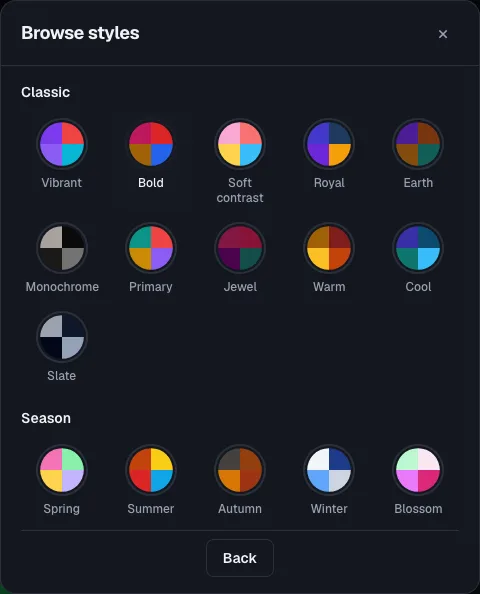
- On a tool page: click Slice colors above the wheel and pick a built-in palette theme.
- In the full editor (homepage): open the customize panel for the same theme picker, plus per-entry manual color overrides if specific slices need to stand out.
- Check contrast on your actual display before relying on it. A classroom projector or a shared screen in a bright room washes out light colors more than a laptop screen does.
The three ways to save a wheel
1. Auto-save (your browser remembers it): works on every wheel page, including the classroom tool page
As you add entries and adjust settings, the wheel saves itself to your browser automatically. There's no explicit "Save" button required to keep working on it.
Close the tab and come back later on the same browser, same device, and your list and settings are exactly where you left them.
The catch: this only persists on that one browser.
It won't follow you to your phone, a different computer, or a school computer lab where you don't control the browser profile.
For that, you need one of the next two methods.
Both need the full editor on the homepage, not a purpose-built tool page.
2. Export/Import (a portable backup file): full editor only
Under Backup & restore in the settings panel, Export wheel downloads a .json file containing your entries and every setting: colors, weights, images, theme.
Import wheel loads a previously exported file back in, replacing whatever's currently on the wheel.
Use this to keep an offline backup of a wheel you don't want to lose.
Or to move a wheel to a different computer by hand: email yourself the file, or put it on a shared drive.
Because import replaces your current wheel, back up anything you don't want to lose before importing over it.
3. Share link (cross-device and collaboration): full editor only
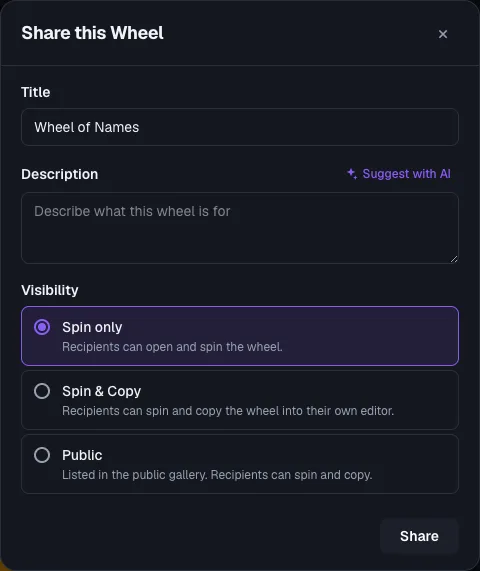
Generate a shareable link to get the same wheel onto another device instantly, or hand it to a co-teacher without walking them through setup.
Or let students spin it themselves from their own screens.
If you built your list on a tool page like the classroom picker, paste the same list into the full editor first; the two aren't automatically connected.
- Links expire if unopened for 60 days, or after 365 days regardless of activity. A share link isn't a permanent archive, so don't rely on it as your only backup of an important wheel (use Export for that).
- Signing in gives you a "My shares" page that lists every link you've created, so you're not hunting through old messages or bookmarks to find a wheel you shared weeks ago.
Troubleshooting
If your wheel isn't saving, or a saved wheel seems to have disappeared, see Wheel of Names Not Saving? How to Fix It.
The most common cause is private/incognito browsing, which clears local storage when the session ends.
Ready to try it yourself?
Open the toolFrequently asked questions
- Do I need an account to save a wheel?
No. Auto-save and Export/Import both work with no account. An account is only needed to see a list of every link you've shared (My shares) rather than tracking them yourself.
- Can I have multiple saved wheels for different classes or teams?
Auto-save keeps whatever's currently open in that browser tab or profile.
For multiple distinct wheels you reopen separately, export each to its own .json file with a clear filename (e.g. period-3-roster.json).
Or generate and bookmark a separate share link per wheel.
- If I import a file, does it overwrite my current wheel or create a second one?
It replaces the current wheel. There's a confirmation prompt before this happens specifically because it's not reversible from within the app.
Export your current wheel first if you want to keep it.
- Will a share link still work after I edit the original wheel?
Treat a share link as a snapshot for handoff purposes and re-share after major edits if the recipient needs the latest version.
Don't assume every edit propagates instantly to everyone who already has the link.